


8 Windows Shortcuts That’ll Make You More Productive and Save You Time
By Corporal Punishmenton 10/23/2025 |
 Everyone knows the classics: Ctrl+C to copy, Alt+Tab to switch apps, and maybe even Win+D to show your desktop. But Windows has a treasure chest of shortcuts most people never touch — and some of them can save you serious time.
Some of these exist in both Windows 10 and 11, while others are brand-new or work far better in Windows 11. Let’s take a look at the hidden key combos every geek should know.
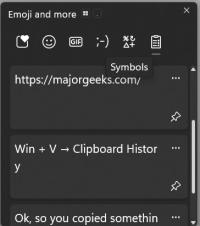
Win + V → Clipboard History
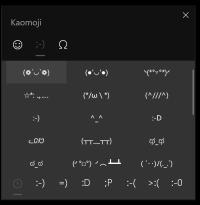
Ok, so you copied something, but now you copied something new, and you want to paste the old copied item. What to do? Instead of hitting CTRL+C, CTRL V in some sort of psychotic keyboard loop, try Win+V. Win+V displays a full history of your last 25 copied texts, links, and screenshots, allowing you to paste from a list easily. This feature is available in Windows 10 and Windows 11. In Windows 11, it’s smoother and much better integrated, adding emoji, ASCII art, and symbols, making it a far more versatile tool.
As a side note, if you are looking for a bit more, take a peek at ClipClip, it has even more features for those that really find this trick useful.
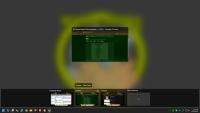
Win + Tab → Task View & Virtual Desktops
Hit Win+Tab and Windows will show screens of all your running apps plus the option to create multiple desktops. You can use these desktops to organize the apps you are running. For example: You can dedicate one desktop for work, another for gaming, and another for those 37 side projects you’ll “definitely” finish one day. Windows 10 had this feature, but Windows 11 improved it with per-desktop wallpapers and a cleaner design, but both versions function about the same.
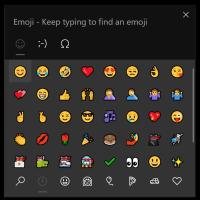
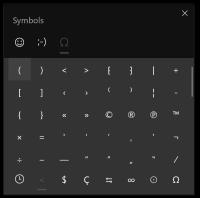
Win + . (Period) → Emoji, Kaomoji & Symbols
Whether you want 😀 for chat, ™ for a document, or ¯\_(ツ)_/¯ for laughs, Win+. opens a panel full of emojis, kaomoji, symbols, and even GIFs. Windows 10 has had this for some time, and the feature has been integrated into the above WIN+V in Windows 11, but you can still access these features with WIN+. For those times when you really need a good gif or a ♪º!
Win + Shift + S → Snip & Sketch
Forget the old Print Screen key. Win+Shift+S lets you select part of the screen, a single window, or the whole display, and it drops the screenshot straight into your clipboard. In Windows 10, it coexisted with the old Snipping Tool. In Windows 11, Snip & Sketch fully replaced it with tighter integration and a more polished editor. It also includes a decent screen recording options for those times when it is easier to show than tell.

Win + H → Voice Typing
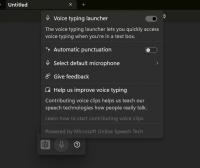
Need to type without using your hands? Win+H activates dictation in any text field. On Windows 10, you may be prompted to enable “Online speech recognition,” which allows cloud access to Microsoft Servers, helping with accuracy, but some people might not love that from a privacy perspective. In Windows 11, this feature was rebuilt into a proper voice typing tool with auto-punctuation and a modern floating toolbar, making it a far more useful tool. On a personal note, I am dyslexic, and this tool is a serious super-powered time saver for me. It's not perfect, but it's way better than I can do when typing naturally.

Win + Ctrl + Shift + B → Reset Graphics Driver
If your screen freezes or your graphics driver is hiccuping a bit, pressing this combo resets the graphics driver instantly without rebooting your computer. It’s one of those hidden emergency shortcuts that works in both Windows 10 and 11 and can save you from a forced restart and losing unsaved data or, worse yet, leaving a game. Once you press the combo, you will hear a beep, the screen will go black, and then it will reload. Presto, the graphics driver has been refreshed.
Super handy for when your game goes blank for some reason or you notice visual performance issues. This won't cure a hardware issue or some other bug, but it will save you some hassle.
Win + Ctrl + L → Lock Magnifier to Cursor
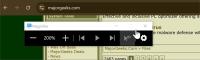
You may know that Win + Plus zooms in with Magnifier, but Win+Ctrl+L takes it further by locking the zoom view to your typing cursor. This makes it much easier to edit, code, or read small text without dragging the whole screen around. Available in both Windows 10 and 11, this shortcut is rarely used but can make a significant difference, particularly for users of 4 K and 8 K monitors. That type can get tiny, and our geeky eyes aren't getting any younger. Oddly, they changed the combination to CTRL + ALT + L in Windows 11 using Win + CTRL + L for live captions. So if ou are on Win 11, use that.
Win + Z → Snap Layouts
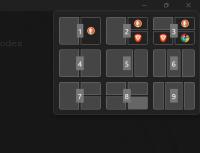
This one is exclusive to Windows 11 and super handy. Win+Z unlocks Snap Layouts. Snap Layouts are neat grids that let you arrange your windows into halves, quarters, or custom layouts. This is a really handy combo to have in your toolbox. Especially for those of us who work with numerous open windows simultaneously. It’s a significant upgrade over Windows 10’s basic Snap Assist, which you must enable (Settings > System > Multitasking) and drag each Window to the upper right or left hoping it ended up where you wanted it. Go ahead, try it now. You know you want to.

Bonus Geek Tricks
● Ctrl + Shift + Esc → Open Task Manager directly (faster than Ctrl+Alt+Del).
● Alt + PrtScn → Capture just the active window instead of the whole screen.
Geek Take
Shortcuts are those sorts of things that feel optional until you start using them. After that, suddenly you can’t live without them. Windows 11 has enhanced some of these useful shortcuts, making them into more complete, useful tools that will 100% increase your productivity. (Especially Snap Layouts and Voice Typing.) However, Windows 10 users still have plenty of hidden powers at their fingertips.
Try a couple of these today, and you’ll quickly look like the office wizard.
Have a favorite key combo? Let us know below.
comments powered by Disqus
