


Change the Default Quiet Hours in Windows 10 Home, Pro, and Enterprise
By Timothy Tibbettson 06/15/2023 |
Have you wondered why you couldn't change the default times that Quiet Hours turns on and off? So were we and with a little Group Policy or registry editing, we can take back control of when Quiet Hours turns on and off.
Windows 8 used to allow you to set the Quiet Hours time but for some reason, it was done away with in Windows 10. Some time zones and countries will even find their quiet times are different than others.
Feel free to browse step-by-step or with this how-to video:
Windows 10 Home Users
Windows 10 Home users will need to edit the registry. As always, why not take a minute to back up your registry just in case?
Press the Windows Key + R and type in regedit.
Navigate to HKEY_CURRENT_USER > SOFTWARE > Policies > Microsoft > Windows > CurrentVersion.
Right-click on CurrentVersion and select create New > Key. Name the new key QuietHours.
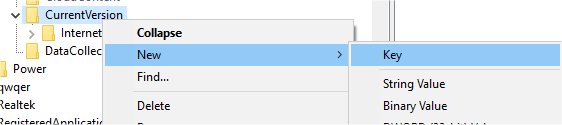
We now need to create two new values inside the QuietHours key. Right-click on QuietHours and select New > DWORD (32-bit) Value. Name the first DWORD EntryTime and repeat the above step and name the second DWORD ExitTime.
As you can guess, EntryTime is when Quiet Hours comes on, and ExitTime is when Quiet Hours will turn off.
Double-click either ExitTime or EntryTime and set the Base option to Decimal. ValueData represents minutes, so you can make it whatever you want. EntryTime represents the time that Quiet Hours starts at midnight and ExitTime represents what time Quiet Hours turns off after 6:00 AM.
For example, if you wanted QuietTime to start at 1:00 AM, you'd enter 60 in the ValueData of EntryTime.
If you wanted QuietTime to turn off at 8:00 AM, you'd enter 120 in the ValueData of ExitTime.
There is no currently no way to start or end QuietTime sooner, only after the scheduled times. It's not perfect, but it should help most of you we hope.
Windows 10 Pro and Enterprise Users
Good news for Pro and Enterprise users - No registry editing needed for you and it's much more straightforward to do with Group Policy Editor.
Press the Windows Key + R and type in gpedit.msc.
Navigate to User Configuration > Administrative Templates > Start Menu and Taskbar > Notifications.
You will see Set the time Quiet Hours begins each day and Set the time Quiet Hours begins ends day on your right.
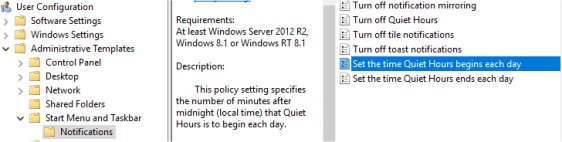
Double click the one you want to modify and check the box next to Modify. Now you will see Minutes after midnight for both begin or end. This number represents minutes, so 60 equals 60 minutes.
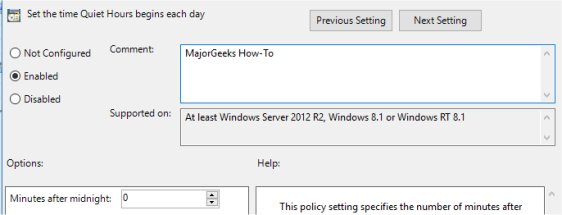
For example, if you wanted QuietTime to start at 1:00 AM, you'd enter 60 in the ValueData of EntryTime.
If you wanted QuietTime to turn off at 10:00 AM, you'd enter 600 in the ValueData of ExitTime.
That should do it unless Microsoft decides to restore the option to configure the time yourself. We're not holding our breath.
comments powered by Disqus
Windows 8 used to allow you to set the Quiet Hours time but for some reason, it was done away with in Windows 10. Some time zones and countries will even find their quiet times are different than others.
Feel free to browse step-by-step or with this how-to video:
Windows 10 Home Users
Windows 10 Home users will need to edit the registry. As always, why not take a minute to back up your registry just in case?
Press the Windows Key + R and type in regedit.
Navigate to HKEY_CURRENT_USER > SOFTWARE > Policies > Microsoft > Windows > CurrentVersion.
Right-click on CurrentVersion and select create New > Key. Name the new key QuietHours.
We now need to create two new values inside the QuietHours key. Right-click on QuietHours and select New > DWORD (32-bit) Value. Name the first DWORD EntryTime and repeat the above step and name the second DWORD ExitTime.
As you can guess, EntryTime is when Quiet Hours comes on, and ExitTime is when Quiet Hours will turn off.
Double-click either ExitTime or EntryTime and set the Base option to Decimal. ValueData represents minutes, so you can make it whatever you want. EntryTime represents the time that Quiet Hours starts at midnight and ExitTime represents what time Quiet Hours turns off after 6:00 AM.
For example, if you wanted QuietTime to start at 1:00 AM, you'd enter 60 in the ValueData of EntryTime.
If you wanted QuietTime to turn off at 8:00 AM, you'd enter 120 in the ValueData of ExitTime.
There is no currently no way to start or end QuietTime sooner, only after the scheduled times. It's not perfect, but it should help most of you we hope.
Windows 10 Pro and Enterprise Users
Good news for Pro and Enterprise users - No registry editing needed for you and it's much more straightforward to do with Group Policy Editor.
Press the Windows Key + R and type in gpedit.msc.
Navigate to User Configuration > Administrative Templates > Start Menu and Taskbar > Notifications.
You will see Set the time Quiet Hours begins each day and Set the time Quiet Hours begins ends day on your right.
Double click the one you want to modify and check the box next to Modify. Now you will see Minutes after midnight for both begin or end. This number represents minutes, so 60 equals 60 minutes.
For example, if you wanted QuietTime to start at 1:00 AM, you'd enter 60 in the ValueData of EntryTime.
If you wanted QuietTime to turn off at 10:00 AM, you'd enter 600 in the ValueData of ExitTime.
That should do it unless Microsoft decides to restore the option to configure the time yourself. We're not holding our breath.
comments powered by Disqus
