


Disable Quick Access, Recent Files, Favorite Folders, and Other File Explorer Tips
By Timothy Tibbettson 06/15/2023 |
By default, File Explorer will open Quick Access (links to your Desktop, Downloads, Documents, Pictures, etc.) and also store your recent folders and files. While not perfect, some File Explorer options allow you to use File Explorer the way you want.
Open File Explorer and click on the File tab, then Change folder and search options.
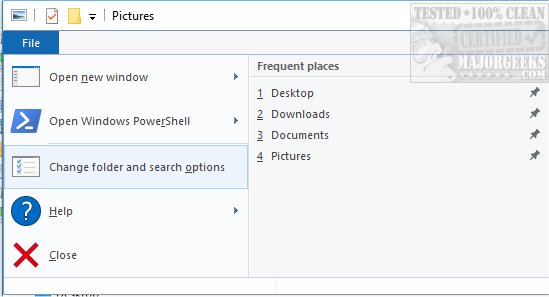
If you don't want to see Quick Access, Windows only allows one other choice. At the top, you will see a drop-down box that says Open File Explorer to. You can leave it alone or switch between Quick Access or This PC as the default File Explorer view.
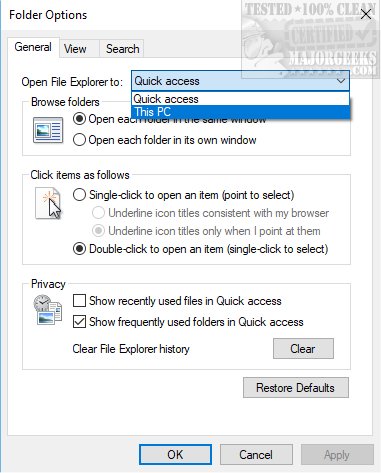
Continue working your way down, and in the next section, you can change what happens when you click on something. By default, everything is done with a double-click. But, you can change this to single-click and even underline icon titles.
Under the Privacy section, you can enable or disable Show recently used files in Quick access as well as Show frequently used folders in Quick access.
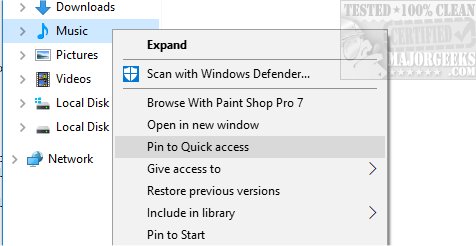
If you uncheck both of these boxes, you can decide for yourself what folders show up in Quick access. Windows will not allow you to pin specific files, but this is perfect if you want to define what folders show up in Quick access. Right-click on any folder and select Pin to Quick access. If you change your mind, right-click again on any shortcut in Quick access, and you will see the option to Unpin from Quick access, allowing you quickly add and remove whatever you like in Quick access.
While we're playing around in File Explorer, be sure to click on the View tab. Here you will find numerous options, including the famous Hidden files and folder that many people need at some point.
-=- Advertisement -=-
The average user will also find many File Explorer annoyances here. You can show icons and menus, hide empty drives, show or hide drive letters, share wizards, expand all, and many other settings.
Finally, the last tab is for Search. If you're a regular File Explorer user, then be sure to decide how you want to use search. You can speed up searches by disabling system directories, compressed files, and file names and contents.
But, wait, there's more! Not really, we like to say that. But, as you know, third-party apps often fill in voids, and there are a lot of freeware 5-star file managers available that will blow you away if you're used to the basics of File Explorer. Be sure to read our reviews, user comments and check out the screenshots. If you need a suggestion, we would recommend trying Q-Dir or Far Manager first.
comments powered by Disqus
Open File Explorer and click on the File tab, then Change folder and search options.
If you don't want to see Quick Access, Windows only allows one other choice. At the top, you will see a drop-down box that says Open File Explorer to. You can leave it alone or switch between Quick Access or This PC as the default File Explorer view.
Continue working your way down, and in the next section, you can change what happens when you click on something. By default, everything is done with a double-click. But, you can change this to single-click and even underline icon titles.
Under the Privacy section, you can enable or disable Show recently used files in Quick access as well as Show frequently used folders in Quick access.
If you uncheck both of these boxes, you can decide for yourself what folders show up in Quick access. Windows will not allow you to pin specific files, but this is perfect if you want to define what folders show up in Quick access. Right-click on any folder and select Pin to Quick access. If you change your mind, right-click again on any shortcut in Quick access, and you will see the option to Unpin from Quick access, allowing you quickly add and remove whatever you like in Quick access.
While we're playing around in File Explorer, be sure to click on the View tab. Here you will find numerous options, including the famous Hidden files and folder that many people need at some point.
 TIP:
TIP: The average user will also find many File Explorer annoyances here. You can show icons and menus, hide empty drives, show or hide drive letters, share wizards, expand all, and many other settings.
Finally, the last tab is for Search. If you're a regular File Explorer user, then be sure to decide how you want to use search. You can speed up searches by disabling system directories, compressed files, and file names and contents.
But, wait, there's more! Not really, we like to say that. But, as you know, third-party apps often fill in voids, and there are a lot of freeware 5-star file managers available that will blow you away if you're used to the basics of File Explorer. Be sure to read our reviews, user comments and check out the screenshots. If you need a suggestion, we would recommend trying Q-Dir or Far Manager first.
comments powered by Disqus
