


Is It Safe to Turn on a Hot or Cold Computer?
By Timothy Tibbettson 06/15/2023 |
A common question with computers is if, or when, it's safe to turn on a computer or laptop after it's been sitting in extreme heat or cold temperatures.
This question arises most frequently when someone orders a new computer that was shipped to them during hot or freezing weather, or their computer has been in a hot or freezing car.
The answer is that your laptop or computer should be kept off until it reaches room temperature, or close to it.
Let's take a look at why this is important.
Laptops and computers include fans and heatsinks for cooling. The reason for the cooling is because some hardware, especially video cards and processors, can generate a lot of heat. Processers, in particular, can rise to temperature in seconds. Because of this, all processors have a heatsink and fan with thermal adhesive between them to bond and assist in drawing heat away from the processor.
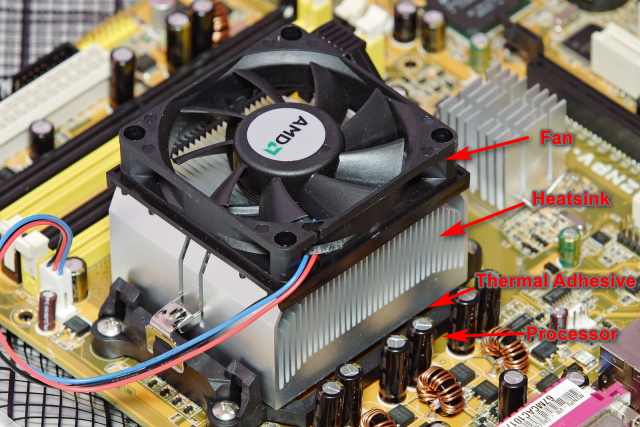
Ask anyone who ever built a computer, and they'll tell you the first five seconds that the computer is turned on is the scariest because you need to have installed the heatsink, adhesive, and fan correctly.
The next obvious question is, how long do you have to wait? On a laptop or computer, you can often touch the case, and when it feels room temperature, you should be good to go. Many laptops are plastic, so that can be misleading, while most desktops are metal and the touch method is more reliable.
On a laptop, we'd prefer you to remove and touch the battery and see if the temperature is normal. You can leave the battery out to speed up the process. On a desktop, while unplugged, you can remove the side panel and touch the hard drive or any part of the metal case.
If you don't want to remove the battery or side cover, two to three hours should be enough.
comments powered by Disqus
This question arises most frequently when someone orders a new computer that was shipped to them during hot or freezing weather, or their computer has been in a hot or freezing car.
The answer is that your laptop or computer should be kept off until it reaches room temperature, or close to it.
Let's take a look at why this is important.
Laptops and computers include fans and heatsinks for cooling. The reason for the cooling is because some hardware, especially video cards and processors, can generate a lot of heat. Processers, in particular, can rise to temperature in seconds. Because of this, all processors have a heatsink and fan with thermal adhesive between them to bond and assist in drawing heat away from the processor.
Ask anyone who ever built a computer, and they'll tell you the first five seconds that the computer is turned on is the scariest because you need to have installed the heatsink, adhesive, and fan correctly.
The next obvious question is, how long do you have to wait? On a laptop or computer, you can often touch the case, and when it feels room temperature, you should be good to go. Many laptops are plastic, so that can be misleading, while most desktops are metal and the touch method is more reliable.
On a laptop, we'd prefer you to remove and touch the battery and see if the temperature is normal. You can leave the battery out to speed up the process. On a desktop, while unplugged, you can remove the side panel and touch the hard drive or any part of the metal case.
If you don't want to remove the battery or side cover, two to three hours should be enough.
comments powered by Disqus
