


Can I Delete the Windows.old Folder in Windows 10?
By Timothy Tibbettson 06/19/2023 |
If you recently upgraded Windows, you might have noticed a Windows.old folder on your computer. Or maybe you're running low on drive space and need to reclaim some space. The Windows.old folder can take 20 gigs of disk space on a clean install. You can check by opening File Explorer and seeing if the directory exists.
If you try to delete the folder with File Explorer, you will get a permission denied error. While you can get around this, it's hardly worth your time and effort.
The first thing that you want to be sure of is that you don't want to roll back to the previous version of Windows 10. If you do, go to Start, Settings, Update & Security, Recovery, Go back to an earlier build. Windows will walk you through it, and when finished, you can follow the rest of these steps to delete the Windows.old folder.
Now you have two choices to delete the folder depending on what you're comfortable with and what works.
Use CCleaner
Odds are you have CCleaner installed. If you don't, download CCleaner here.
1: Look for the Windows tab (next to the Applications tab) at the top and scroll down to Advanced. Check the box that says Old Windows Installation.
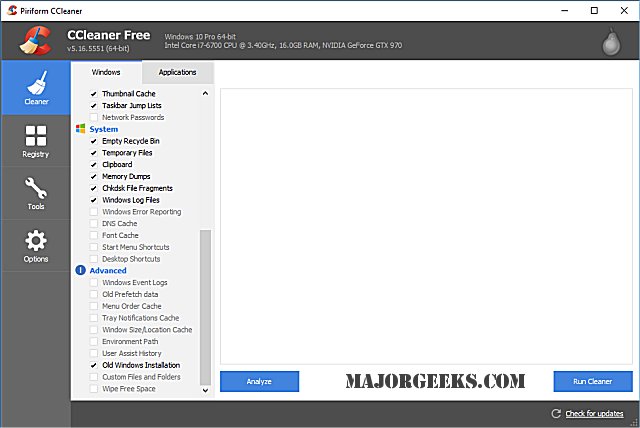
2: Click on Analyze to see what CCleaner finds or Run Cleaner to remove what it finds.
If you click analyze, it should show Advanced - Old Windows Installation like this:
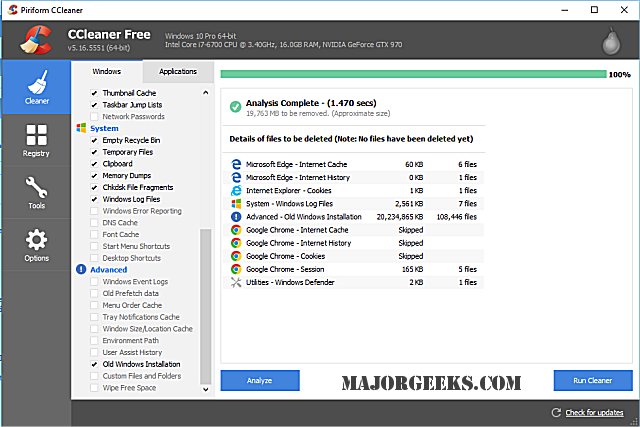
3: Click on "Run Cleaner" to delete the Windows.Old folder. Because it's a large folder, you can expect it to take a few minutes or more on slower computers.
Note that once you click on "Run Cleaner," there's no going back. You can't restore it, and you won't find it in your recycle bin.
Use Microsoft Disk Cleanup
If you don't have CCleaner installed, the built-in Windows Disk Cleanup should work for you but not as well as CCleaner as sometimes it leaves some files behind, but it does get most of it.
1: Go to Start, Windows Administrative Tools, Disk Cleanup
2: Click OK to do an initial scan for files
3: Look for the box that says "Previous Windows installations(s), and check that box
4: Check any boxes that have other files you want to delete. You can click on any item to see a description of what it deletes.
5: Click on "Clean up system files, " and you're done.
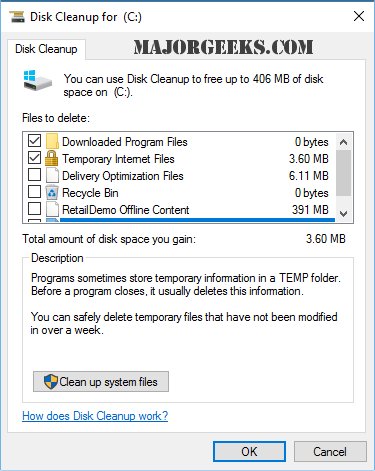
This should work for anyone who does not have CCleaner installed; however, it didn't show up for me, as you can see below.
Enjoy all your new free space!
comments powered by Disqus
If you try to delete the folder with File Explorer, you will get a permission denied error. While you can get around this, it's hardly worth your time and effort.
The first thing that you want to be sure of is that you don't want to roll back to the previous version of Windows 10. If you do, go to Start, Settings, Update & Security, Recovery, Go back to an earlier build. Windows will walk you through it, and when finished, you can follow the rest of these steps to delete the Windows.old folder.
Now you have two choices to delete the folder depending on what you're comfortable with and what works.
Use CCleaner
Odds are you have CCleaner installed. If you don't, download CCleaner here.
1: Look for the Windows tab (next to the Applications tab) at the top and scroll down to Advanced. Check the box that says Old Windows Installation.
2: Click on Analyze to see what CCleaner finds or Run Cleaner to remove what it finds.
If you click analyze, it should show Advanced - Old Windows Installation like this:
3: Click on "Run Cleaner" to delete the Windows.Old folder. Because it's a large folder, you can expect it to take a few minutes or more on slower computers.
Note that once you click on "Run Cleaner," there's no going back. You can't restore it, and you won't find it in your recycle bin.
Use Microsoft Disk Cleanup
If you don't have CCleaner installed, the built-in Windows Disk Cleanup should work for you but not as well as CCleaner as sometimes it leaves some files behind, but it does get most of it.
1: Go to Start, Windows Administrative Tools, Disk Cleanup
2: Click OK to do an initial scan for files
3: Look for the box that says "Previous Windows installations(s), and check that box
4: Check any boxes that have other files you want to delete. You can click on any item to see a description of what it deletes.
5: Click on "Clean up system files, " and you're done.
This should work for anyone who does not have CCleaner installed; however, it didn't show up for me, as you can see below.
Enjoy all your new free space!
comments powered by Disqus
