


Can't Create System Image Because Next and Cancel Buttons Are Grayed Out
By Timothy Tibbettson 06/19/2023 |
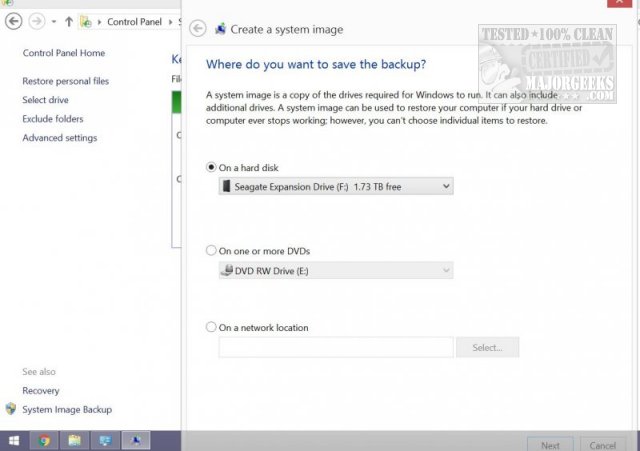
Recently while trying to create a system image on a new expandable hard drive, we were unable to create a system image. The next and cancel buttons remain unclickable. Everything on the hard drive is working correctly otherwise. We should tell you now that you might want to backup your data. We need to play with the partitions, and that comes with a risk of losing all data. Since this problem seems to happen more frequently with external drives, this is even more important than ever.
To fix the problem, we're going to want to open Disk Management. Press Windows key + R and type in disk management until you see Create and format disk partitions. Click on that to open Disk Management.
Select the drive causing the problem.
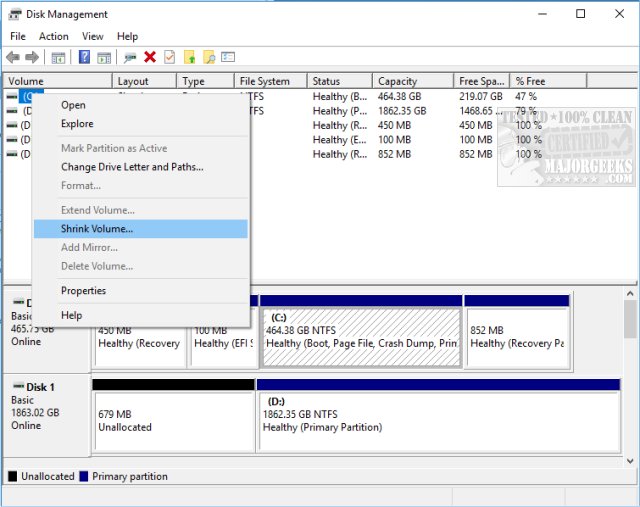
Right click on that drive and select shrink partition. If you have data on the drive, leave it there, and shrink this to half its current size.
If you want to create all the partitions with Disk management, you do the same with the no unallocated space, to form your next partition, and again to create your last partition.
You should now be able to create your system image.
As always, Microsoft's tools are not the best. If you have trouble doing it as described above, we suggest using MiniTool Partition Wizard. As the name suggests, using the wizard can walk you through the steps.
comments powered by Disqus
To fix the problem, we're going to want to open Disk Management. Press Windows key + R and type in disk management until you see Create and format disk partitions. Click on that to open Disk Management.
Select the drive causing the problem.
Right click on that drive and select shrink partition. If you have data on the drive, leave it there, and shrink this to half its current size.
If you want to create all the partitions with Disk management, you do the same with the no unallocated space, to form your next partition, and again to create your last partition.
You should now be able to create your system image.
As always, Microsoft's tools are not the best. If you have trouble doing it as described above, we suggest using MiniTool Partition Wizard. As the name suggests, using the wizard can walk you through the steps.
comments powered by Disqus
