


Chrome’s Vertical Tabs and Split View Make It Easier to Get Things Done
By Jim McMahonon 10/13/2026 |
![{$insert['content_title']](/content/file/6491_image3.jpg
)
I woke up this morning to find Chrome had updated on my computer. Sometimes I hate that. Today, however, I was pleasantly surprised when its “What’s New” page highlighted vertical tabs. Combined with Split View, introduced in February 2026, Chrome is getting closer to the usability I love about Opera.
Google began rolling out vertical tabs in April, so this is not a brand-new feature exclusive to Chrome 155. But Chrome decided this morning was a good time to bring it to my attention. Better late than never.
I still prefer Opera Oneoverall, mainly because I find it less intrusive and more useable. However, Chrome is hard to ignore when you spend a good part of your day using Gmail, Google Workspace, and other Google services. I tend to use Chrome for Google things, Edge for Microsoft things, and Opera for everything else.
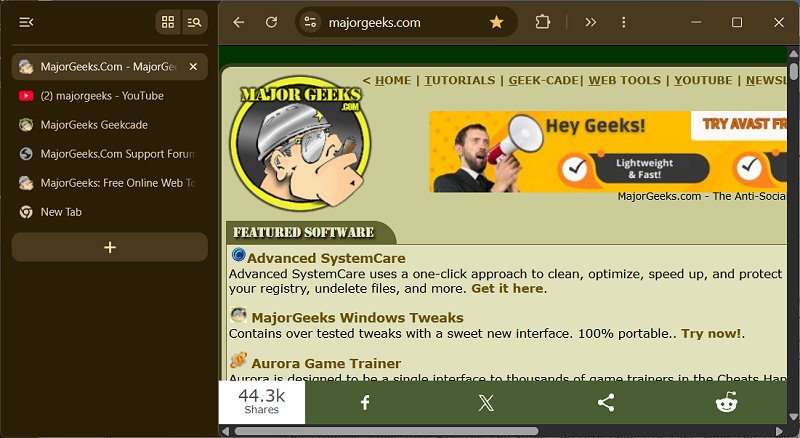
Vertical Tabs Make a Crowded Browser Easier to Use
Open enough tabs across the top of a browser, and eventually you are identifying pages by tiny icons and whatever letters survived the squeeze. Good luck finding the right article when six tabs have the same website icon. I have a friend who works just like that. I have no idea how she finds anything.
Vertical tabs move your tabs to the side of the window, giving titles more room and making tab groups easier to manage. If you keep email, articles, downloads, and documents open throughout the day, being able to read the names makes a noticeable difference.
To enable them, right-click the tab strip and select “Show tabs vertically.” there's a collapse button to the upper left which is nice as well to get the Tabs more out of the way. Or you can hit CTRL+SHIFY-U if you are a shortcut lover. The nice thing about doing that, is you can expand that bar at will by hovering over it to see your tabs. I love that.
It is a simple idea, but a useful one. Once you get comfortable with it, that crowded row across the top starts feeling like a step backward.
Split View Is Also Awesome
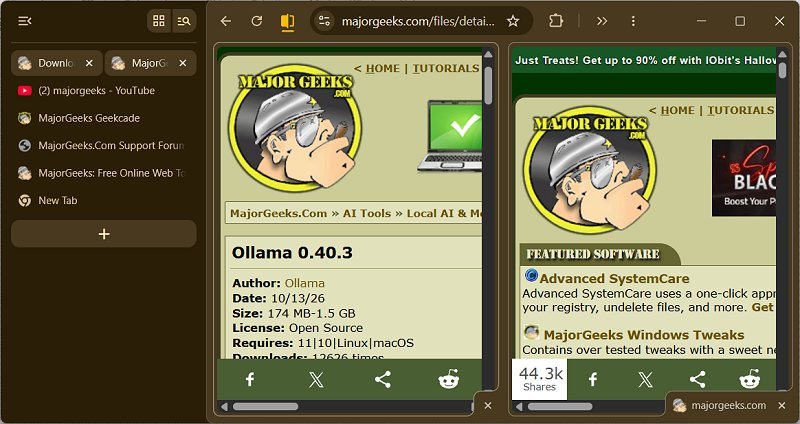
Chrome’s Split View, announced in February 2026, was already a welcome productivity improvement. Opera users will recognize the idea: display two webpages side by side inside the same browser window.
You can keep Gmail beside a document, release notes beside your CMS, or two products visible while comparing them. Instead of switching tabs every few seconds, both pages stay in front of you.
To try it, drag another tab to the left or right edge of your browser window. You can also right-click a link and select “Open Link in Split View.”
Once spilt you can right click again to arrange or close the split in a way you like. For example stack vertically instead of horizontally or pin the tab for easy access.
Split View was a great start for Chrome, and vertical tabs bring it another step closer to the experience I enjoy in Opera. Once you use both, you start wondering why every browser does not offer them. Moving between pages and keeping your work visible becomes easier, and going back to a browser without them feels slow and awkward.
What Else Changed in Chrome 155?
Chrome’s “What’s New” page also highlights the following features, although some arrived before version 155:
Gemini media understanding: Ask questions about audio or video you have played by opening Gemini in Chrome, sharing the tab, and asking for details or a summary. Frankly, I’m getting a little tired of everything adding stupid AI summaries. Thankfully, you can disable this feature under Settings > AI in Chrome > Gemini in Chrome > Media understanding. Availability depends on your eligibility for Gemini in Chrome.
PDF signatures and annotations: Chrome lets you draw a signature, add annotations, and highlight text without printing the document or opening another application. Open a PDF, click “Annotations,” choose your pen or highlighter style and color, and make your changes. Click “Save” when finished. Zooming in makes signing on a small line easier.
Google Wallet autofill: Supported forms can use saved loyalty card numbers, vehicle information, and flight details. That means less digging for a rewards number, license plate, VIN, or flight confirmation.
Security and other updates: Chrome 155 includes 247 security fixes, including several rated critical. It also adds JPEG XL image support and improvements to web app window controls, cryptography, and website layouts.
Those changes may matter to you, but vertical tabs caught my eye. I am still an Opera guy. However, combining readable tabs down the side with two pages visible at once gives me fewer reasons to grumble when I need to work in Chrome.

|
Jim McMahon
Jim McMahon, aka Corporal Punishment, is the founder of MajorGeeks.com. He has spent decades testing software, troubleshooting Windows, and helping users cut through the nonsense. He loves real freeware, hates bloatware, and runs on caffeine, sarcasm, and questionable choices. |
