


Code 43 - Windows Has Stopped This Device Because It Has Reported Problems
By Timothy Tibbettson 06/20/2023 |
If you're receiving the Code 43 - Windows Has Stopped This Device Because It Has Reported Problems error, here's how you can fix it.
This error message is straightforward. One of the drivers is telling Windows there's a problem. We need to update drivers or remove the device and allow Windows to redetect and install it again.
1: Update Your Drivers
Many of these errors are hardware problems and can be fixed by just updating your device drivers. We'd try Driver Booster first, reboot, and see if your problem is solved.
2: Remove and Reinstall the Device
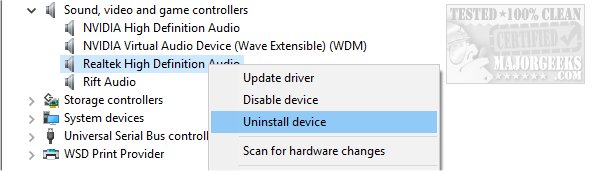
Press the Windows Key + S and begin typing in device manager and click on device manager. Windows 7 users can go to Start, Control Panel as well. Find the hardware that's giving you trouble. For this example, we'll use Realtek High Definition Audio. Right-click and select Uninstall.
You will receive a warning that says You are about to uninstall this device from your system. Also, check the box that says Delete the driver software for this device. If you see two devices and already rebooted, you won't know which one caused the error so remove both.
Reboot after Windows is finished. Windows will not redetect and reinstall the device you removed. You might want to update your drivers now with Driver Booster.
If you have a different Device Manager error code, here are all the device manager error codes and solutions.
comments powered by Disqus
This error message is straightforward. One of the drivers is telling Windows there's a problem. We need to update drivers or remove the device and allow Windows to redetect and install it again.
1: Update Your Drivers
Many of these errors are hardware problems and can be fixed by just updating your device drivers. We'd try Driver Booster first, reboot, and see if your problem is solved.
2: Remove and Reinstall the Device
Press the Windows Key + S and begin typing in device manager and click on device manager. Windows 7 users can go to Start, Control Panel as well. Find the hardware that's giving you trouble. For this example, we'll use Realtek High Definition Audio. Right-click and select Uninstall.
You will receive a warning that says You are about to uninstall this device from your system. Also, check the box that says Delete the driver software for this device. If you see two devices and already rebooted, you won't know which one caused the error so remove both.
Reboot after Windows is finished. Windows will not redetect and reinstall the device you removed. You might want to update your drivers now with Driver Booster.
If you have a different Device Manager error code, here are all the device manager error codes and solutions.
comments powered by Disqus
