


Computer Won't Detect Your Wi-Fi Adapter
By Timothy Tibbettson 06/15/2023 |
If your Wi-Fi adapter has disappeared, it can be frustrating to locate the cause and get it working. Using an ethernet cable is not an option for most people nowadays. Here are some ways to fix a missing Wi-Fi adapter.
This article assumes that you had a functioning Wi-Fi adapter and it disappeared. Typical symptoms include being told to plug in an ethernet adapter, no Wi-Fi adapter showing up and or grayed out or a Code 45. Our first two steps and very simple and only verify you accidentally didn't turn off your Wi-Fi.
1: Verify Wi-Fi Is On
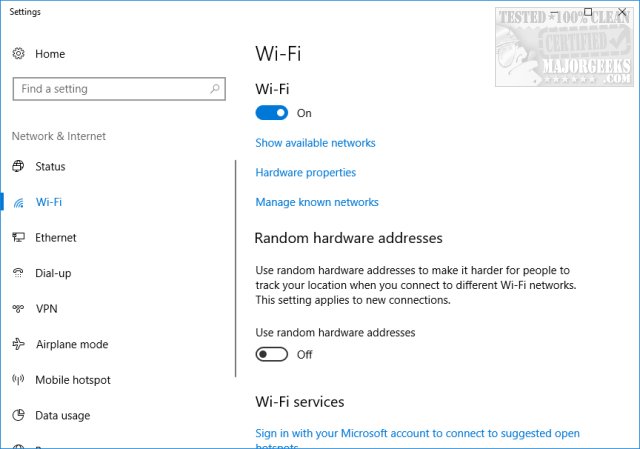
Press the Windows Key + S and begin typing wifi and click on Change Wi-Fi settings. Be sure Wi-Fi is set to On.
2: Check Airplane Mode
It's possible you enabled Airplane mode by mistake. Click on Notifications in the lower-right corner and make sure Airplane mode is off. If Airplane mode is blue, it's enabled.
3: Run the Network Troubleshooter
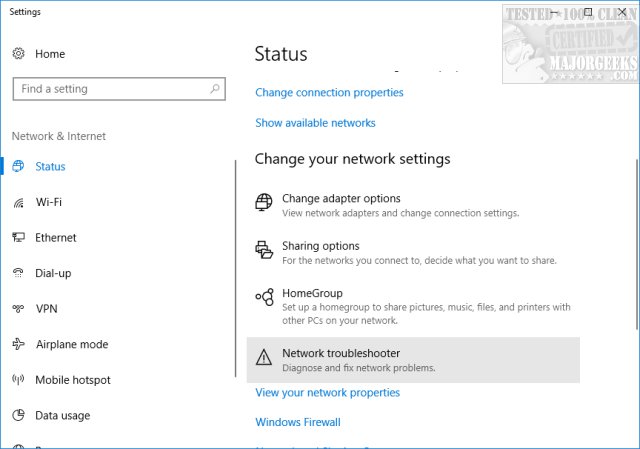
This step could work for anyone but is the most common solution for code 45. Press the Windows Key + S and begin typing troubleshoot and click on Troubleshoot network. Scroll down and click on Network troubleshooter. Follow the prompts. Your results may vary here depending on the problem, but it's simple to do.
If you can see your adapter, but it is grayed out, try to right-click and remove the adapter and reboot. Hopefully, Windows will redetect and reinstall your Wi-Fi adapter.
4: Update Your Drivers
Many of these errors are hardware problems and can be fixed by just updating your device drivers. We'd try Driver Booster first, reboot, and see if your problem is solved.
If Windows or Driver Booster doesn't recognize your adapter, you may need to go to the manufacturer website to get the driver.
5: Check Your BIOS Settings
Your Wi-Fi adapter has to be enabled in the BIOS. This is a longshot and most likely only a possibility if you recently updated your BIOS, but we've seen people this helped. Entering and finding your adapter varies from motherboard to motherboard so check your documentation on how to get to the BIOS and find your Wi-Fi adapter. You're looking for onboard devices and making sure Wi-Fi in on.
6: Try a USB Wi-Fi Adapter
When all else fails, you can buy a USB Wi-Fi adapter for as little as 20 or 30 bucks. Hardware goes bad eventually, and we want to consider the possibility that your adapter is broken. If you can live with a Wi-Fi USB adapter sticking out, it's worth a try.
comments powered by Disqus
This article assumes that you had a functioning Wi-Fi adapter and it disappeared. Typical symptoms include being told to plug in an ethernet adapter, no Wi-Fi adapter showing up and or grayed out or a Code 45. Our first two steps and very simple and only verify you accidentally didn't turn off your Wi-Fi.
1: Verify Wi-Fi Is On
Press the Windows Key + S and begin typing wifi and click on Change Wi-Fi settings. Be sure Wi-Fi is set to On.
2: Check Airplane Mode
It's possible you enabled Airplane mode by mistake. Click on Notifications in the lower-right corner and make sure Airplane mode is off. If Airplane mode is blue, it's enabled.
3: Run the Network Troubleshooter
This step could work for anyone but is the most common solution for code 45. Press the Windows Key + S and begin typing troubleshoot and click on Troubleshoot network. Scroll down and click on Network troubleshooter. Follow the prompts. Your results may vary here depending on the problem, but it's simple to do.
If you can see your adapter, but it is grayed out, try to right-click and remove the adapter and reboot. Hopefully, Windows will redetect and reinstall your Wi-Fi adapter.
4: Update Your Drivers
Many of these errors are hardware problems and can be fixed by just updating your device drivers. We'd try Driver Booster first, reboot, and see if your problem is solved.
If Windows or Driver Booster doesn't recognize your adapter, you may need to go to the manufacturer website to get the driver.
5: Check Your BIOS Settings
Your Wi-Fi adapter has to be enabled in the BIOS. This is a longshot and most likely only a possibility if you recently updated your BIOS, but we've seen people this helped. Entering and finding your adapter varies from motherboard to motherboard so check your documentation on how to get to the BIOS and find your Wi-Fi adapter. You're looking for onboard devices and making sure Wi-Fi in on.
6: Try a USB Wi-Fi Adapter
When all else fails, you can buy a USB Wi-Fi adapter for as little as 20 or 30 bucks. Hardware goes bad eventually, and we want to consider the possibility that your adapter is broken. If you can live with a Wi-Fi USB adapter sticking out, it's worth a try.
comments powered by Disqus
