Providing Free and Editor Tested Software Downloads
< HOME | TUTORIALS | GEEK-CADE| WEB TOOLS | YOUTUBE | NEWSLETTER | DEALS! | FORUMS | >

MajorGeeks.com - The Few, The Proud, The Geeks.

Software Categories

All In One Tweaks
Android
Antivirus & Malware
Appearance
Back Up
Browsers
CD\DVD\Blu-Ray
Covert Ops
Drivers
Drives (SSD, HDD, USB)
Games
Graphics & Photos
Internet Tools
Linux Distros
MajorGeeks Windows Tweaks
Multimedia
Networking
Office & Productivity
System Tools

Other news

· How To and Tutorials
· Life Hacks and Reviews
· Way Off Base
· MajorGeeks Deals
· News
· Off Base
· Reviews


IObit Black Friday Sale

spread the word

· YouTube
· Facebook
· Instagram
· Twitter
· Pintrest
· RSS/XML Feeds
· News Blur
· Yahoo
· Symbaloo

about

· Top Freeware Picks
· Malware Removal
· Geektionary
· Useful Links
· About Us
· Copyright
· Privacy
· Terms of Service
· How to Uninstall

top downloads

1. GS Auto Clicker
2. Macrium Reflect FREE Edition
3. Smart Defrag
4. MusicBee
5. Microsoft Visual C++ 2015-2022 Redistributable Package
6. Sergei Strelec's WinPE
7. Visual C++ Redistributable Runtimes AIO Repack
8. Mozilla Firefox
9. K-Lite Mega Codec Pack
10. Winslop
More >>

top reads

Star How To Remove the Windows 11 Updated Start Menu

Star How To Disable Drag Tray

Star How To Permanently Delete Files Without Sending Them to the Recycle Bin in Windows 11

Star How To Repair Install Windows 11, and Keep All Your Files and Apps

Star How To Turn Off Folder Backup Syncing on OneDrive

Star AI Actions - What Are They and How To Enable/Disable Them

Star Microsoft Is Ending 3rd Party Printer Driver Support in 2026: How to Protect Old Printer Drivers

Star How To Stop Edge and Chrome Default Browser Prompts

Star How To Configure Allowed Apps for Controlled Folder Access

Star Pause or Disable Automatic App Updates in Microsoft Store


MajorGeeks.Com » Overview» Tutorials and Video Guides » Enable or Disable Autocorrect, Text Suggestions, and Highlighting

Enable or Disable Autocorrect, Text Suggestions, and Highlighting

By Timothy Tibbetts

on 06/15/2023

Show your PC some ❤️ Up to 90% off IObit’s top tools + 2 free months for Valentine’s Day
Because your PC doesn't care about Flowers and Candy!

Windows 10 & 11 can highlight and autocorrect misspelled words and show text suggestions while you type on a hardware keyboard. Here's where to find the settings for these three.

Open Settings. Begin typing Typing settings in search, and click on Typing settings.
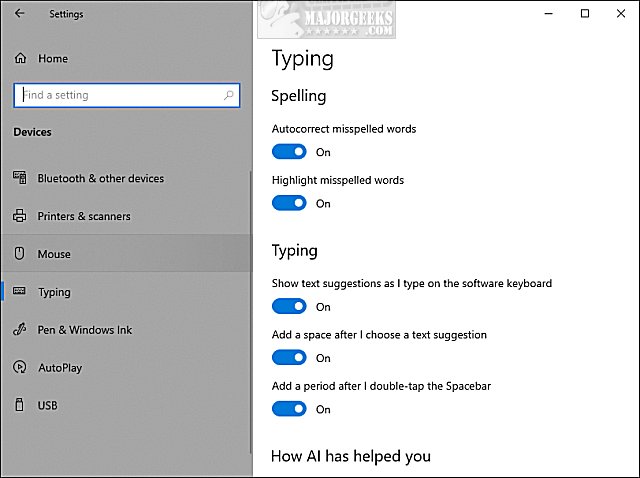


Here are your choices:

Spelling

  • Autocorrect misspelled words
  • Highlight misspelled words

    Typing

  • Show text suggestions as I type on the software keyboard
  • Add a space after I choose a text suggestion
  • Add a period after I double-tap the Spacebar

    While we're here, you might want to look at your other options:

    Hardware keyboard

  • Show text suggestions as I type
  • Autocorrect misspelled words I type

    Multilingual text suggestions

  • Show text suggestions based on the recognized languages you're typing in

    comments powered by Disqus


  • © 2000-2026 MajorGeeks.com
    Powered by Contentteller® Business Edition
