


Everything You Need to Know About Pagefile.sys
By Timothy Tibbettson 06/15/2023 |
Those who find themselves low on disk space may be considering removing the very large pagefile.sys. What is pagefile.sys and what are your options?
Pagefile.sys, in short, is your virtual memory. If your computer runs low on memory, this is space reserved on your hard drive to act as memory as needed. Those of you who found this article have probably already viewed numerous articles about pagefile.sys and still are wondering what you can do. The honest, best answer is to leave it alone. If possible, buying a larger hard drive or more memory is a simple solution.
That said, you can manage your pagefile.sys by making it smaller or even moving it to another drive. We do recommend only advanced users tinker with the pagefile and never delete it.
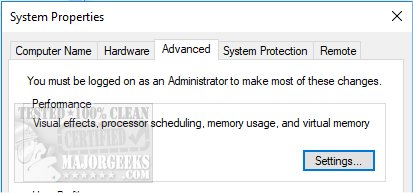
Press the Windows Key + S and begin typing advanced until you see View advanced system settings and click on that. Under Performance, click on Settings.
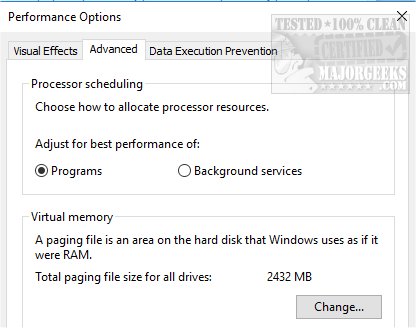
Now, click on the Advanced tab and finally under Virtual Memory click on Change.
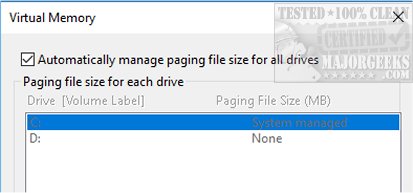
By default, everything should be grayed out. As we said, Windows prefers you don't play with your pagefile. You'll need to uncheck Automatically manage paging file size for all drives.
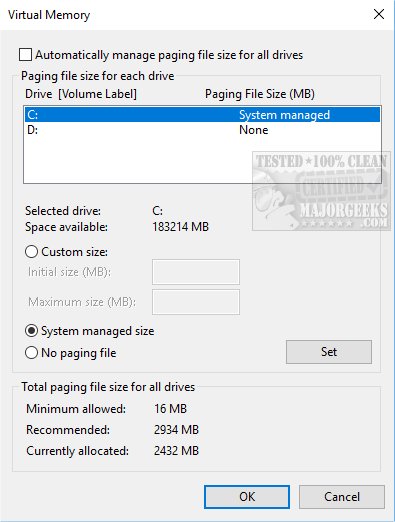
Once you've done that, all your possible options are now available. Let's take a look at what you can do.
Custom Size Pagefile
At the top, the first option is to select a custom size. Here's where advanced users can decide what the initial size and maximum size of the pagefile will be. This is the place for advanced users who have plenty of memory but want to free up disk space by making their pagefile smaller.
Click on Custom size and enter the amount of space you want to use for initial, and maximum in megabytes. Just above the Custom size, you'll see the available space on your drive. Look below for Total paging file size for all drives to see what Windows currently uses for the minimum, recommended, and currently allocated. Every computer is different, so you'll need to find the best number to suit your needs.
No Paging File
If you select No paging file, then you will no longer use virtual memory. This can work if you have plenty of memory freeing up drive space and potentially increasing performance. What's enough memory? That depends on your use. Gamers need to be more careful than anyone else. If you don't have enough memory, you'll find out the hard way when your computer crashes. As a general rule, we wouldn't attempt this without at least 12GB.
If you press CTRL - SHIFT - ESC the Task Manager will appear. You can see the memory usage from the main window or click the Performance tab for more detailed memory statistics. If you want to disable your pagefile, be sure your computer isn't using 100% of your memory while using memory intensive apps.
Move Your Paging File to Another Drive
Finally, we can move our paging file to a second hard drive freeing up space and potentially increasing performance by not using the C drive. For this example, we're assuming Windows is on your C: drive and your second back up drive is D:.
Click on C: drive and choose No paging file.
Click on D: drive and choose Custom size, or System managed size. For custom size, scroll back up to Custom Size Pagefile to decide what size you want. If you have extra space on your D: drive, we'd let Windows manage the size.
comments powered by Disqus
Pagefile.sys, in short, is your virtual memory. If your computer runs low on memory, this is space reserved on your hard drive to act as memory as needed. Those of you who found this article have probably already viewed numerous articles about pagefile.sys and still are wondering what you can do. The honest, best answer is to leave it alone. If possible, buying a larger hard drive or more memory is a simple solution.
That said, you can manage your pagefile.sys by making it smaller or even moving it to another drive. We do recommend only advanced users tinker with the pagefile and never delete it.
Press the Windows Key + S and begin typing advanced until you see View advanced system settings and click on that. Under Performance, click on Settings.
Now, click on the Advanced tab and finally under Virtual Memory click on Change.
By default, everything should be grayed out. As we said, Windows prefers you don't play with your pagefile. You'll need to uncheck Automatically manage paging file size for all drives.
Once you've done that, all your possible options are now available. Let's take a look at what you can do.
Custom Size Pagefile
At the top, the first option is to select a custom size. Here's where advanced users can decide what the initial size and maximum size of the pagefile will be. This is the place for advanced users who have plenty of memory but want to free up disk space by making their pagefile smaller.
Click on Custom size and enter the amount of space you want to use for initial, and maximum in megabytes. Just above the Custom size, you'll see the available space on your drive. Look below for Total paging file size for all drives to see what Windows currently uses for the minimum, recommended, and currently allocated. Every computer is different, so you'll need to find the best number to suit your needs.
No Paging File
If you select No paging file, then you will no longer use virtual memory. This can work if you have plenty of memory freeing up drive space and potentially increasing performance. What's enough memory? That depends on your use. Gamers need to be more careful than anyone else. If you don't have enough memory, you'll find out the hard way when your computer crashes. As a general rule, we wouldn't attempt this without at least 12GB.
If you press CTRL - SHIFT - ESC the Task Manager will appear. You can see the memory usage from the main window or click the Performance tab for more detailed memory statistics. If you want to disable your pagefile, be sure your computer isn't using 100% of your memory while using memory intensive apps.
Move Your Paging File to Another Drive
Finally, we can move our paging file to a second hard drive freeing up space and potentially increasing performance by not using the C drive. For this example, we're assuming Windows is on your C: drive and your second back up drive is D:.
Click on C: drive and choose No paging file.
Click on D: drive and choose Custom size, or System managed size. For custom size, scroll back up to Custom Size Pagefile to decide what size you want. If you have extra space on your D: drive, we'd let Windows manage the size.
comments powered by Disqus
