


File Name Conflicts - How To Replace, Skip, or Keep Both Files
By selma čitakovićon 09/20/2026 |
![{$insert['content_title']](/content/file/6391_image1.jpg
)
When you copy or move files from one location to another, and they happen to share a name, you'll see a file conflict window.
Because the files have the same name, Windows wants to know what you intend to do with them. You have three options here: replace the existing file, skip it, or keep both.
Below, we'll get into more detail about what each option does and when to use it.
What can you do in a file name conflict?
The Replace or Skip Files window that opens during the conflict will have the following options:
- Replace the file in the destination or Replace the files in the destination (if there are multiple) - Select this if you simply want to replace the files in the new destination with those from the source destination
- Skip this file or Skip these files - Click on this if you want to undo the copy/move action
- Compare info for both files or Let me decide for each file - If you want to manually select what to do with each file, or keep both files, pick this option.
The first two choices are pretty straightforward. But if you've clicked on Compare info for both files/Let me decide for each file, a new window will appear with even more options.
Under "Which files do you want to keep?" you can choose to:
- Only keep the files from the source (on the left side). You can check Files from *source* at the top to keep them all, or check/uncheck them individually below.
- Only keep the files that are already in the new destination (on the right). You can check Files already in *destination* to keep them all, or check/uncheck them individually below.
- Skip X file(s) with the same date and size. You may see this option at the bottom.
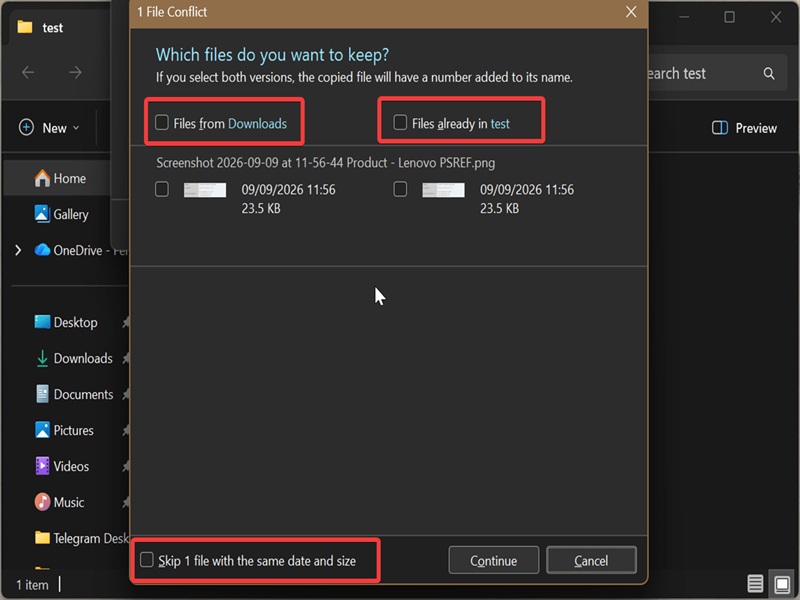
Lastly, if you decide to keep both file versions in the new destination, you'll see a number in the name of the copied/moved version. Other than that, they will be exactly the same.
If you need help dealing with duplicate files, you can go through our file manager collection here on Major Geeks.

|
selma citakovic
Selma is a gamer, geek and gremlin hunter with a passion for cyber security and smashing Windows bugs before they bite. She’s IBM-certified, loves real freeware, despises bloatware, and powers most of her troubleshooting with an unhealthy amount of coffee. |
comments powered by Disqus
