


HDD vs SSD vs NVMe: Types of Hard Drives and When to Use Them
By Corporal Punishmenton 07/31/2025 |
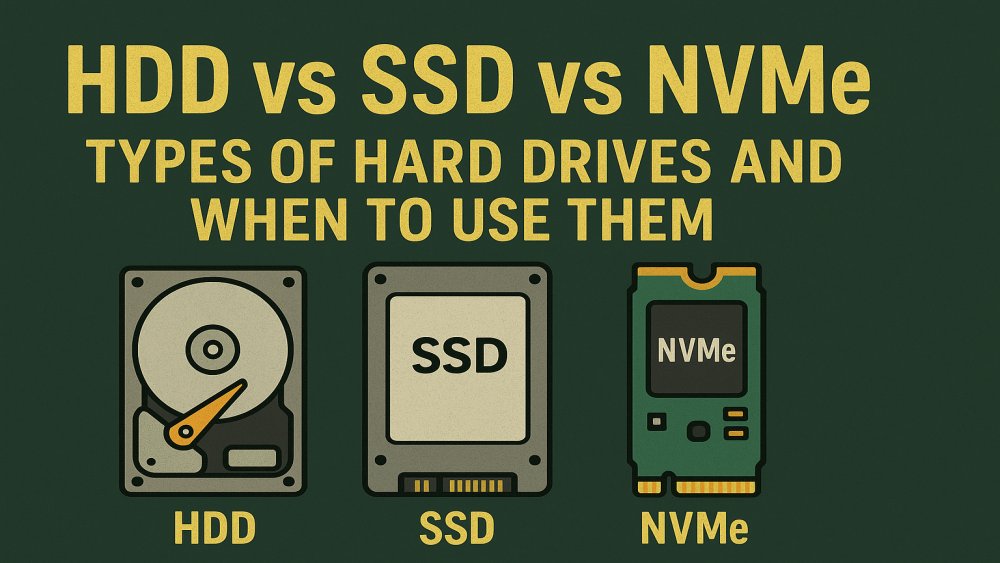
If you've recently looked into buying a new computer, building your own rig, or upgrading your current drive, you've seen the terms HDD, SSD, and NVMe. The acronyms are different, but they all serve the same essential purpose: storing your data. However, their speed, cost, and best-use scenarios are dramatically different.
Learning the differences can help you make smart choices from everything from budget builds to high-performance rigs and help you put your money where it is best suited.
Why You Need Data Storage
Every computer needs storage because that's where your operating system, applications, and personal files live. All those important documents, spreadsheets, photos, videos, and games need a safe place to call home. How much storage you need depends largely on what you do. If you're just doing basic tasks like browsing the web and working with documents, 256GB to 512GB might be plenty. That said, if you're storing years of vacation photos and editing 4K videos, you need to think in terms of terabytes. Choosing the right type and size of storage isn't just about saving files; it's about optimizing your system's performance and your own productivity.
What Is an HDD (Hard Disk Drive)?
Introduced in the 1950s, the first hard drive by IBM weighed over a ton and could hold just 5MB of data, roughly the size of a single MP3 file today.
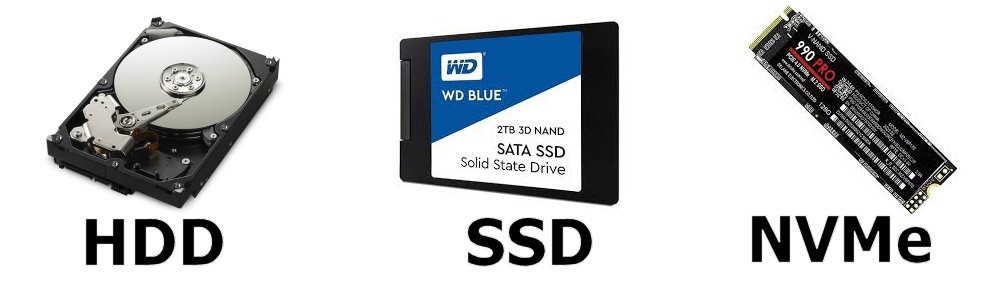
HDDs, or hard disk drives, are the oldest type of storage still in widespread use today. They store data on magnetic disks (platters) that spin, with a read/write head moving across the surface to access data. Think of it like a record player, but for your digital files that can be accessed a lot faster.
Despite their age of design, HDDs remain popular because of their affordability and large storage capacities. You can easily find drives exceeding 10TB at a far lower price than comparable SSDs that can't reach that capacity. However, speed is where HDDs fall short. The mechanical nature of these drives results in longer boot times, slower file transfers, and greater vulnerability to physical shock.
HDDs are best suited for tasks where speed isn't a priority. HDDs are workhorses. They are the undisputed champs when it comes to backups, archiving, and media storage. If you've got a massive movie library or need a secondary drive for nightly backups, an HDD is the choice to make.
What Is an SSD (Solid State Drive)?
Solid State Drives, or SSDs, were a significant leap in storage technology from a design/speed/portability perspective. Unlike HDDs, SSDs have no moving parts. They use NAND flash memory, not a moving disk, to store data. This makes them quieter, faster, and more resistant to physical damage. If you have ever used a thumb drive, you are familiar with this type.
One of the most noticeable benefits of switching to an SSD is speed. A HDD might offer read/write speeds around 100-150 MB/s, while a SATA SSD can easily reach 500 MB/s. Boot times drop dramatically, applications open almost instantly, and file transfers are much quicker.
But SSDs come with higher costs per gigabyte. While prices have dropped significantly in recent years, large-capacity SSDs still command a premium. Additionally, SSDs have a finite number of write cycles, though modern models are durable enough for years of typical use; they won't last as long as an HDD.
SSDs are a solid choice for anyone looking to speed up their system, whether it's for gaming, productivity, or everyday computing. They're particularly useful for installing operating systems and frequently used applications, giving your system a snappy and responsive feel.
What Is an NVMe Drive?
NVMe (Non-Volatile Memory Express) drives take SSDs to the next level. While traditional SSDs connect via the SATA interface (originally designed for hard drives), NVMe drives connect directly to the PCIe lanes on your motherboard. This allows for vastly higher throughput and lower latency.
With read/write speeds that can exceed 7,000 MB/s, NVMe drives are ideal for power users and professionals who deal with large files, like video editors and 3D modelers. They also dramatically cut load times in modern games, making them a favorite. That said, unless you're frequently moving large files or running demanding software, you might not notice a huge difference compared to a regular SSD.
However, all that speed comes at a cost. NVMe drives, though coming down, are generally more expensive than a standard SATA SSD and can be overkill for basic computing needs. Also, your motherboard has to specifically support and have a slot for NVMe drives. That means if upgrading an older system you may need to swap out the motherboard, whihc will add to ime and cost.
NVMe drives are best used in new system builds where speed and performance matter. If you're building a video workstation or gaming PC (espeically streamers) you want the fastest storage available. NVMe is the fastest by far, and you won't be disappointed with the choice.
Choosing the Right Drive for the Job
If you read above, you now know the best drive is the drive that meets your needs. Our recommendation is for everyday use, a SATA SSD offers the best balance of speed and cost. Die-hard gamers and creative professionals who use an NVMe drive will make a noticeable difference in your setup. For backups or mass storage, a high-capacity and long-life HDD still offers unbeatable value.
This hybrid approach gives you the speed you need without blowing your budget.
Keeping Your Drives in Peak Condition
No matter which type of drive you choose, regular maintenance can help extend its life and performance. Tools like CrystalDiskInfo can monitor drive health and temperature, while Macrorit Disk Scanner is useful for detecting bad sectors on HDDs. Samsung Magician is a great choice for optimizing Samsung-branded SSDs.
For defragmenting and trimming your drives, check out either SmartDefrag or WinContig, both are excellent for keeping your drives in top shape and extending their life/speed.
You'll find all these tools and more in the trusted downloads section of MajorGeeks. We test and vet each one so you can download with confidence.
Final Thoughts from the Geek Bench
Storage has come a long way with speed capacity, and type. From the room size Granddad of drive to the NVMe drives that are smaller than a stick of gum, storage technology has evolved dramatically, while serving the same purpose. Hard Disk Drives (HDDs), Solid State Drives (SSDs), and NVMe drives each offer their own mix of pros and cons.
If it’s your OS, your favorite apps, or 3,000 cat photos, all data needs a place to live, and data storage costs money. How much space and speed you need really depends on what you do. Just writing emails and browsing the web? You can probably skate by on 256GB SSD. But if you're hoarding media, or fragging fools in Marvel Rivals you're gonna want a lot more, so plan accordingly.
So, what's in your rig? Are you Team SSD, Team NVMe, or still rocking a trusty old HDD? Let us know in the comments and share your favorite storage tips!
comments powered by Disqus
