


How to Check What Graphic Card (GPU) Is in Your Computer
By Timothy Tibbettson 06/15/2023 |
Your graphics card, or GPU (Graphics Processing Unit), is a critical part of your computer. Everything you do on your PC, you do with your eyes and the quality of your video card is essential, but so are the drivers you use. This is even more important if you're a game, photographer, or graphics artist. Here's how to identify your graphics card make and model.
If you're not even sure of your video card brand, you're looking for NVIDIA, AMD, or Intel.
1: Task Manager
Windows 10 users can press the Windows Key + X and click on Task Manager. Everyone can press CTRL + Shift + ESC.
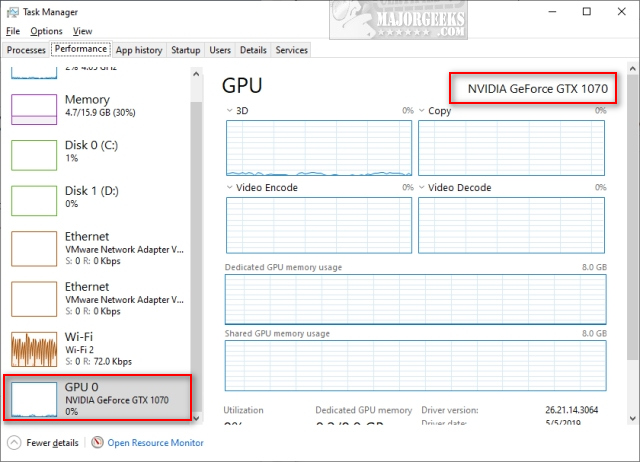
In the Performance tab, scroll down to GPU and your video card will be shown there with performance details on the right Window.
 is in your computer 1.jpg)
2: DirectX Diagnostic Tool (dxdiag)
The DirectX Diagnostic Tool provides detailed information about DirectX and drivers on your computer. But, it also can show you additional information including your BIOS version.
Press the Windows Key + R, type in dxdiag and press Enter.
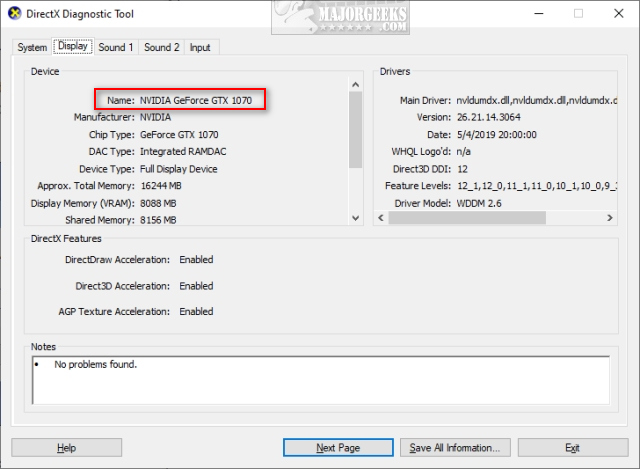
Click on the Display tab, and you'll see your graphics card details.
 is in your computer 2.jpg)
3: Third-Party Apps
Many onboard video cards and laptops won't show your video card, but a third-party freeware system information app might.
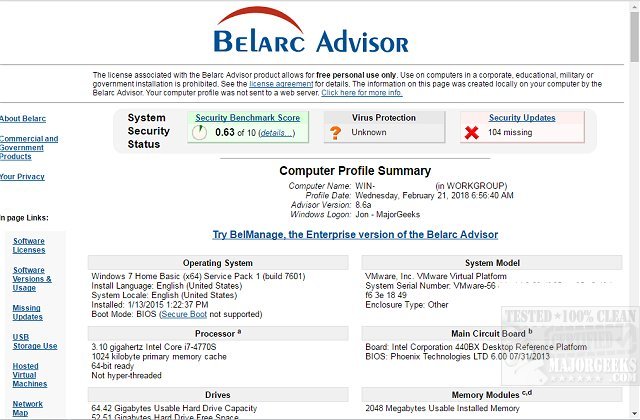
We've always liked Belarc Advisor, seen below.
Other excellent choices include HWiNFO, HiBit, and SIV.
comments powered by Disqus
If you're not even sure of your video card brand, you're looking for NVIDIA, AMD, or Intel.
1: Task Manager
Windows 10 users can press the Windows Key + X and click on Task Manager. Everyone can press CTRL + Shift + ESC.
In the Performance tab, scroll down to GPU and your video card will be shown there with performance details on the right Window.
2: DirectX Diagnostic Tool (dxdiag)
The DirectX Diagnostic Tool provides detailed information about DirectX and drivers on your computer. But, it also can show you additional information including your BIOS version.
Press the Windows Key + R, type in dxdiag and press Enter.
Click on the Display tab, and you'll see your graphics card details.
3: Third-Party Apps
Many onboard video cards and laptops won't show your video card, but a third-party freeware system information app might.
We've always liked Belarc Advisor, seen below.
Other excellent choices include HWiNFO, HiBit, and SIV.
comments powered by Disqus
