


How To Check Your Current WinRE Version in Windows 11
By selma čitakovićon 08/22/2026 |
![{$insert['content_title']](/content/file/6314_image1.jpg
)
WinRE, or Windows Recovery Environment, is a supporting operating system that exists alongside Windows, but its primary role is recovery and troubleshooting. Just like the "regular" Windows system, it gets updated via cumulative updates with new features and tools.
If you'd like to check your current WinRE version, read on.
Via command
First, make sure you've signed in as an administrator for this to work. Then, do the following:
- Press Win + X, and select Terminal (Admin). Open either Command Prompt or PowerShell.
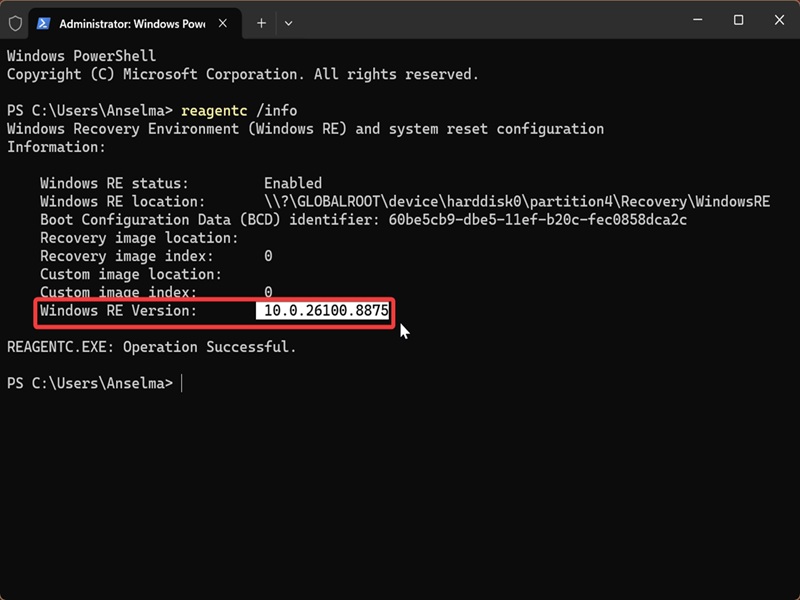
- Paste this command and hit Enter: reagentc /info
- This will list all info related to WinRE, including which Windows RE version you've installed. (For example: 10.0.26100.8875)
Via Event Viewer
Event Viewer is a built-in tool that records significant system events, such as crashes, failed tasks, logins, and more. It also shows you servicing events (like updates) for WinRE.
To use it:
- Press Win + R, type eventvwr.msc, and hit Enter.
- On the left side, click on Windows Logs to expand that section. Then, select System, right-click it, and click Filter Current Log.
- In the <All Event IDs> field, type 4501, and click OK.
- In the table of events, select the most recent one, and you'll see the current version in the General tab for that specific event.
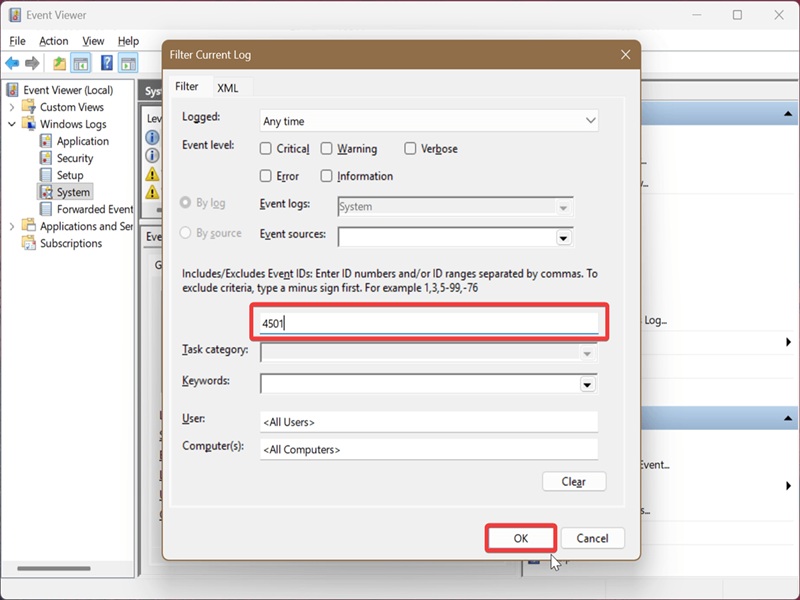
If you've previously filtered System logs, you'll need to select Clear Filter first, then Filter Current Log in step 2. We hope this helps!

|
selma citakovic
Selma is a gamer, geek and gremlin hunter with a passion for cyber security and smashing Windows bugs before they bite. She’s IBM-certified, loves real freeware, despises bloatware, and powers most of her troubleshooting with an unhealthy amount of coffee. |
comments powered by Disqus
