


How to Delete the Desktop Wallpaper History in Windows 10 & 11
By Timothy Tibbettson 06/15/2023 |
When you change your Windows 10 background or wallpaper, you can choose from five images. Windows 10 does not include a way to clear the history of the last five images. Here's a workaround to clear the history.
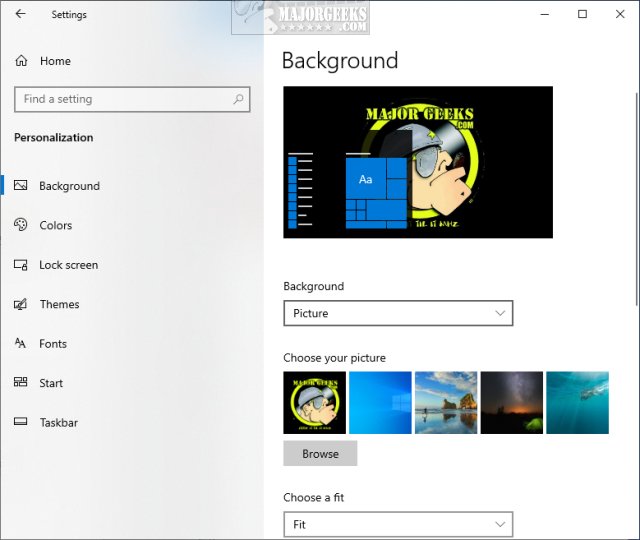
You can see the last five images at Settings > Personalization > Background.
Open the Registry Editor and go to
HKEY_CURRENT_USER\Software\Microsoft\Windows\CurrentVersion\Explorer\Wallpapers
Right-click on, and click on delete:
BackgroundHistoryPath0
BackgroundHistoryPath1
BackgroundHistoryPath2
BackgroundHistoryPath3
BackgroundHistoryPath4
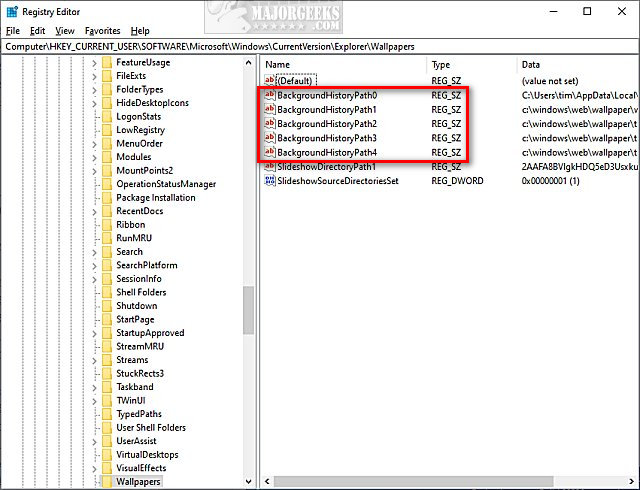
You can also press Ctrl + A and use your arrow keys to highlight all and press Delete.
Advanced users can create their own registry file.
Type the following into Notepad and save it as a .reg file:
Windows Registry Editor Version 5.00
[HKEY_CURRENT_USERSoftwareMicrosoftWindowsCurrentVersionExplorerWallpapers]
"BackgroundHistoryPath0"=-
"BackgroundHistoryPath1"=-
"BackgroundHistoryPath2"=-
"BackgroundHistoryPath3"=-
"BackgroundHistoryPath4"=-
comments powered by Disqus
You can see the last five images at Settings > Personalization > Background.
Open the Registry Editor and go to
HKEY_CURRENT_USER\Software\Microsoft\Windows\CurrentVersion\Explorer\Wallpapers
Right-click on, and click on delete:
You can also press Ctrl + A and use your arrow keys to highlight all and press Delete.
Advanced users can create their own registry file.
Type the following into Notepad and save it as a .reg file:
Windows Registry Editor Version 5.00
[HKEY_CURRENT_USERSoftwareMicrosoftWindowsCurrentVersionExplorerWallpapers]
"BackgroundHistoryPath0"=-
"BackgroundHistoryPath1"=-
"BackgroundHistoryPath2"=-
"BackgroundHistoryPath3"=-
"BackgroundHistoryPath4"=-
comments powered by Disqus
