


How to Remove Quick Access in Windows 10 File Explorer
By Timothy Tibbettson 06/15/2023 |
We're frequently asked how to remove Quick Access from File Explorer. Here's all you need to know to remove Quick Access, as well as some other tips for making File Explorer work better for you.
Remove Quick Access
Download the registry files here, double-click and you're all set.
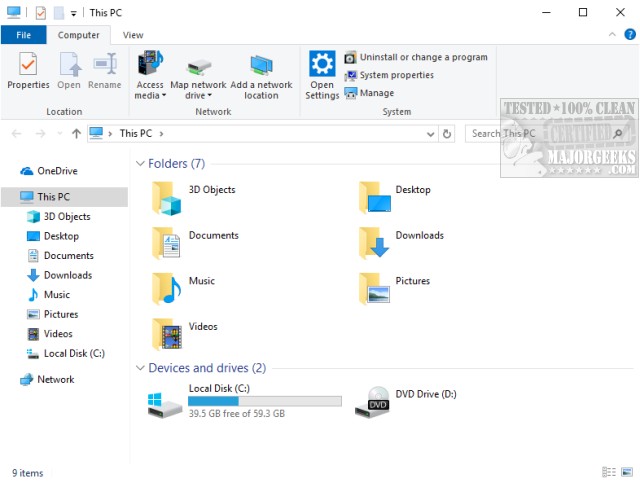
To restore File Explorer, open the Registry Editor and copy and paste:
HKEY_LOCAL_MACHINE\SOFTWARE\Microsoft\Windows\CurrentVersion\Explorer into the search bar at the top.
Right-click on HubMode and choose delete.
Disable Recently and Frequently Used Files and Folders
One fix is to disable recently and frequently used files and folders. It cuts back some of the clutter.
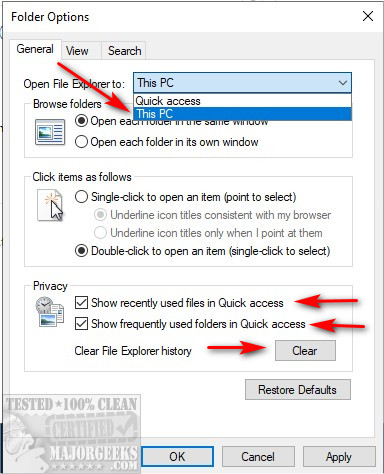
In File Explorer, click on the View tab, then Options. Also, you can right-click on Quick Access and choose Options.
Uncheck Show Recently Used Files in Quick Access and Show Frequently Used Folders in Quick Access. Next, click on Clear File Explorer History.
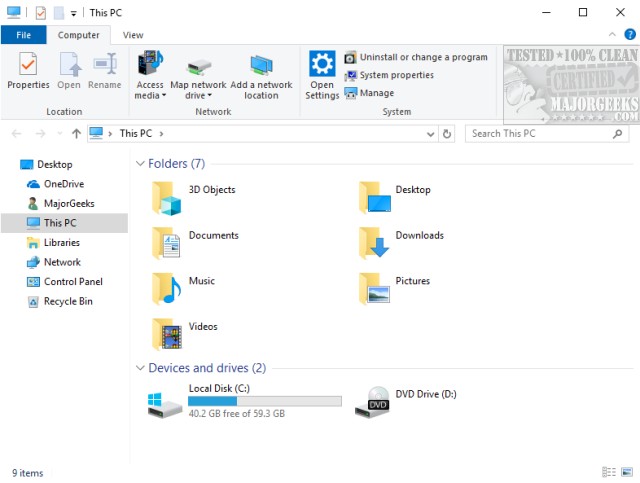
Now, when you open File Explorer, it should look something like this:
Remove 3D Objects From This PC
Open the registry editor by pressing the Windows Key + R and type in regedit and press enter.
Paste HKEY_LOCAL_MACHINE\SOFTWARE\Microsoft\Windows\CurrentVersion\Explorer\MyComputer\NameSpace into the address field.
Locate the key names {0DB7E03F-FC29-4DC6-9020-FF41B59E513A}, right-click and delete.
Close File Explorer and open it again, and it should be gone.
64-Bit users might need to also delete {0DB7E03F-FC29-4DC6-9020-FF41B59E513A} from HKEY_LOCAL_MACHINE\SOFTWARE\Wow6432Node\Microsoft\Windows\CurrentVersion\Explorer\MyComputer\NameSpace.
Remove 3D Objects from File Explorer
Unlike the shortcut from This PC, the other folder is located under Users\YourName. Right-click on 3D Objects and choose delete.
Remove OneDrive from Quick Access
Once again, we have limitations. There have been numerous registry hacks and Group Policy edits, but guess what? They don't work anymore.
If you don't use One Drive, your only choice is to uninstall it from the Control Panel > Apps.
comments powered by Disqus
Remove Quick Access
Download the registry files here, double-click and you're all set.
To restore File Explorer, open the Registry Editor and copy and paste:
HKEY_LOCAL_MACHINE\SOFTWARE\Microsoft\Windows\CurrentVersion\Explorer into the search bar at the top.
Right-click on HubMode and choose delete.
Disable Recently and Frequently Used Files and Folders
One fix is to disable recently and frequently used files and folders. It cuts back some of the clutter.
In File Explorer, click on the View tab, then Options. Also, you can right-click on Quick Access and choose Options.
Uncheck Show Recently Used Files in Quick Access and Show Frequently Used Folders in Quick Access. Next, click on Clear File Explorer History.
Now, when you open File Explorer, it should look something like this:
Remove 3D Objects From This PC
Open the registry editor by pressing the Windows Key + R and type in regedit and press enter.
Paste HKEY_LOCAL_MACHINE\SOFTWARE\Microsoft\Windows\CurrentVersion\Explorer\MyComputer\NameSpace into the address field.
Locate the key names {0DB7E03F-FC29-4DC6-9020-FF41B59E513A}, right-click and delete.
Close File Explorer and open it again, and it should be gone.
64-Bit users might need to also delete {0DB7E03F-FC29-4DC6-9020-FF41B59E513A} from HKEY_LOCAL_MACHINE\SOFTWARE\Wow6432Node\Microsoft\Windows\CurrentVersion\Explorer\MyComputer\NameSpace.
Remove 3D Objects from File Explorer
Unlike the shortcut from This PC, the other folder is located under Users\YourName. Right-click on 3D Objects and choose delete.
Remove OneDrive from Quick Access
Once again, we have limitations. There have been numerous registry hacks and Group Policy edits, but guess what? They don't work anymore.
If you don't use One Drive, your only choice is to uninstall it from the Control Panel > Apps.
comments powered by Disqus
