


How to Fix ERR_QUIC_PROTOCOL_ERROR
By Jim McMahonon 05/30/2026 |
![{$insert['content_title']](/content/file/6142_image1.jpg
)
If you are using Chrome, Edge, Brave, or another Chromium-based browser and suddenly see this message:
This site can’t be reached
The webpage might be temporarily down or it may have moved permanently to a new web address.
ERR_QUIC_PROTOCOL_ERROR
Don’t panic. Your internet probably isn’t broken, and the website might not be down. This error usually means the browser had a problem using QUIC, a newer web protocol used with HTTP/3 to speed up secure web connections.
QUIC is designed to make web browsing faster and more efficient, but when something in the middle does not play nice, things can get cranky fast. That crankiness could be coming from a number of things: your browser, antivirus, firewall, router, VPN, proxy, network driver, or even a fresh Windows install using generic drivers.
In my case, I started seeing it on a new PC while testing the links to our May Gleam giveaway link. Other sites worked; the page was not gone, but Chrome kept throwing the QUIC error. Frankly, it was a bit confusing at first.
A Little Geekier: What Is QUIC?
Skip this part if you don’t care, but I had to learn it for this article, so I am sharing whether you like it or not. It won’t be on the Quiz.
QUIC stands for Quick UDP Internet Connections. It was originally developed by Google as a faster way to move web traffic around, especially for secure websites. The idea was later standardized by the IETF as RFC 9000, and it now forms the foundation for HTTP/3.
The older web stack usually works like this: your browser connects to a website using TCP, then adds TLS encryption on top, then starts loading the page. That works, and it has worked for decades, but it can involve multiple back-and-forth handshakes before anything useful happens. QUIC was designed to reduce some of that waiting around and extra transport.
Instead of using TCP, QUIC runs over UDP. UDP is simpler and does not have all of TCP’s built-in connection management, so QUIC adds the reliability, encryption, congestion control, and stream handling itself. In plain English, QUIC uses UDP as the delivery truck, then brings its own package with clipboard, lockbox, GPS, and traffic rules with it.
One of QUIC’s big goals is faster connection setup. It can reduce the number of round trips needed before data starts moving, especially when reconnecting to a site you have visited before. It also integrates encryption more tightly, using TLS 1.3 as part of the connection process instead of treating security like an extra layer bolted on afterward.
Another major feature is multiplexing. With HTTP/2 over TCP, multiple streams can share a single connection, but if one packet is lost, TCP can still hold up the line while it sorts things out. This is called head-of-line blocking. QUIC handles streams differently, so one delayed stream does not necessarily stall everything else. That can make pages feel faster, especially on spotty networks.
QUIC can also handle network changes better. For example, if you switch from Wi-Fi to mobile data, QUIC is designed to handle that kind of path change more gracefully than a traditional TCP connection. That matters more on phones and laptops than on a desktop PC, but it is still part of why QUIC exists.
So why does it break? Because QUIC is newer, encrypted, and UDP-based. Some antivirus programs, firewalls, routers, VPNs, proxies, or network drivers do not handle it cleanly yet. Simpley as to when IPv6 addresses started showing up. Older security tools are often built around inspecting TCP web traffic. When your browser suddenly uses UDP for secure web traffic, something in the middle may panic, block it, mangle it, or just fail badly enough that Chrome or Edge throws ERR_QUIC_PROTOCOL_ERROR.
That is why disabling QUIC often fixes the problem. You are not fixing the website. You are telling the browser to stop using the newer route and fall back to the older, more widely compatible path.
Why This Happens on a New PC
New computers are not always as clean and perfect as we like to pretend when they come out of the box. Windows may install generic network drivers, motherboard utilities may not be fully updated, and security suites can be extra aggressive while everything is still being configured.
As stated, QUIC uses UDP instead of the older TCP-based connections most apps are used to. That is fine when everything supports it properly. But some firewalls, antivirus web shields, VPNs, proxies, routers, or buggy drivers may interfere with QUIC traffic. When that happens, Chrome or Edge may fail rather than gracefully fall back.
The good news is that the easiest fix takes about 30 seconds.
Fix 1: Disable QUIC in Chrome or Edge
This is the first thing to try because it fixes the problem for many people.
For Google Chrome:
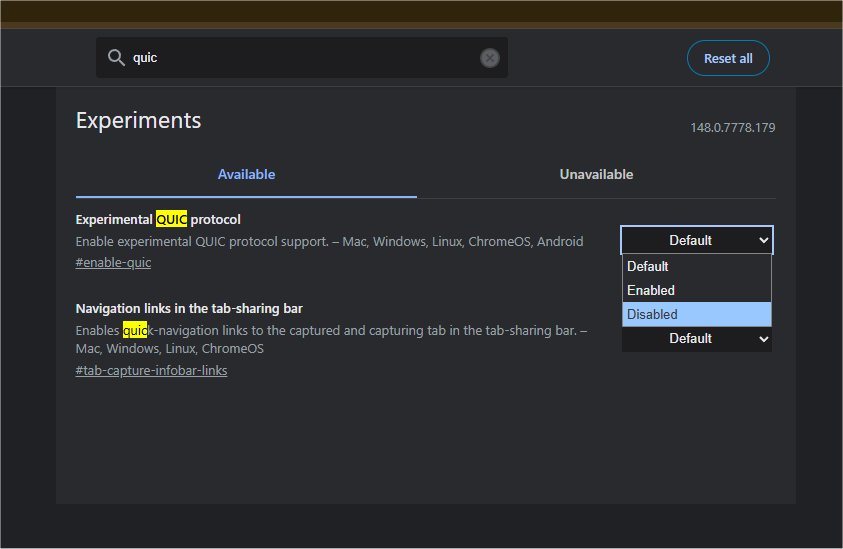
Open Chrome and type this in the address bar: chrome://flags
Search for: Experimental QUIC protocol
Change it to: Disabled
Relaunch Chrome.
For Microsoft Edge:
Open Edge and type this in the address bar: edge://flags
Search for:Experimental QUIC protocol
Change it to: Disabled
Relaunch Edge.
Now try the website again. If it loads normally, you found the problem. You can leave QUIC disabled without worrying too much. The browser will still work. You are not turning off the internet, security, or anything magical. You are just telling the browser not to use that particular newer protocol until the world is ready for it.
Fix 2: Clear DNS and Reset Network Settings
If disabling QUIC does not fix it, or if the problem happens in multiple browsers, reset the Windows network stack.
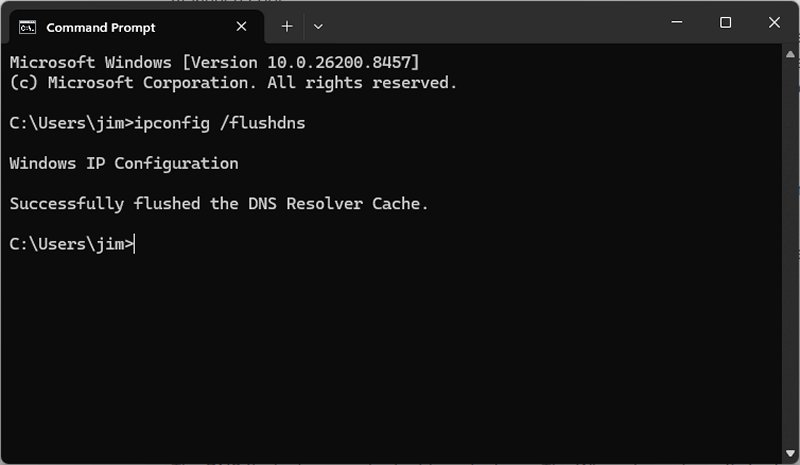
Open Command Prompt as Administrator and run these commands one at a time:
ipconfig /flushdns
netsh winsock reset
netsh int ip reset
Restart your PC after running them.
These are PC Networking 101 commands that everyone should know. The DNS flush clears cached address lookups. The Winsock reset can fix broken network catalog entries. The IP reset rebuilds parts of the Windows TCP/IP configuration. In plain English, it gives Windows networking a firm but polite slap upside the head.
Fix 3: Disable VPN, Proxy, or Web Filtering Temporarily
QUIC errors can happen when a VPN, proxy, antivirus web shield, or firewall tries to inspect or redirect browser traffic.
If the above fixes didn't work, we need to look at those items. Temporarily disable your VPN software, proxy settings, browser privacy extensions, antivirus web scanning, firewall filtering tools, or ad-blocking DNS apps, then try the site again.
Security software is useful, but sometimes it gets a little too enthusiastic. If the error disappears, turn things back on one at a time until you find the culprit.
Fix 4: Update Your Network Drivers
This is especially important on a new PC. Do not rely only on Windows Update if the issue keeps happening. Windows Update is convenient, but manufacturer drivers are often newer or better tuned for your hardware.
Windows may install a basic driver that technically works, but not always well. Go to your motherboard, laptop, or network adapter manufacturer’s website and download the latest LAN and Wi-Fi drivers.
Look for drivers from companies like Intel, Realtek, MediaTek, Qualcomm, Killer Networking, or Broadcom.
If uyou dont know your hardware, something like HWInfo will show you everything you need to know. https://www.majorgeeks.com/files/details/hwinfo32.html
Or you can grab something like Snappy Driver Installer and update everything will yo are at it. https://www.majorgeeks.com/files/details/snappy_driver_installer.html
Once you install the latest driver(s), restart, and test again.
Fix 5: Check Network Adapter Advanced Settings
If the error keeps coming back, your network adapter may have an offload or power-saving feature causing trouble. This is easy to turn off.
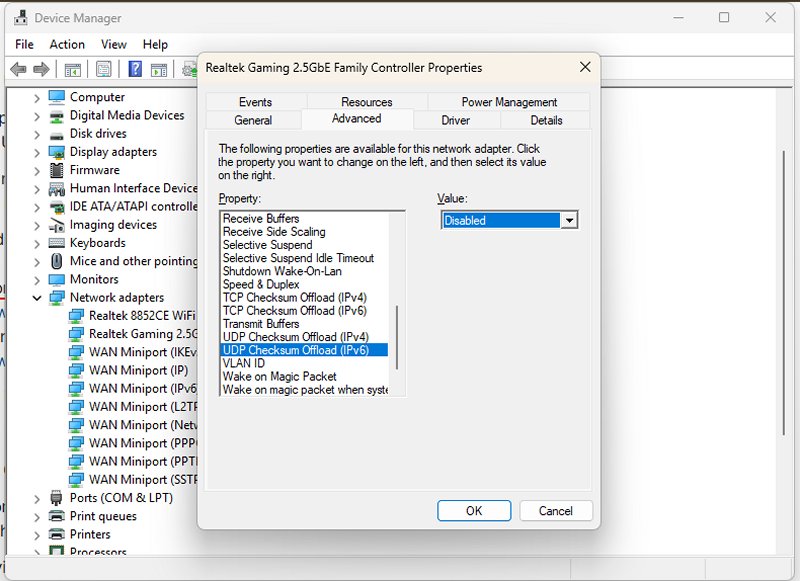
Open Device Manager, expand Network adapters, right-click your active adapter, and choose Properties.
Under the Advanced tab, look for settings like:
- Large Send Offload
- TCP Checksum Offload
- UDP Checksum Offload
- IPv4 Checksum Offload
- Energy Efficient Ethernet
- Green Ethernet
You do not need to disable everything blindly. Start with Large Send Offload and any UDP checksum offload setting. Disable one, test, and keep notes. Move slowly.
Also check the Power Management tab and uncheck: Allow the computer to turn off this device to save power
That setting is fine for battery life, but on a desktop or new PC setup, it can cause weird connection drops that make you question your sanity.
Fix 6: Restart Your Router and Modem
Yes, it is the classic “turn it off and on again” move, but it works.
Restart your modem and router, then test the site again. Some routers, especially older ones or ISP-provided models, can mishandle newer web protocols or UDP traffic. If the problem only happens on one network, your router may be part of the issue.
Fix 7: Diagnostic advice
Try the same website in another browser or on another device connected to the same network. If the site works on your phone but not your PC, the issue is probably on the PC.
If the site fails on every device connected to your home network, look at the router, DNS, firewall, or ISP.
If the site works in Firefox but not in Chrome or Edge, QUIC is a likely suspect, as Firefox and Chromium-based browsers may handle these connections differently.
Should You Leave QUIC Disabled?
For most people, yes, at least while troubleshooting.
Disabling QUIC may slightly affect performance on some websites that support HTTP/3, but most users will never notice. Chrome and Edge will continue using other supported protocols. If your browser stops throwing ERR_QUIC_PROTOCOL_ERROR and pages load properly, that is a fair trade.
As mentions, IPv6 has been around for quite some time but it still causes plenty of networking issues while hardware and software ctach up.
You can always re-enable QUIC later after updating drivers, changing antivirus settings, or replacing a cranky router.
Final Thoughts
ERR_QUIC_PROTOCOL_ERROR sounds more terrifying than it usually is In most cases, the fastest fix is to disable QUIC in Chrome or Edge, relaunch the browser, and move on with your day.
If you are seeing it on a new PC, also update your network drivers and check your antivirus or firewall. New computers often come with fresh installs, default drivers, trial security software, and enough background “help” to make troubleshooting feel like a group project where nobody read the instructions.
Start with the browser flag. Then reset DNS. Then update your drivers. That should fix it for most people without needing to sacrifice a router or a weekend to the tech gods.

|
Jim McMahon
Jim McMahon, aka Corporal Punishment, co-founder of MajorGeeks, with 30+ years in IT, software testing, troubleshooting, and breaking Windows so you don't have to. A lifelong gamer and hands-on tech guy, Jim has spent decades testing software, chasing bugs, and helping everyday users make sense of their PCs. |
comments powered by Disqus
