


How to Fix Roblox Stuttering, Unlock FPS, and Optimize Windows Performance
By Jim McMahonon 08/10/2026 |
Key Takeaways
- Roblox defaults to a standard 60 FPS cap and frequently defaults to integrated graphics on multi-GPU systems, causing severe visual stuttering and input delay.
- Modern Windows 11 updates, background telemetry, and unoptimized engine defaults routinely choke Roblox frame rates, even on high-end hardware.
- Forcing Windows 11 to assign your dedicated GPU (NVIDIA/AMD) to the Roblox client drastically reduces frame drops during crowded server events.
- In trade-heavy experiences like Murder Mystery 2 (MM2), high server populations and complex cosmetic assets (such as Godly items and particle effects) strain VRAM and CPU frame timing.
- Avoid unverified third-party executable "boosters" or aggressive Registry edits; basic OS settings and proper in-game toggles deliver stable gains without account or stability risks.
Roblox relies heavily on single-thread CPU execution speed and stable GPU frame delivery. However, default Windows 11 power policies, background thread scheduling, and outdated engine locks often bottleneck your graphics card's actual potential.
Whether you are running a budget laptop or a top-tier desktop rig, optimizing hardware allocation, removing legacy frame rate caps, and trimming background process memory ensures smooth, low-latency gameplay even in resource-heavy, overcrowded servers.
Understanding Roblox System Bottlenecks in Windows 11
Unlike traditional desktop AAA titles that fully utilize multi-threaded DirectX 12 or Vulkan pipelines, Roblox's engine architecture relies heavily on primary CPU core speed and fast VRAM asset throughput. Windows 11 frequently introduces micro-stuttering in Roblox due to aggressive efficiency-core (E-core) scheduling, background telemetry services, and automatic graphics switching.
When a game server becomes packed with high-polygon avatar accessories, custom particle emitters, and dense script executions, your frame times spike.
If Windows relegates the Roblox client process to low-power CPU states or shares GPU resources with background browser tabs, you experience massive frame drops, visual rubber-banding, and noticeable mouse delay. Eliminating these hardware bottlenecks requires instructing the operating system to treat the engine as a high-priority, dedicated gaming task.
Method 1: Force Dedicated GPU Priority in Windows 11
On laptops or dual-GPU desktops, Windows often misidentifies Roblox as a low-demand application, running it on integrated graphics instead of your dedicated graphics card.
- Open Settings (Win + I) and navigate to System > Display > Graphics.
- Click Browse under "Add an app" and locate the main Roblox player executable (typically found in %localappdata%\Roblox\Versions\version-xxxxxxxxxxxx\RobloxPlayerBeta.exe).
- Select Roblox Player, click Options, and set the preference to High performance.
- Click Save and restart the client.
Important System Note: Setting priority via Windows Graphics Settings is significantly safer than tweaking raw registry strings, preventing driver crashes across other system applications.
Method 2: Unlock Frame Rates and Reduce Input Delay
Roblox natively locks frame rates at 60 FPS. If you use a 144Hz or 240Hz monitor, this hard cap causes screen tearing and artificial input latency.
- Native Fast Flags (ClientAppSettings.json): You can natively uncap frame rates without running background programs. Create a folder named ClientSettings inside your current Roblox version folder, place a file named ClientAppSettings.json inside it, and set "DFIntTaskSchedulerTargetFps": 240 (or your preferred target).
- Use Manual Graphics Mode: In-game, press Esc, open Settings, and change Graphics Mode from Automatic to Manual. Drop the slider 1-2 ticks below maximum to disable unneeded bloom and heavy shadows while keeping rendering distances crisp.
- Third-Party Unlockers: Open-source tools like RBXFPSUnlocker allow dynamic frame rate unlocking while managing V-Sync behavior on the fly. Uncapping frame rates allows your monitor to display fresh inputs faster, which is critical for fast-paced reaction games.
- Enable Fullscreen: Always hit Alt + Enter to switch Roblox to true exclusive fullscreen mode, which prevents Desktop Window Manager (DWM) buffering from adding rendering delay.
Method 3: Managing Asset Load in Roblox MM2 & Trading Hubs
Certain experiences place unusual demands on hardware due to dense inventories, particle effects, and high player counts. A prime example is Murder Mystery 2 (MM2), where trading servers assemble dozens of players holding high-tier cosmetics like Godlies, Ancients, and Chroma weapons.
When entering busy trading hubs, hundreds of unique textures, animated effects, and skin models load into VRAM simultaneously. If your GPU memory or RAM is constrained, this asset dumping causes severe micro-stuttering right when you are reviewing offers.
- Loading into trading servers just to inspect item rarity wastes system memory. Players keeping track of market trends for items like Darkbringer or Lightbringer should verify live mm2 values through web databases before joining packed trade lobbies.
- Instead of keeping multiple resource-heavy browser windows or Discord bots open during a session, use a dedicated MM2 trade checker to calculate fair trade values instantly. This keeps the background browser process RAM footprint to a minimum while gaming.
- Discord, GeForce Experience, and Overwolf overlays consume GPU frame render queue slots. Turn them off to keep frame delivery steady during crowded MM2 trade sessions.
Advanced Tuning: Optimizing System Caches and Background Process Overhead
When squeezing out maximum stability on mid-range or budget systems, clearing system bloat directly impacts your 1% low frame rates as the key metric responsible for micro-stuttering.
- Over time, corrupted or bloated shader caches in %localappdata%\Temp\Roblox can cause hitching whenever new assets load. Periodically clearing this temporary folder forces Roblox to rebuild clean graphics pipelines.
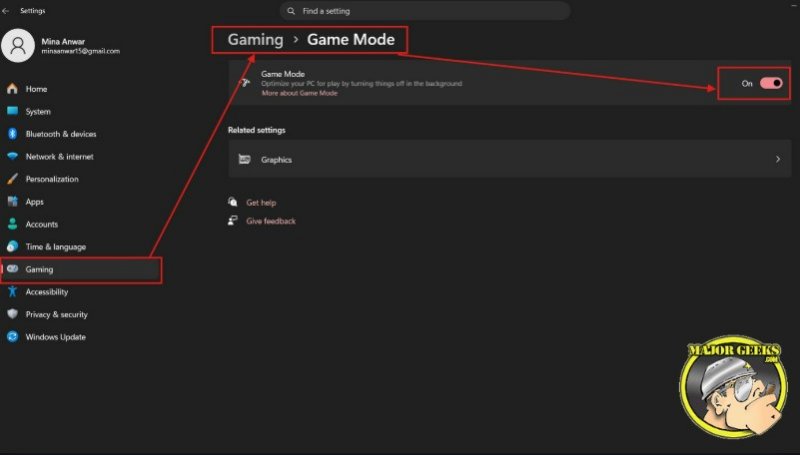
- Ensure Game Mode is toggled ON under Settings > Gaming > Game Mode in Windows 11. This prevents Windows Update and background maintenance tasks from consuming CPU cycles during active gameplay sessions.
- If you keep secondary apps open while playing, turn off hardware acceleration inside Discord and Chrome/Edge settings to dedicate 100% of your GPU's video decoding engines to Roblox.
Following basic Windows hardware assignment, maintaining clean shader caches, keeping background tasks low, and relying on external tools for asset checking ensures Roblox maintains high, stutter-free frame rates on any system.

|
Jim McMahon
Jim McMahon, aka Corporal Punishment, is the founder of MajorGeeks.com. He has spent decades testing software, troubleshooting Windows, and helping users cut through the nonsense. He loves real freeware, hates bloatware, and runs on caffeine, sarcasm, and questionable choices. |
comments powered by Disqus
