


How to Fix the Windows Recall Snapshot Error
By Jim McMahonon 09/19/2026 |
Key Takeaways
Key takeaways- Windows Recall needs supported Copilot+ PC hardware, including an NPU, so some "errors" are expected behavior on unsupported devices.
- Use Settings > Privacy & security > Recall & snapshots first before changing policies.
- Use Group Policy only for managed or enterprise devices, especially when you need to disable snapshots for multiple users.
Windows Recall may stop saving snapshots, show an empty Snapshot Timeline, or disappear from Settings entirely. The cause can be as simple as a disabled setting or as specific as unsupported Copilot+ hardware, Windows Hello, device encryption, storage, or an organization policy.
Check Recall requirements first
Before changing settings, confirm that the device supports Windows Recall.
Recall is tied to Copilot+ PC requirements, including a supported NPU (Neural Processing Unit). If the PC does not meet those requirements, Recall may not initialize, and the Snapshot Timeline may not appear. In that case, there may be nothing to fix because the hardware does not support Recall.
Check these items first:
- The device is a compatible Copilot+ PC featuring a minimum 40-TOPS NPU (Neural Processing Unit).
- The system is equipped with at least 16 GB of RAM and 256 GB of total storage, with a minimum of 50 GB of free space.
- Device encryption or BitLocker is fully enabled.
- Windows Hello biometric sign-in is configured.
- Windows 11 is updated to the version supporting Recall.
- Recall is not disabled by an enterprise work or school policy.
Turn Recall snapshots on or off in Settings
For most home users, this is the easiest way to enable or disable Recall and control whether Windows saves snapshots.
- Open Settings.
- Select Privacy & security.
- Open Recall & snapshots.
- Turn Save snapshots on or off.
- If you are disabling Recall, choose whether to delete existing snapshots if that option appears.
- Restart the PC if Windows asks for it.
Check Windows Update
If that doesnt work, before we start changing policies or digging through Event Viewer, let’s make sure Windows 11 is fully updated.
Open Settings > Windows Update, click Check for updates, install everything available, and restart the computer. Check Advanced options > Optional updates as well for any available hardware or driver updates.
After restarting, return to Settings > Privacy & security > Recall & snapshots and check Recall again.
Check Windows Hello and device encryption
Recall relies on Windows security features to protect saved snapshots. If setup fails, confirm that Windows Hello is configured and device encryption is enabled.
Check Settings > Accounts > Sign-in options for Windows Hello and Settings > Privacy & security > Device encryption for encryption status.
If either requirement is incomplete, complete it, restart Windows, and try Recall again.
Check or disable Recall with Group Policy
Use this method on Windows 11 Pro, Enterprise, or Education devices. Windows 11 Home does not include the Group Policy Editor by default. Read this article if you would like to try and Enable Group Policy Editor on Windows 11 Home.
Group Policy can have options set that intentionally prevents Recall from saving snapshots, so it is worth checking if the option is unavailable or keeps changing after a restart. This is also the better route for administrators who need consistent Data Privacy controls across managed PCs.
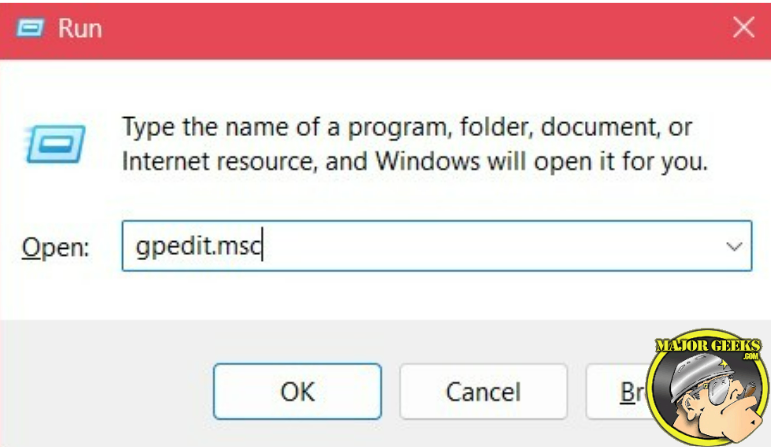
- Press Windows + R.
- Type: gpedit.msc
- Press Enter.
- Go to:
- Open the policy named "Turn off saving snapshots for Recall." (Note: For managed devices, verify that the policy "Allow Recall to be enabled" is also properly configured if you need to permit or restrict access).
- Check how the policy is currently configured.
- Select Apply, then OK after making any changes.
- Restart the PC or run:
gpupdate /force
Setting Turn off saving snapshots for Recall to Enabled prevents Recall from saving snapshots. If you're troubleshooting why Recall will not save snapshots, make sure you or your organization has not already enabled this policy.
On a managed computer, a domain or device-management policy may override changes made with the Local Group Policy Editor.
Troubleshoot Recall snapshot initialization errors
Use this checklist when Recall opens, but snapshots do not start, the timeline is empty, or setup fails.
| Symptom | Likely cause | Fix |
| Recall page is missing | Unsupported hardware or Windows version | Check Copilot+ PC support and install Windows updates |
| "Save snapshots" is unavailable | Group Policy or device management is blocking it | Check work/school management or the policy above |
| Snapshot Timeline stays empty | Snapshots are paused or disabled | Turn on Save snapshots and wait for new activity |
| Recall fails during setup | Windows Hello or account requirement is not complete | Finish the required sign-in/security setup |
| Error returns after reboot | Policy is being reapplied | Check Intune, domain policy, or local Group Policy |
Check Event Viewer for Recall-related events
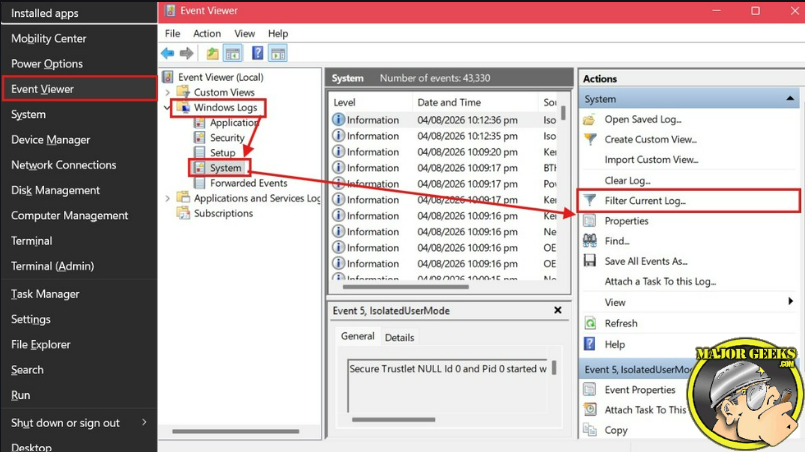
Use Event Viewer when the UI does not explain the failure.
- Press Windows + X.
- Select Event Viewer.
- Expand Applications and Services Logs > Microsoft > Windows and look for Recall, Windows AI, or related snapshot components available on your version of Windows.
Remember, don't try to troubleshoot by Event ID alone. The same Event ID can appear under different sources and mean different things.
If you see entries tied to policy, authentication, Windows Hello, storage, or AI components, fix that underlying issue first. If there is no Recall-specific event, return to the basic checks: hardware support, Windows update status, Settings toggle, and Group Policy.
What to Do Next
At this point, what Recall is doing, or not doing, should give you a pretty good idea where the problem is.
If Recall is missing completely, start with the basics: make sure you actually have a Copilot+ PC that meets the hardware requirements, then check Windows Update and any policies that could be disabling Recall.
If Recall is there but Save snapshots is unavailable, take a closer look at Windows Hello, device encryption, and Group Policy settings.
If Save snapshots is enabled but your timeline is still empty, check your available disk space, install any pending Windows updates, and take a look at Event Viewer for errors that might point you in the right direction.
Finally, if this is a work or school PC, Recall may have been intentionally disabled by your administrator. In that case, don't start changing policies until you know how the PC is being managed.
If all else fails, reach out to the Geeks in the Forums. Someone there may have a trick up their sleeve that we haven't touched on.
comments powered by Disqus
