


How To Manually Update Microsoft Defender in Windows 11
By selma čitakovićon 06/04/2026 |
![{$insert['content_title']](/content/file/6058_image1.png
)
Windows Defender can't really do its job as an antivirus if it's outdated. So, if you suspect you're missing an update or two, you can manually check. It should only take a couple of minutes.
Let me show you how.
Via Windows Update
First, the obvious method! Here are the steps:
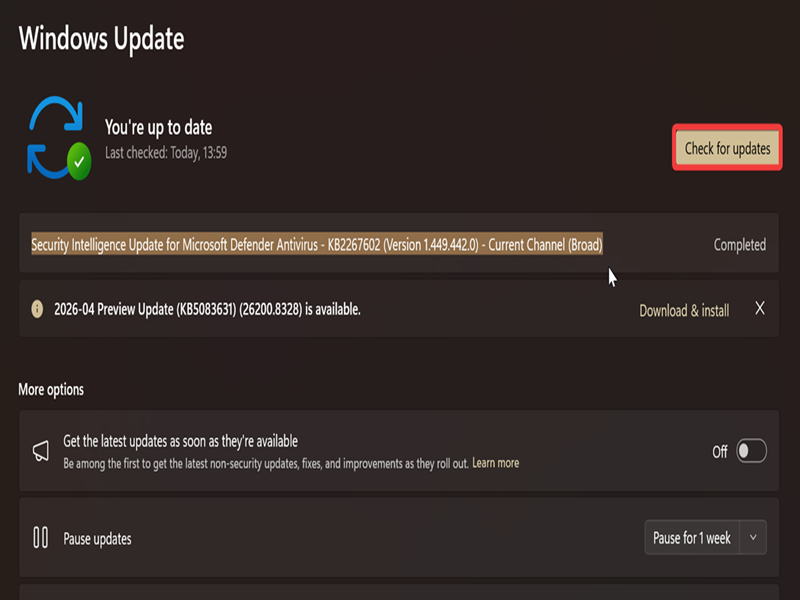
- Go to Settings > Windows Update.
- Click the Check for updates button. Wait for it to finish.
- If any Defender updates are available, they will automatically download and install.
Via Windows Security
Alternatively, you can do this:
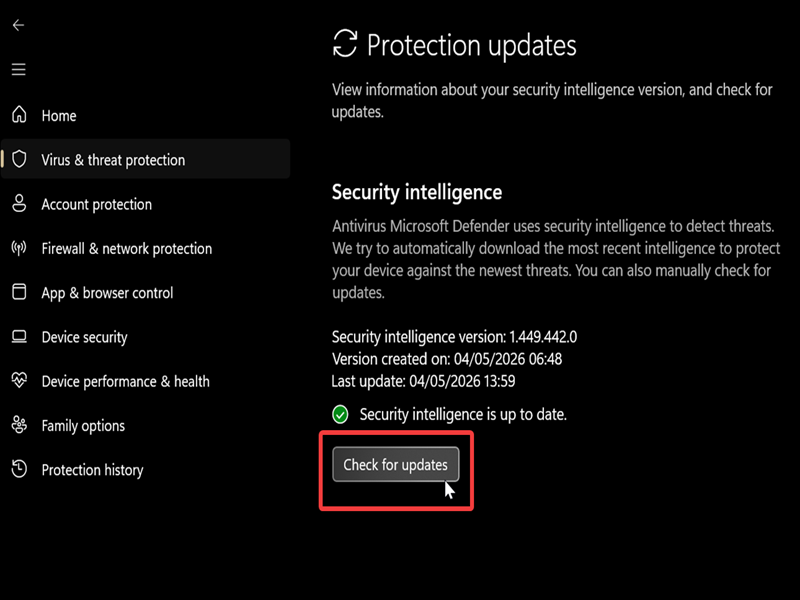
- Open Windows Security from the notification tray in the bottom right corner.
- Go to Virus & threat protection > Protection updates (under Virus & threat protection updates).
- Hit the Check for updates button, and wait.
- It will download and install updates (if available).
Via Download
Or, get the update directly from the official online source:
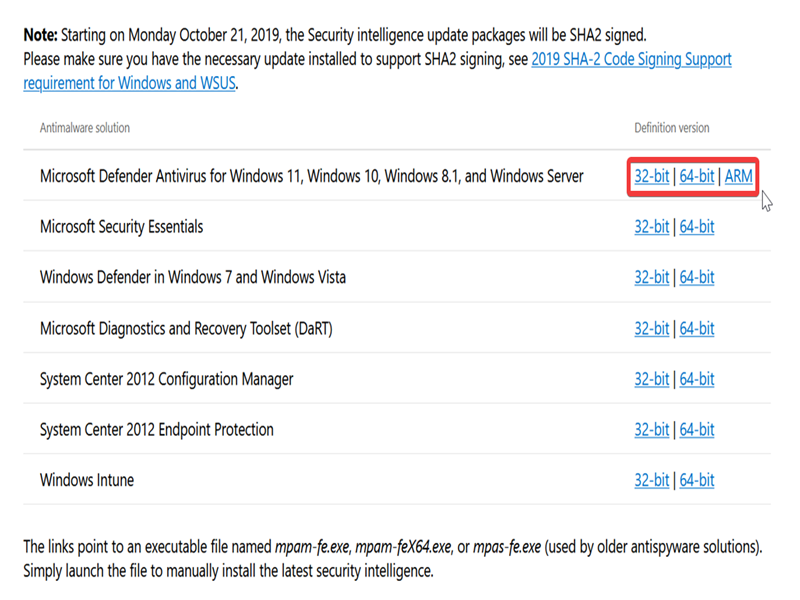
- Visit Microsoft's page for Defender updates.
- Scroll down to the Manually download the update section and look for Microsoft Defender Antivirus for Windows 11, Windows 10, Windows 8.1, and Windows Server.
- Click the 32-bit, 64-bit, or ARM link next to it, depending on your system type.
- You'll download an .exe file containing an updated antivirus security intelligence version. Double-click the downloaded file to install it.
Alternatively, you can get the latest version on our download page.
Via Command Prompt
You can also use a command to update Defender:
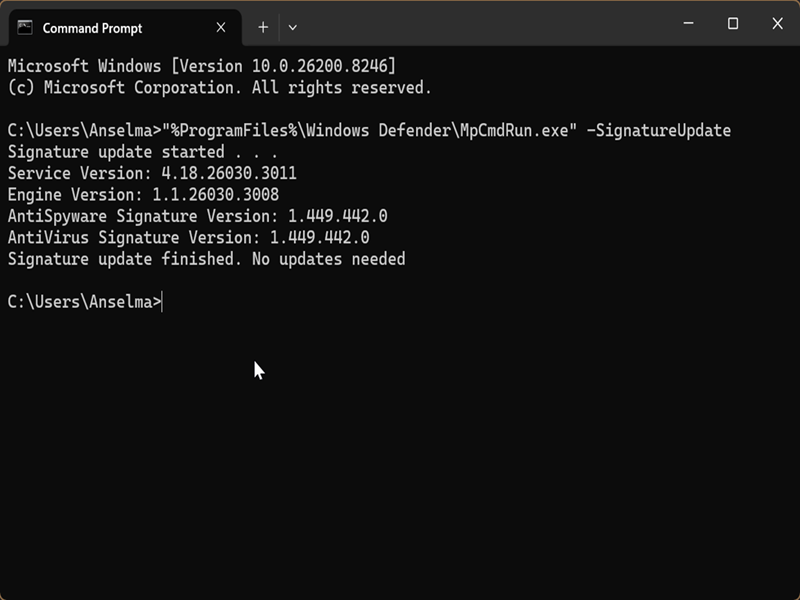
- Press Win + R, type cmd, and press Enter.
- Type the following command and hit Enter: "%ProgramFiles%\Windows Defender\MpCmdRun.exe" -SignatureUpdate
- It'll download any available updates and notify you when it's done.
Windows Update should keep Defender up to date automatically. But if it fails to do so (it wouldn't be the first time!), you can try any of these methods instead. You can also check out this older guide for Windows 10.

|
selma citakovic
Selma is a gamer, geek and gremlin hunter with a passion for cyber security and smashing Windows bugs before they bite. She’s IBM-certified, loves real freeware, despises bloatware, and powers most of her troubleshooting with an unhealthy amount of coffee. |
comments powered by Disqus
