


How to Modify, Turn on, or Turn off the Text Cursor Indicator in Windows 10
By Timothy Tibbettson 07/18/2023 |
The text cursor indicator is the flashing cursor you see when typing in any text-based program including Microsoft Office, Microsoft Word, and Notepad. Windows 10 now allows you to set the size and color of the cursor and we even have registry files to enable or disable the indicator, which would be useful for presentations.
Depending on your build of Windows, some things may be different. We will make a note of this as we proceed.
Modify Size and Colors
Click on Start > Settings> Ease of Access > Text Cursor. Some builds might see Cursor & pointer instead.
Look for Make the cursor easier to see when typing.
There you will find a sliding bar that allows you to change the cursor thickness.
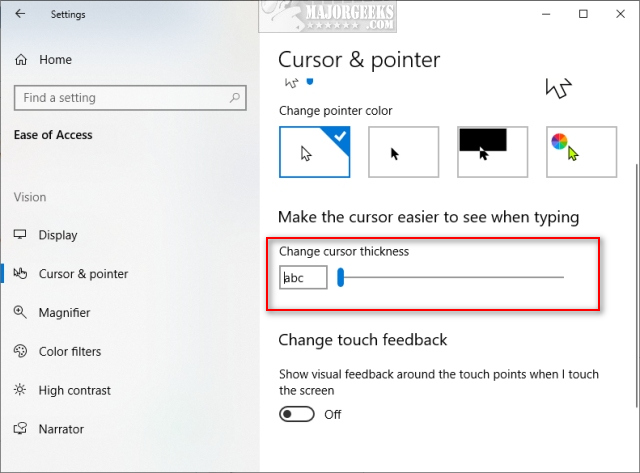
You can preview how your cursor will appear on the fly.
Some users might also see a choice of colors you can choose from.
Enable or Disable
For simplicity, you may want to download these registry files - Turn on and off the Text Cursor Indicator in Windows 10.
Open the Registry Editor and jump to:
HKEY_CURRENT_USER\SOFTWARE\Microsoft\Windows NT\CurrentVersion\Accessibility
Double-click on the Configuration key and enter one of the following as the Value data:
Blank - Disabled.
cursorindicator - Enabled.
comments powered by Disqus
Depending on your build of Windows, some things may be different. We will make a note of this as we proceed.
Modify Size and Colors
Click on Start > Settings> Ease of Access > Text Cursor. Some builds might see Cursor & pointer instead.
Look for Make the cursor easier to see when typing.
There you will find a sliding bar that allows you to change the cursor thickness.
You can preview how your cursor will appear on the fly.
Some users might also see a choice of colors you can choose from.
Enable or Disable
For simplicity, you may want to download these registry files - Turn on and off the Text Cursor Indicator in Windows 10.
Open the Registry Editor and jump to:
HKEY_CURRENT_USER\SOFTWARE\Microsoft\Windows NT\CurrentVersion\Accessibility
Double-click on the Configuration key and enter one of the following as the Value data:
Blank - Disabled.
cursorindicator - Enabled.
comments powered by Disqus
