


How To Remap the Copilot Key on Your Keyboard and Change What It Does
By selma čitakovićon 04/05/2026 |
![{$insert['content_title']](/content/file/5852_image1.png
)
I'm not a fan of the Copilot key. It's taking up a spot on my laptop's keyboard for no good reason, and I keep grazing it and opening the Copilot app by accident.
Unfortunately, Windows doesn't make it easy to turn this key into something you'd personally find useful. You could fully configure it in the Settings in previous builds, but that's no longer the case. Still, I managed to scrounge up some workarounds that still work, despite Windows trying its best to sabotage you.
Let's get into it!
Via Settings
In previous Windows builds, you could configure the Copilot key to open a wide range of apps. Then Microsoft changed its mind and made it so that only apps that are MSIX packaged and signed can launch.
However, when I tried to set a custom app, my only two options were Copilot and Microsoft 365 Copilot. The illusion of choice, huh.
Still, I'll show you how to remap via Settings in case this method works for you. If it doesn't, proceed to the next one.
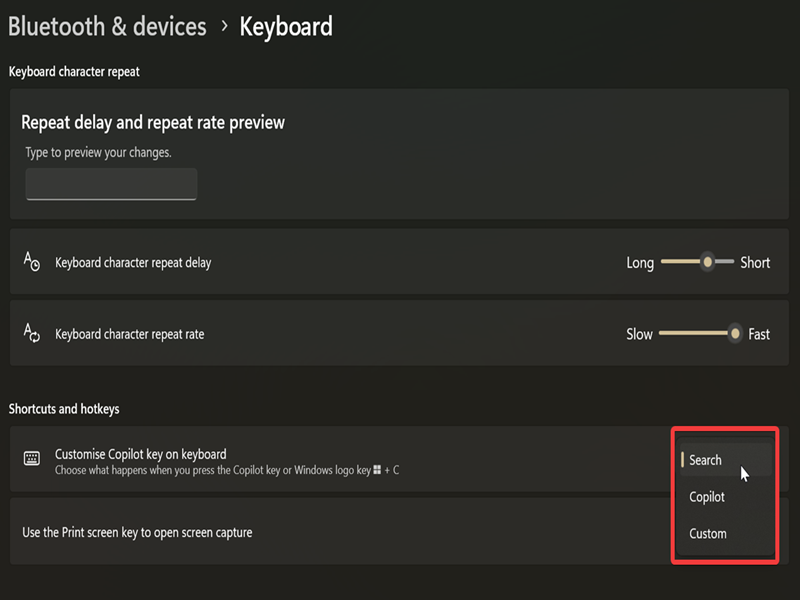
- Go to Settings > Bluetooth & devices > Keyboard.
- Click the dropdown menu next to Customize Copilot key on keyboard.
- The options are Search, Copilot, and Custom. Select the one you want.
- If you've picked Custom, a list of apps should appear. Choose one, and click the Select button.
Via Local Group Policy Editor
Alternatively, you can change what the Copilot key does for all users with the Local Group Policy Editor. This option is only available to Pro, Enterprise, and Education editions. You'll also need to sign in as an administrator first.
Additionally, we'll need to take a short detour to get an AUMID (Application User Model ID) for the app you want to use with the Copilot key. I'll guide you through each step, so no worries.
First, let's find the unique app ID or AUMID:
- Type PowerShell in Windows Search, and select Run as administrator.
- Type the following command and press Enter: Get-StartApps | Format-Table
- This will display a formatted list of every installed app from your Start menu. Find the one you want to open with the Copilot key, and look for its AppID.
- Click and drag to select the AppID. Press Ctrl + C to copy it, and paste it somewhere where it will be easily accessible. You'll need it in a bit!
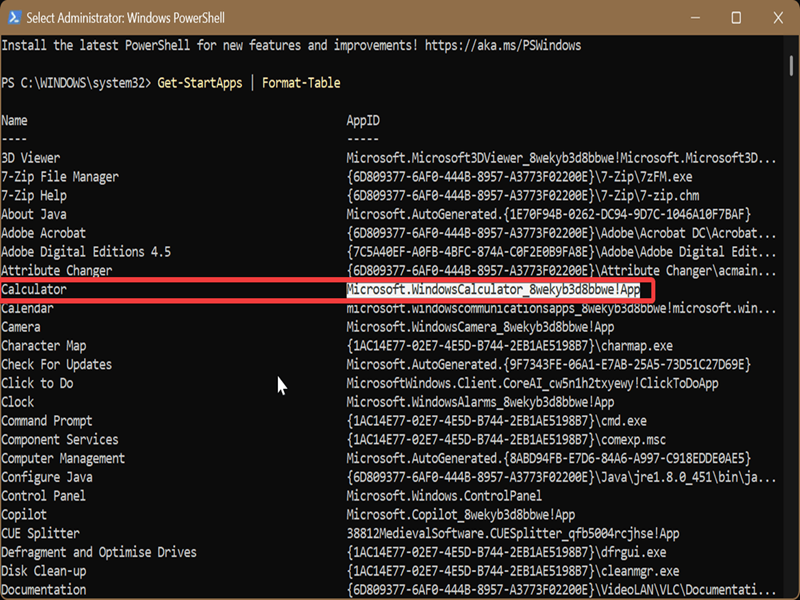
For the sake of this guide, I'll remap the key to the Calculator app. Not a terribly useful choice, but it's just an example.
Now, let's move on to using the Local Group Policy Editor:
- Press Win + R, type gpedit.msc, and press Enter.
- Go to User Configuration > Administrative Templates > Windows Components > Windows Copilot.
- Double-click Set Copilot Hardware Key on the right side.
- In the window that opens up, select Enabled.
- Then, paste the app AUMID/AppID you just copied into the box under Options.
- Click OK, and close the editor.
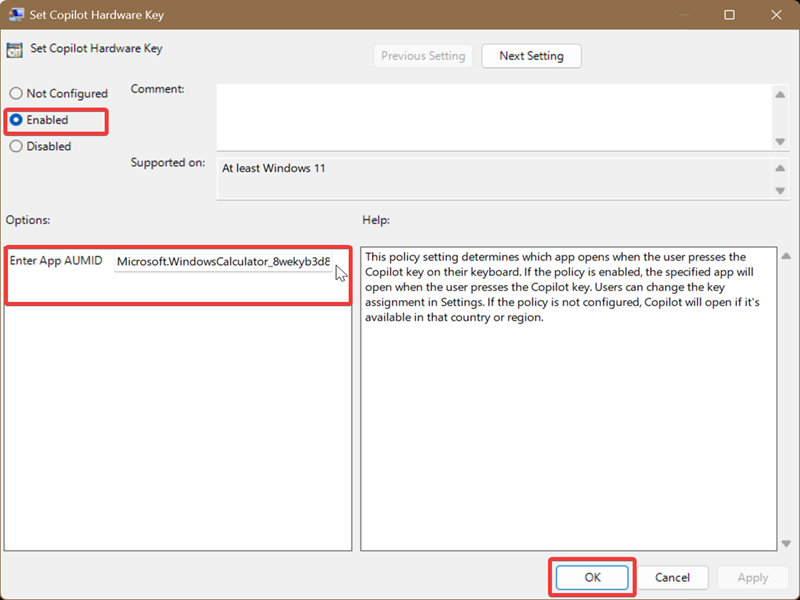
You can now test it. In my case, the Copilot key now acts as a shortcut that opens the calculator app, just as I configured it. It will work with any other app from the list.
To undo the changes, simply select Not configured in the window for Set Copilot Hardware Key.
Via PowerToys
Finally, if you want to remap the Copilot key to a different shortcut or key combo, you can use the Keyboard Manager in PowerToys. PowerToys is a free and open-source collection of productivity tools that make Windows work better.
After downloading and installing it, open the app and find the Keyboard Manager in the Input & Output section. Here's what to do next:
- Toggle on Keyboard Manager (unless it's already on).
- Click on Remap a shortcut. This will open a new window.
- Click the Add shortcut remapping button.
- Under Select:, click the pen icon and press the Copilot key. It will register as Win (Left) + Shift (Left) + F23.
- Under To:, click the dropdown menu and select a key or key combo that you want to remap the Copilot key to. I'll choose Ctrl (Left) in this example.
- Under Target app:, leave it as All apps.
- Click OK in the top right corner.
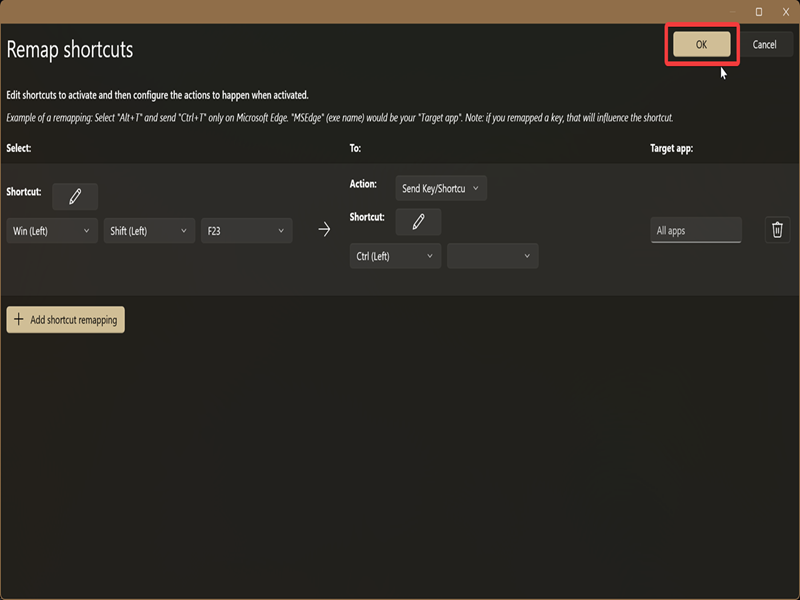
You can now try out your new remapped key! My Copilot key works just like Ctrl now. The only annoying thing is that PowerToys has to run in the background for it to work.
Lastly, if you generally don't use Copilot-related features, you can also disable AI actions. It's a quick edit that will free up space on your already cluttered context menu.

|
selma citakovic
Selma is a gamer, geek and gremlin hunter with a passion for cyber security and smashing Windows bugs before they bite. She’s IBM-certified, loves real freeware, despises bloatware, and powers most of her troubleshooting with an unhealthy amount of coffee. |
comments powered by Disqus
