


How to Set Your Default Location in Windows 10 & 11
By Timothy Tibbettson 06/19/2023 |
For those who allow their location to be used in Windows 10, you may have noticed that sometimes certain websites or apps don't seem to know exactly where you are and when they do, it can be slow. That's because by default Windows 10 may have your location but not your address. Here's how to manage your location settings.
Press the Windows key + I to open the Control panel and click on Privacy and scroll down to Location.
For Location Services to work, be sure that it says Location for this device is on and that the Location service toggle is blue and also says On.
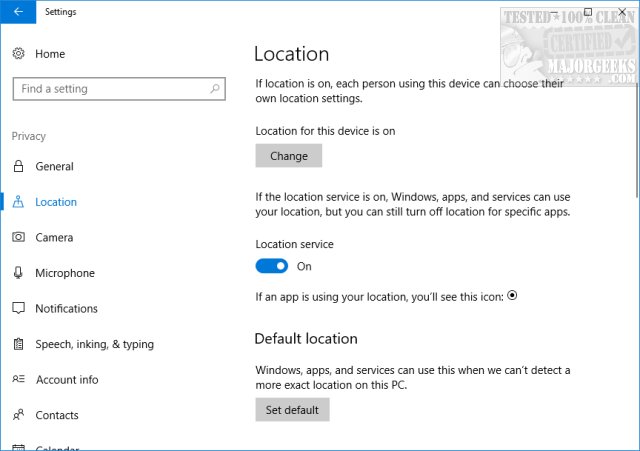
Continuing to scroll down, you will see Default Location. Click on the button that says Set default.
If you happen to get an error: "You'll need a new app to open this ms-default-location" we have a fix for you here. This happened to us here forcing us to find the problem just to continue with this article.
Maps should now open, and once more click on Set default location and type in the address you want to use for default.
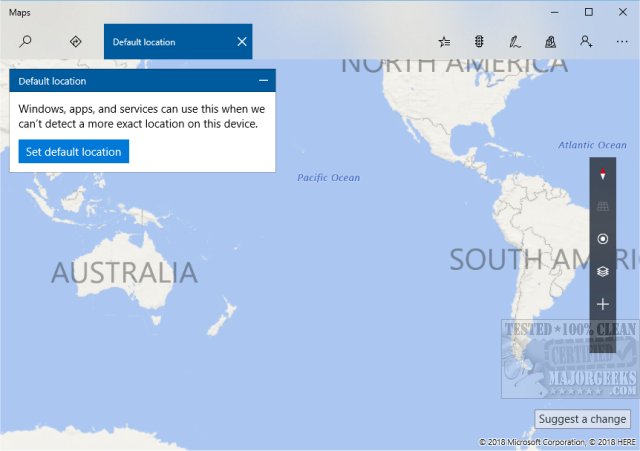
Once you enter your address, it will zoom in. From here you can change your location, clear your location or simply close maps and you're all set.
comments powered by Disqus
Press the Windows key + I to open the Control panel and click on Privacy and scroll down to Location.
For Location Services to work, be sure that it says Location for this device is on and that the Location service toggle is blue and also says On.
Continuing to scroll down, you will see Default Location. Click on the button that says Set default.
If you happen to get an error: "You'll need a new app to open this ms-default-location" we have a fix for you here. This happened to us here forcing us to find the problem just to continue with this article.
Maps should now open, and once more click on Set default location and type in the address you want to use for default.
Once you enter your address, it will zoom in. From here you can change your location, clear your location or simply close maps and you're all set.
comments powered by Disqus
