


How to Stop Adobe Reader From Automatically Opening Downloaded PDFs
By Jim McMahonon 10/02/2026 |
![{$insert['content_title']](/content/file/6458_adobe-reader-popup1.jpg
)
I install a lot of software, and somewhere along the way Adobe Reader ended up on my machine. I never use it. I already have other apps I use to read PDFs, including one set as my default reader, so I really don't need it. Then, recently, every time I downloaded a PDF, Adobe Reader popped up anyway, bringing its bloated interface and pushing tools and AI features I wasn't looking for. I don't know whether this is new in the latest version of Reader or why it started, likely from their latest update…. but I 100% don't like it.
I just want to balance my bank statement, man. I don't need to export it, redesign it, or ask an AI agent why I spent too much on coffee. I already know why.I like coffee.
Frankly, it got super annoying. Downloading a file shouldn't mean stopping what I'm doing to close another application, grabbing 100% of the screen and trying to sell me an upgrade. Eventually, I found a solution, but the setting wasn't where I initially expected. So hopefully, this helps someone else save some time.
Why Adobe Reader Opens PDFs Even When It Isn't Your Default
My first thought was to check my default PDF reader. However, another app was already set as the default, so why was Adobe showing up every time I downloaded something?
It turns out Adobe has a separate setting that automatically opens PDFs downloaded from the web. On Windows, this feature supports downloads from both Chrome and Microsoft Edge. According to Adobe's documentation, this setting is separate from your default PDF app and the Adobe browser extension. Changing your default reader or disabling the Chrome extension doesn't turn off Adobe's automatic opening of downloaded PDFs.
In other words, Windows can know which app you want to use when you double-click a PDF, while Adobe still opens it as soon as the download finishes. That explains why changing the default wasn't fixing anything.
How to Stop Adobe Reader From Opening Downloaded PDFs
Fortunately, the fix is pretty simple once you know where to look:
- Open Adobe Acrobat Reader and press Ctrl + K to open Preferences.
- Select General, then uncheck Always open PDFs downloaded from the web.
- Click OK to save the change.
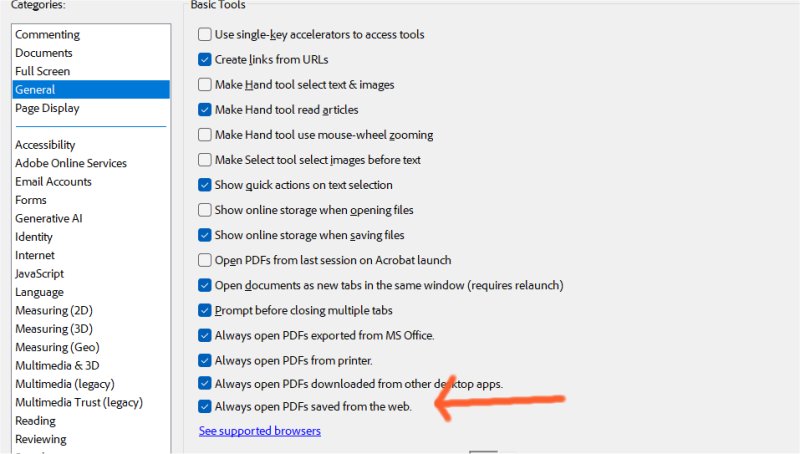
Older versions may label the setting Open PDFs automatically in Reader when they are downloaded in Chrome browser.
You can keep Adobe Reader installed and use it whenever you need it. This simply stops its automatic opening of downloaded PDFs, so downloading your bank statement doesn't have to turn into an Adobe event.
If PDFs Still Open Automatically
Chrome also has its own setting for automatically opening downloaded files. If PDFs still launch after you turn off Adobe's preference, open Chrome's recent downloads menu and right-click a downloaded PDF. If Always open files of this type is checked, uncheck it. You can find more details in Google's download instructions.
Geek Take
What you use should come down to what you need. Adobe's tools may be useful for your work, but I don't need the whole production every time I open a document single. Sometimes a PDF is just a bank statement that need balancing. Not, comments, changing retying and summarizing in its 100% full screen regalia to entice me to "Buy Pro".
Adobe makes a great product - obviously. But they are a huge company that has to pay the bills. There are plenty of alternatives if you want a different approach to working with PDFs that are so intrusive not influenced as heavily by the marketing department. . We list a bunch in our MajorGeeks PDF Tools section, including my current favorite, KillerPDF. If you have a PDF program you love, feel free to share in the comments.

|
Jim McMahon
Jim McMahon, aka Corporal Punishment, is the founder of MajorGeeks.com. He has spent decades testing software, troubleshooting Windows, and helping users cut through the nonsense. He loves real freeware, hates bloatware, and runs on caffeine, sarcasm, and questionable choices. |
comments powered by Disqus
