


Two Opera Features Worth Trying: Vertical Tabs and Google Lens
By Jim McMahonon 11/07/2026 |
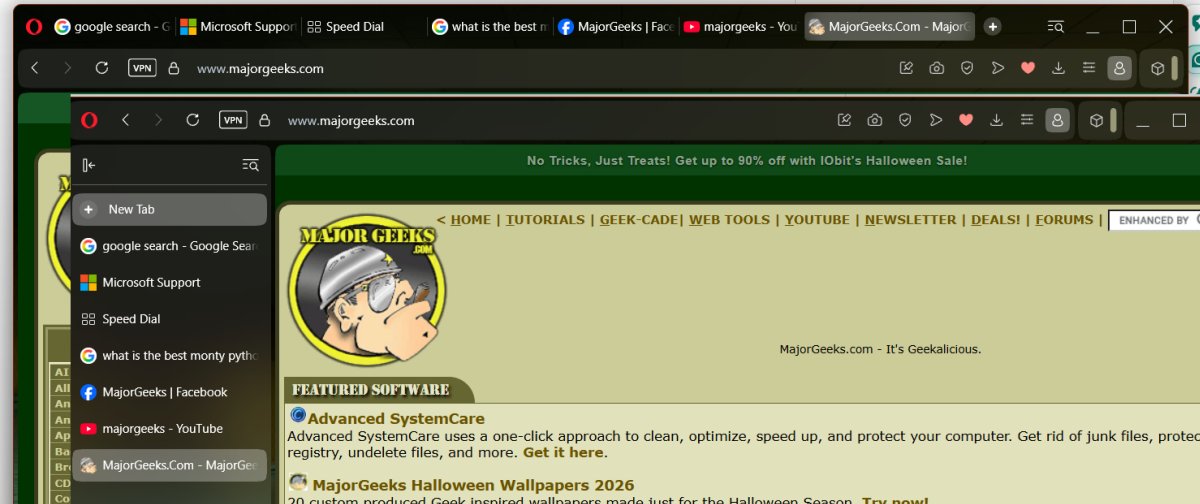
Opera's latest update screen highlights two features worth a closer look: Vertical Tabs and easier access to Google Lens. For anyone who keeps a pile of webpages open or struggles to describe something in a search box, these are practical additions to a free browser you can download from MajorGeeks. One helps you find what you already opened, and the other helps you find something you don't know the name of.
The welcome screen caught my attention because these are features with an obvious everyday use. My browser already has enough ways to distract me. Making the useful stuff easier to find is a direction I can appreciate.
Why Opera Is Highlighting Vertical Tabs
Vertical Tabs move your open tabs from the top of the browser into a list down the left side. The big advantage is room for readable page titles. Once you have enough traditional tabs open, they shrink into a row of tiny icons, and finding a particular page starts feeling like a memory test.
Opera introduced its current vertical tab layout earlier this year and continues refining it. The November 4 update improves how it behaves, including remembering whether the tab panel is collapsed separately for each window and fixing tabs that became too narrow inside groups. The welcome screen highlights the broader features, while individual updates keep polishing the experience.
At first, I have to admit using vertical tabs is kind of strange. I mean, tabs have always been to the top since the dawn of tabbed browsing in the mid 1990’s. This is the way.
But once you start using this feature, you find out why this layout is getting plenty of attention across browsers. Google has also added vertical tabs to Chrome, another sign that a growing collection of open pages needs something better than increasingly tiny rectangles.
Imagine troubleshooting a Windows error with a Microsoft support page, a MajorGeeks guide, a forum discussion, and several possible fixes open. Seeing recognizable titles down the side makes it easier to move between them without clicking through three nearly identical icons.
You can see an example of this in the top image where I show the same windows open in both top and horizontal. It's pretty clear what's better to me, anyway.
How to Enable Vertical Tabs
The option is available by default; you just right-click on any open horizontal tab and choose the vertical option. To go back, you just do the reverse: right-click on the vertical tab and choose the horizontal option.
You can also colapse/ expand the vertical bar with the collapse icon in the upper right, but the only way to auto-hide it is in the options under easy setup then Layout for the option to automatically hide the tab panel. That gives you more room for the webpage while keeping your tabs available when needed.
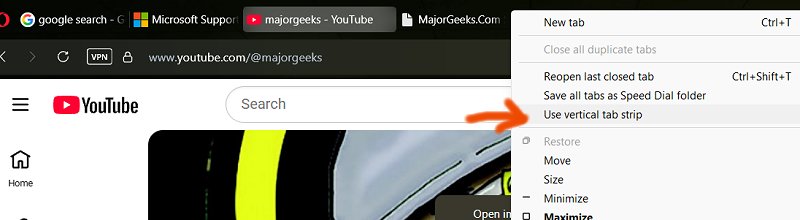
To return to the traditional arrangement, right-click a tab and select Use horizontal tab strip. No commitment required. You can rearrange your browser without making it a lifestyle choice.

You can also group related tabs into what Opera calls Tab Islands. Keep your Windows troubleshooting pages together, shopping comparisons in another group, and whatever rabbit hole you fell into this morning in a third. Drag one tab onto another to create a group, or Ctrl-click several tabs, right-click, and choose Create Tab Island. These groups work with vertical tabs too, so you can organize that growing list instead of simply moving the mess sideways.
Google Lens Makes Searching With Pictures Easier
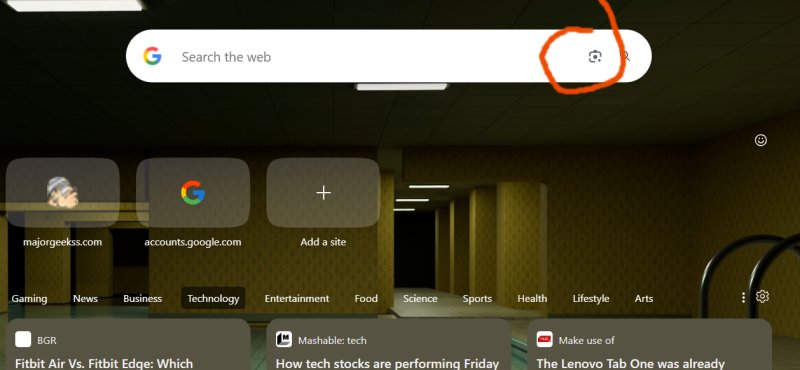
The other feature on Opera's update screen is Google Lens integration in the Start Page search bar. Lens was already available in Opera, but this gives it a more convenient starting point and lets you supply an image in several ways.
Click the Google Lens icon in the search bar. You can upload an image, drag one into the dialog, paste it from your clipboard, or enter an image URL. Search results then open in your current tab.
That is useful when you have a picture but don't know what to type. An unfamiliar logo, an accessory without a readable label, or a product pictured without its name can give you a starting point for a search.
I just used this feature to get the right battery replacement for my Cub Cadet when the store didn't have the save battery in stock. For PC users, a photo of an unidentified cable or adapter is a good example. Lens may help narrow down what you're looking at. Just verify the actual connector, model, and specifications before ordering a replacement. Two things looking alike is how you end up with a drawer full of almost-the-right adapters.
Geek Verdict
There’s nothing completely earth-shattering with this release, but what we like here is the practical conveniences of these tools.
Vertical Tabs address the clutter that builds up during everyday browsing, and auto-hide helps balance readable titles against available screen space. Google Lens gives you another way to search when words aren't doing the job.
I love vertical tabs, but vertical tabs won't suit everyone, especially on a narrow display, and image matches still need a little common sense. But both features are easy to try, and neither requires adding another extension.
You can download Opera One free from MajorGeeks. If you're already using it, take a minute to explore the Layout settings. That update screen might have something useful behind it after all.

|
Jim McMahon
Jim McMahon, aka Corporal Punishment, is the founder of MajorGeeks.com. He has spent decades testing software, troubleshooting Windows, and helping users cut through the nonsense. He loves real freeware, hates bloatware, and runs on caffeine, sarcasm, and questionable choices. |
comments powered by Disqus
