


Opt out of Targeted Ads in Windows 10
By Timothy Tibbettson 06/15/2023 |
As you may have heard, Windows 10 is supposed to be the last name change of Windows. Many of us got it for free whether you got the free upgrade or it came with your computer, tablet or phone. Targeted advertising is how Microsoft generates revenue for giving you the free operating system. So, it's not all bad and not all that noticeable. But, that's me. If you don't like or want these targeted ads here's what you do.
Go to Click Start > Settings > Privacy, and you should be on the General tab.
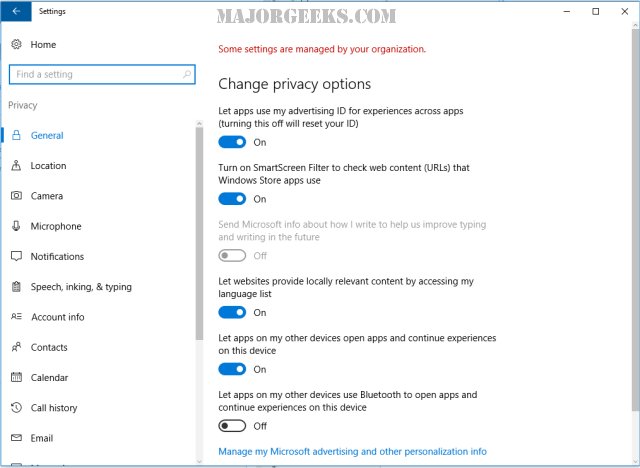
Uncheck "Let apps use my advertising ID for experiences across apps (turning this off will reset your ID)"
But, wait, there's more!
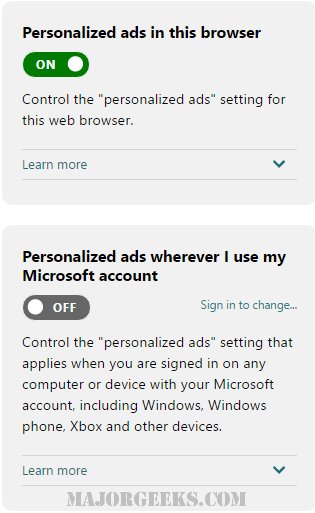
You can also do the same thing if you use any Microsoft account, Microsoft web browser, Xbox, phone, or other devices. Scroll further down and look for "Manage my Microsoft advertising and other personalization info" and click on it. That will open your web browser to Microsoft's opt-out page. You can uncheck "Personalized ads in this browser" or "Personalized ads wherever I use my Microsoft account."
Finally, you may have noticed when you were in the privacy section of the Control Panel that there's a lot of other options there. While this section is called Privacy, there might be some settings in there that make Windows more convenient and personal for you. Most of these settings let you determine what apps can access what. It only takes a few minutes and if you change your mind later, it's easy to revert any settings back.
comments powered by Disqus
Go to Click Start > Settings > Privacy, and you should be on the General tab.
Uncheck "Let apps use my advertising ID for experiences across apps (turning this off will reset your ID)"
But, wait, there's more!
You can also do the same thing if you use any Microsoft account, Microsoft web browser, Xbox, phone, or other devices. Scroll further down and look for "Manage my Microsoft advertising and other personalization info" and click on it. That will open your web browser to Microsoft's opt-out page. You can uncheck "Personalized ads in this browser" or "Personalized ads wherever I use my Microsoft account."
Finally, you may have noticed when you were in the privacy section of the Control Panel that there's a lot of other options there. While this section is called Privacy, there might be some settings in there that make Windows more convenient and personal for you. Most of these settings let you determine what apps can access what. It only takes a few minutes and if you change your mind later, it's easy to revert any settings back.
comments powered by Disqus
