


PowerToys 0.102 is Out - 6 New Features Worth the Download
By Jim McMahonon 10/24/2026 |
We have been following the new PowerToys features through the previews. Now they have landed in the regular release, giving everyone a chance to try them without following the preview builds.
Microsoft PowerToys is a free, open-source collection of Windows utilities for everything from arranging windows to renaming files. Version 0.102.2933.0, released October 21, adds two mouse tools and upgrades several existing utilities. Here are six changes worth a look.
1. Mouse Button Lock Gives Your Finger a Break
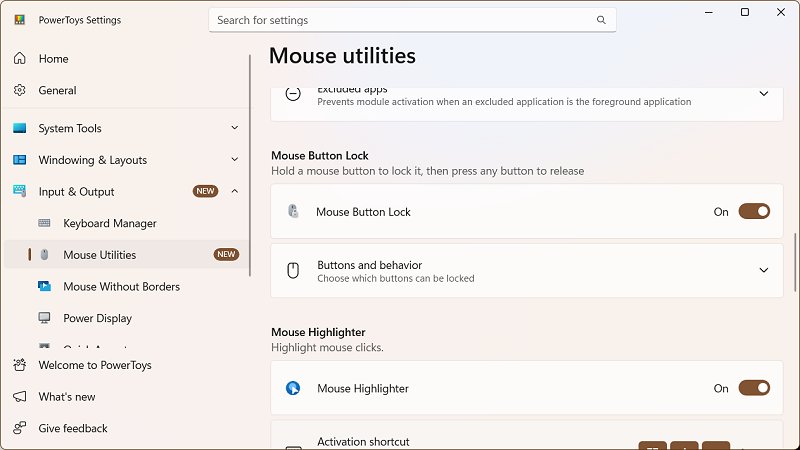
Dragging something across the screen should not require a test of finger endurance. Mouse Button Lock lets a button remain virtually pressed after you release it, making extended dragging and selection easier.
To try it, open PowerToys Settings, find Mouse Button Lock under Mouse utilities, and enable it. Choose which buttons you want to support. Left-button locking is not selected by default, so enable that option if your goal is ordinary dragging and text selection.
Press and hold an enabled button while keeping the mouse still, release it, then move the pointer. Click any mouse button to end the lock. You can adjust the hold duration and movement threshold.
Windows already includes ClickLock for the primary mouse button. PowerToys adds configurable support for the right and middle buttons, too. Some games using raw mouse input may not cooperate.
2. CursorHide Gets the Pointer Out of Your Way
You move the mouse, start typing, and leave the pointer parked directly over what you are trying to read. A small annoyance, but one you can encounter all day.
CursorHide can hide the pointer while you type, after inactivity, or both. Moving the mouse brings it back.
Open PowerToys Settings and find the cursor-hiding options under Mouse utilities. Enable hiding after keyboard input, pointer inactivity, or both. Microsoft's documentation still calls this feature Auto Hide Cursor, so you may encounter that name while looking up instructions.
This is probably the simplest addition to appreciate. Configure it once and let powertoys do its thing.

3. Command Palette Puts Favorite Commands Within Reach
Command Palette's new quick-access shelf keeps pinned commands beneath its search box in compact mode. Think of it as a little favorites bar for things you repeatedly launch.
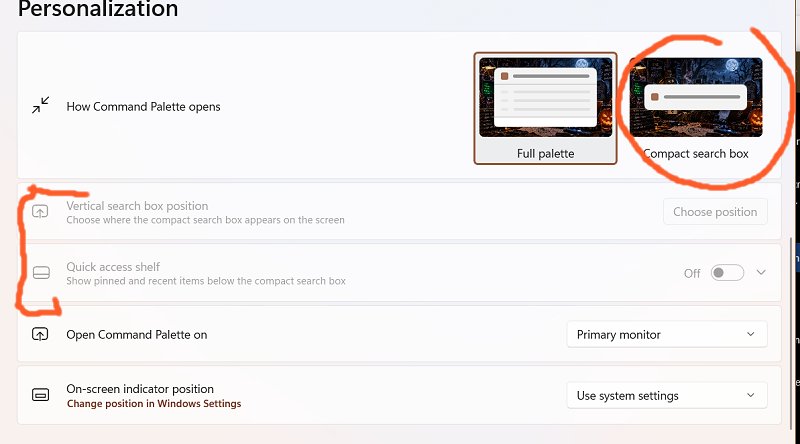
In Command Palette's own settings, go to Appearance, then Compact mode, and enable the quick-access shelf. (Hit WIN+ALT+SPACE to open Command Palette) With the palette open, Alt+1 through Alt+9 launches the corresponding pinned item. Alt+Shift+number selects an item without running it, and you can drag pins into your preferred order.
If you already use Command Palette, this removes some repetitive searching. If you have been meaning to give it a try, setting up a few favorites is a sensible place to start.
NOTE:The quick-access shelf requires Compact mode to be enabled first. Open Command Palette’s own Settings > Appearance > Compact mode, turn on Compact mode. (Or Comact Mode may be as a toggle up top - see image)
4. Keyboard Manager Lets a Key Do Double Duty
Keyboard Manager now supports tap-alone remaps. A key can trigger one action when tapped by itself while retaining its usual behavior in shortcuts and mouse combinations.
That distinction matters. Reassigning a modifier key outright can interfere with shortcuts you already use. Tap-alone behavior gives you another option.
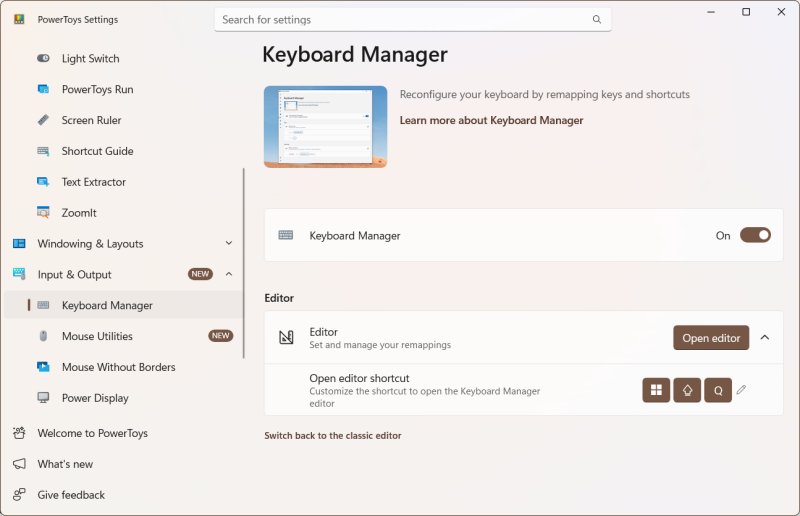
Open PowerToys Settings, enable Keyboard Manager, and open Remap a key in the redesigned editor. Configure the source and destination for your remap, then use its tap-alone option. Try one mapping first and check your usual shortcuts before adding more.
PowerToys must remain running for Keyboard Manager's mappings to work. The editor also gains better searching and filtering, useful if your collection of customizations has become a project of its own.
5. ZoomIt Adds a Spoken Explanation to Screenshots
ZoomIt is a screen magnifier, annotation, and recording tool from Microsoft. It is included in PowerToys and also available separately. It now has a new snip dictation tool to help capture both your screeshot and your spoken word.
Enable ZoomIt in PowerToys Settings, then turn on Snip with dictation in ZoomIt's settings. While dragging out a snip, press Space and describe what you are capturing. ZoomIt transcribes the speech on your device, and you can paste the screenshot and text together. It uses the microphone selected under Record.
I could see where this owuld be handy for troubleshooting, teaching, or explaining which setting someone needs to change, this could save a few rounds of “No, the other button.” Check the transcription before sharing it, especially when software names or technical terms are involved.
6. Peek Can Look Inside SQLite Databases
This one is more specialized, but useful if you work with application data or development projects. Peek can now display SQLite databases without opening a separate database editor.
Enable Peek in PowerToys Settings, select a supported file in File Explorer, and press your configured Peek shortcut. Microsoft's current documentation lists Space as the default, but check your settings if you have an existing installation.
Supported extensions include .db, .sqlite, and .sqlite3. Select a table to inspect its columns and rows. The preview is read-only and displays up to 200 rows per table, making it suitable for a quick inspection rather than full database work. Not every .db file is SQLite, either.
Should You Update?
If you already use PowerToys, this release offers several practical reasons and several fun reasons to update. Mouse Button Lock and CursorHide are easy starting points, while Command Palette and Keyboard Manager reward a little configuration.
ZoomIt dictation is particularly interesting for anyone who regularly explains things with screenshots, though a smidge buggy.
Remember, you do not need to enable the entire toolbox and frankly, probably shouldn't. Pick the utilities that solve something you actually encounter and then wonder why that feature isn;t in Windows by default.
You can download Microsoft PowerToys here at MajorGeeks. Existing users can also check for updates from PowerToys Settings.

|
Jim McMahon
Jim McMahon, aka Corporal Punishment, is the founder of MajorGeeks.com. He has spent decades testing software, troubleshooting Windows, and helping users cut through the nonsense. He loves real freeware, hates bloatware, and runs on caffeine, sarcasm, and questionable choices. |
comments powered by Disqus
