


Stop Windows 11 From Spying On You: Free Tools and PowerShell
By selma čitakovićon 12/14/2025 |

It's no secret that Windows can be pretty nosy about your daily activities. It has built-in telemetry and diagnostics that collect data related to application usage, search history, device information, and more. Worst of all, most of these invasive settings and features are enabled by default, and can be tricky to find.
So, if you're sick of Windows 11 spying on you, I've got you. Below, I'll show you which options to disable, where to find them, and recommend some free tools to speed up the process. Besides improving your privacy, you'll also notice your system running more smoothly after these adjustments.
Privacy & security settings
Your first stop will be the Privacy settings. Basically, you'll want to go through your Windows and App permissions and disable almost everything. Go to Settings > Privacy & security, and turn off the following options.
In Recommendations & offers:
- Personalized offers
- Allow websites to access my language list
- Improve Start and search results
- Show notifications in Settings
- Recommendations and offers in Settings
- Advertising ID
In Speech:
- Online speech recognition
In Inking & typing personalization:
- Customized inking and typing dictionary
In Diagnostics & feedback:
- Send optional diagnostic data
- Improve inking & typing
- View diagnostic data
Additionally, set the Feedback frequency to Never, and click Delete diagnostic data.
In Search:
- Search history
- Show search highlights
- Search my accounts
Also, click Clear device search history.
Now, let's move on to App permissions. The big three you'll want to keep an eye on are:
- Location – Turn off Location services
- Camera – Turn off Camera access
- Microphone – Turn off Microphone access
You can also remove permissions on an app-by-app basis in each section, depending on your needs.
Registry Editor
Quick note: Before changing anything in your registry, make sure you back up your registry. It only takes a minute and can save you a lot of pain if something goes sideways. You can either ight clicko n the key you are changing and export it for later, or download something like Tweaking Registry Backup
Now, you may have noticed earlier that in the Privacy settings, you could only disable optional diagnostic data. The "required" data option was grayed out, but that won't deter us.
You can bypass this limit with a few Registry tweaks.
Let me show you how:
- Type regedit in Windows Search, and open it.
- On the left side, you'll see a list of folders. Go to HKEY_LOCAL_MACHINE\SOFTWARE\Policies\Microsoft\Windows\DataCollection.
- In the DataCollection folder, right-click and select New, then DWORD (32-bit) Value. Name it AllowTelemetry.
- Double-click it and type 0 in the Value data field.
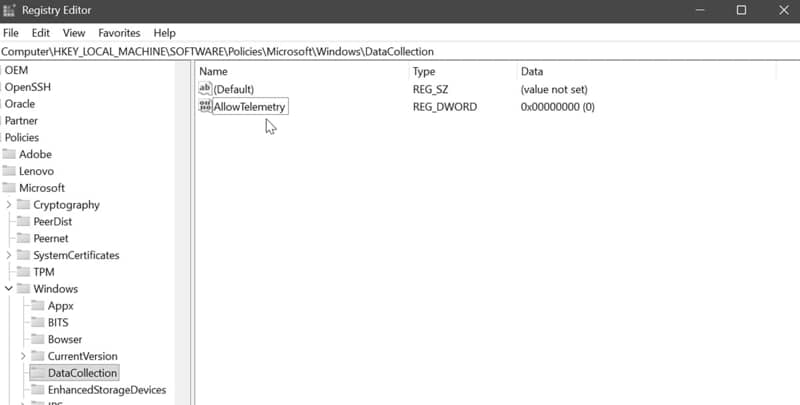
Once you restart your PC, it will stop sending even the required diagnostic data. Take that, Windows!
But there's one more thing you can't simply deactivate in the Settings. You've probably noticed how internet search results annoyingly pop up when you're looking up apps and services in Windows Search.
Thankfully, you can put an end to this via Registry Editor:
- Open the Registry Editor, and go to HKEY_CURRENT_USER\Software\Policies\Microsoft\Windows.
- Right-click the Windows folder and select New > Key. Name it Explorer.
- In the Explorer folder, right-click and select New > DWORD (32-bit) Value. Name it DisableSearchBoxSuggestions.
- Double-click it and type 1 in the Value data field.
- Right-click the taskbar, open Task Manager, find Windows Explorer, and click Restart task.
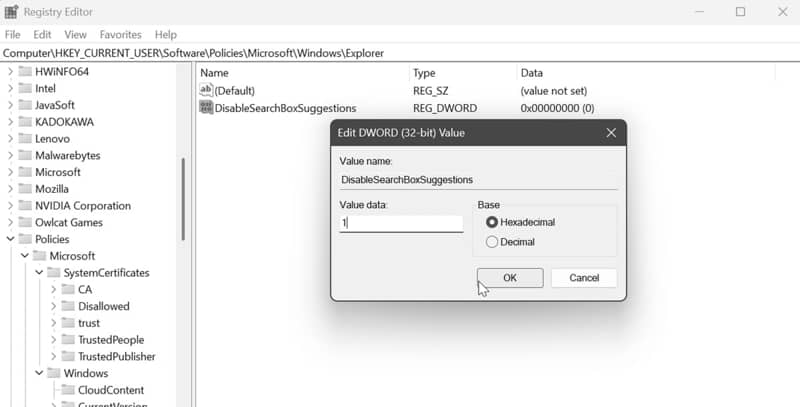
After restarting Windows Explorer, you'll notice that there aren't any spammy internet results in Windows Search anymore.
Services
Your next stop is Windows Services. Specifically, you'll want to disable Connected User Experiences and Telemetry, since this function runs in the background.
To do so:
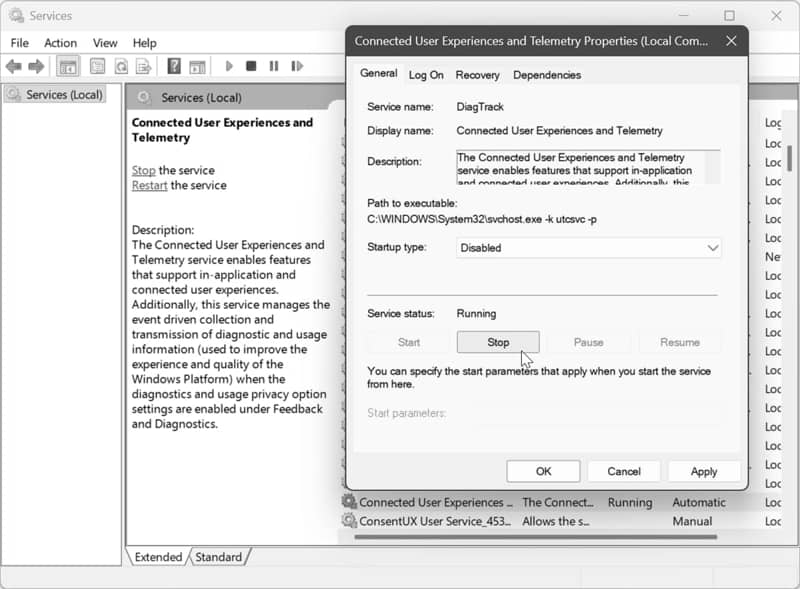
- Type Services in Windows Search and open it.
- Scroll down and look for Connected User Experiences and Telemetry.
- Double-click it and set Startup type to Disabled. Click Stop, then OK.
Task Scheduler
Task Scheduler automates some sneaky actions in the Application Experience and Customer Experience Improvement Program folders.
Here's how to take care of that:
- Type Task Scheduler in Windows Search and open it.
- From the Task Scheduler Library on the left, go to Microsoft\Windows\Application Experience.
- Right-click each option from the list and click Disable. If you get a message saying you don't have permissions, click Delete.
- Go to Microsoft\Windows\Customer Experience Improvement Program and repeat the process.
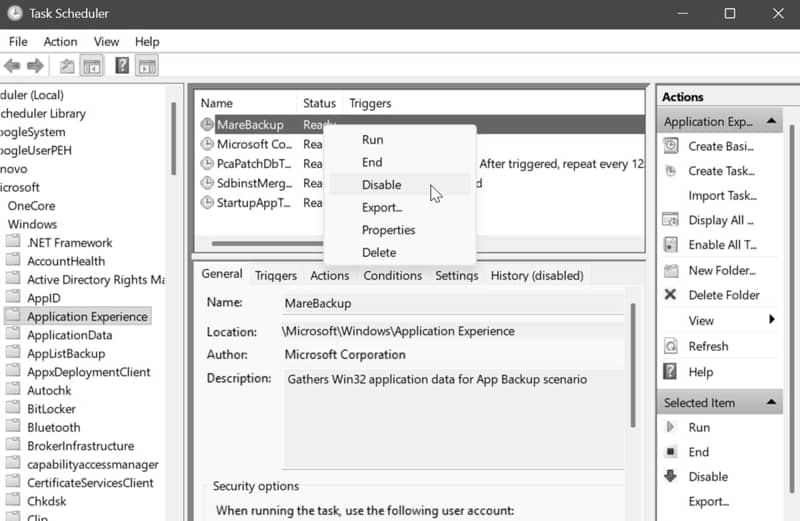
Unfortunately, Windows updates may reactivate some of these tasks, so it's a good idea to re-check them periodically.
But if you want to put a more permanent stop to them, you can block Microsoft's telemetry servers with your firewall.
Disable telemetry with O&O ShutUp10++
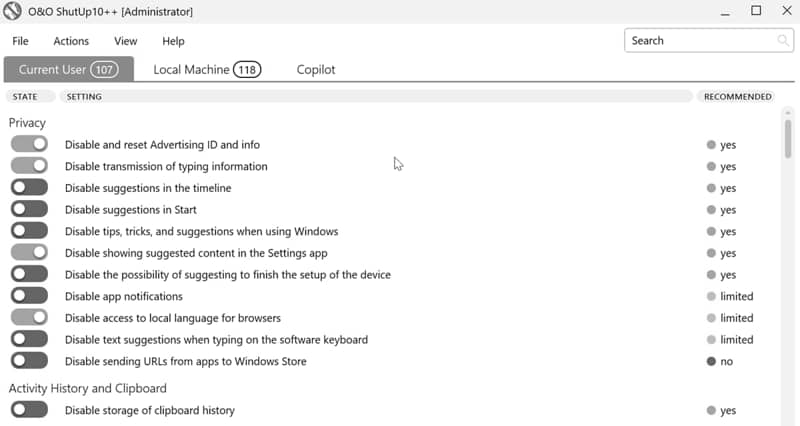
Alternatively, you can skip the previous steps and disable all the problematic settings from one place with O&O ShutUp10++. It covers telemetry sharing, app permissions, location services, and more.
You can find all the relevant options in the main interface, helpfully marked as safe to disable (green), somewhat risky (yellow), or not recommended (red).
So, the chances of you accidentally turning off something important are very slim. Even if you do, you can create a restore point and revert everything to factory settings. It's also portable and free.
Block telemetry servers with Windows Spy Blocker
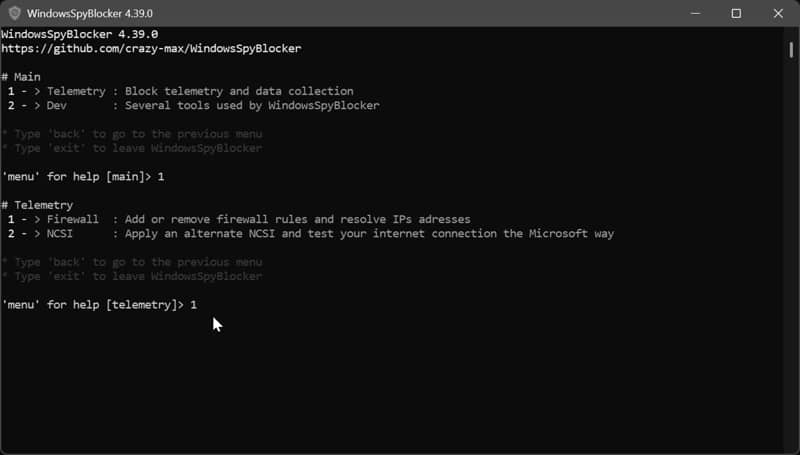
Windows Spy Blocker is an open-source tool that adds firewall rules to block Microsoft telemetry servers.
Unfortunately, it hasn't been updated since 2022, so the block list is outdated, but it's better than nothing.
Once you download it, you can add or remove firewall rules. Simply type 1 in the interface to add a list of spy rules, and you're done.
As you can see, if you value your privacy, you'll have to jump through a lot of hoops to get there with Windows 11. It's not impossible, but it's a hassle for sure.
Still, it's better than staying complacent and just handing over all your user data to Microsoft. With this guide, you can take control of your Windows experience and make it more private.

|
selma citakovic
Selma is a gamer, geek and gremlin hunter with a passion for cyber security and smashing Windows bugs before they bite. She’s IBM-certified, loves real freeware, despises bloatware, and powers most of her troubleshooting with an unhealthy amount of coffee. |
comments powered by Disqus
