


The Action Can’t Be Completed Because the File Is Open in Another Program
By Timothy Tibbettson 06/19/2023 |
The Action Can’t Be Completed Because the File Is Open in Another Program is an error that appears in Windows typically when trying to delete a file that is still in use in Windows. There are a few ways that you can put an end to this error. We'll start with the simplest solutions.
1: Restart Windows
While this seems simple, there's a good chance the file in use will be closed after a reboot.
2: Restart in Safe Mode
Again, this can be used for troubleshooting but should also unlock the file in use. This works great if a reboot didn't help.
3: Launch in a Separate Process and Disable the Preview Pane
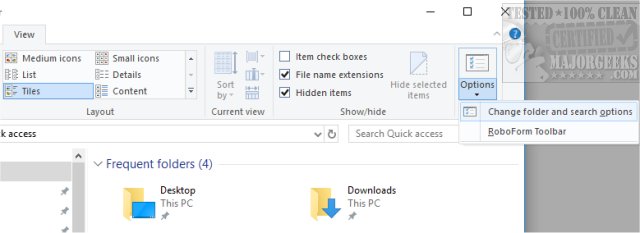
Press the Windows key + E to start File Explorer. Now click on View > Options > Change folder and search options. Under Folder Options now click on the View tab.
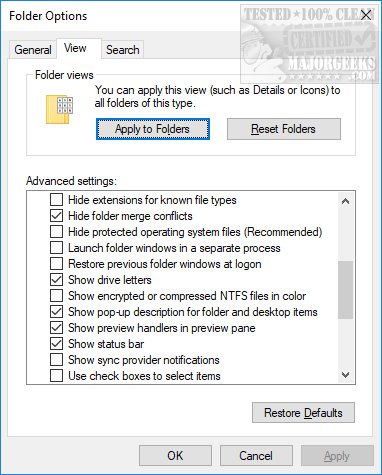
Scroll down just below the yellow folder icon and look for Launch folder windows in a separate process. If this option is enabled (checked), then disable it (uncheck). Regardless, be sure it's unchecked and see if your problem is solved.
If the problem continues, scroll down looking for Show preview handlers in preview pane and uncheck this box if it is checked. Now see if your problem is solved.
Occasionally we see some confusion here as to what's checked, what's not checked and what the default should be. The default in Windows 10 should be "Launch folder windows in a separate process" unchecked and "Show preview handlers in preview pane" checked.
4: Unlock Files with Unlocker
Unlocker helps delete locked files with error messages including
The Action Can’t Be Completed Because the File Is Open in Another Program
Cannot delete file: Access is denied.
There has been a sharing violation.
The source or destination file may be in use.
The file is in use by another program or user.
Make sure the disk is not full or write-protected and that the file is not currently in use.
We even have a video tutorial for using Unlocker:
Note that Unlocked is Ad-Supported so watch for third-party software that it installs and opt-out. It's a minor annoyance considering it's the best solution for unlocking locked files.
comments powered by Disqus
1: Restart Windows
While this seems simple, there's a good chance the file in use will be closed after a reboot.
2: Restart in Safe Mode
Again, this can be used for troubleshooting but should also unlock the file in use. This works great if a reboot didn't help.
3: Launch in a Separate Process and Disable the Preview Pane
Press the Windows key + E to start File Explorer. Now click on View > Options > Change folder and search options. Under Folder Options now click on the View tab.
Scroll down just below the yellow folder icon and look for Launch folder windows in a separate process. If this option is enabled (checked), then disable it (uncheck). Regardless, be sure it's unchecked and see if your problem is solved.
If the problem continues, scroll down looking for Show preview handlers in preview pane and uncheck this box if it is checked. Now see if your problem is solved.
Occasionally we see some confusion here as to what's checked, what's not checked and what the default should be. The default in Windows 10 should be "Launch folder windows in a separate process" unchecked and "Show preview handlers in preview pane" checked.
4: Unlock Files with Unlocker
Unlocker helps delete locked files with error messages including
The Action Can’t Be Completed Because the File Is Open in Another Program
Cannot delete file: Access is denied.
There has been a sharing violation.
The source or destination file may be in use.
The file is in use by another program or user.
Make sure the disk is not full or write-protected and that the file is not currently in use.
We even have a video tutorial for using Unlocker:
Note that Unlocked is Ad-Supported so watch for third-party software that it installs and opt-out. It's a minor annoyance considering it's the best solution for unlocking locked files.
comments powered by Disqus
