


Windows Studio Effects Camera Error: Check NPU, Drivers, and Camera Settings
By Jim McMahonon 08/18/2026 |
Key Takeaways
Key takeaways: - Windows Studio Effects requires a supported Neural Processing Unit (NPU); available effects vary depending on NPU capability.
- If the NPU is missing in Device Manager, reinstalling camera apps will not fix the issue.
- A supported Windows Studio Effects driver (or OEM opt-in driver, sometimes called Microsoft Effects Pack on certain systems) must be present and working for features such as background blur, eye contact, auto-framing, and voice focus.
- OEM tools from Dell, Lenovo, HP, ASUS, and others can sometimes overlap or conflict with Windows camera effects.
- Windows 11 camera settings only show AI effects when the hardware, firmware, and drivers all report support correctly.
Windows Studio Effects is a collection of AI-powered video and audio features built into Windows 11. Windows Studio Effects usually disappear or stop working when Windows 11 cannot detect the required NPU, the Microsoft Effects Pack driver is missing, or OEM camera software is overriding the camera stack. Start by checking hardware support, then confirm the NPU in Device Manager before reinstalling drivers.
Quick decision tree
Use this first to avoid reinstalling the wrong component.
| What you see | Likely cause | Start here |
| Windows Studio Effects is missing everywhere | Unsupported hardware or missing NPU driver | Check NPU in Device Manager |
| Effects appear, but toggles are greyed out | Possible OEM camera app or driver overlap | Disable OEM effects and update drivers |
| Background removal or auto-framing is missing only in one app | App-specific camera handling | Check Windows camera settings and app permissions |
| Camera works, but AI effects do nothing | Possible Studio Effects or OEM driver issue | Reinstall Microsoft Effects Pack drivers |
| Camera itself does not work | Camera driver or permission issue | Check camera access first |
If Windows is not showing normal camera activity, also check whether camera on/off notifications are enabled. That helps confirm whether Windows detects camera use at all.
Check the hardware requirements
Windows Studio Effects are not enabled on every Windows 11 PC.
Before changing drivers, confirm these requirements:
- A supported Windows 11 device
- A compatible built-in or connected camera
- A Neural Processing Unit (NPU)
- Current chipset, camera, and firmware drivers
- Microsoft Effects Pack drivers
- OEM support for the camera effects stack
An NPU is a processor built for AI workloads. Windows Studio Effects use it for features such as:
- Background blur
- Eye contact
- Auto-framing
- Voice focus
- Portrait light
- AI-powered background removal, on supported systems
If the laptop did not ship with the required camera, NPU, firmware, and driver package, Windows Studio Effects cannot be forced to work with a Registry edit.
Dell documents Windows Studio Effects missing on some Dell laptops as a support and driver availability issue, not just a Camera app problem: Windows Studio Effects Missing On A Dell Laptop.
Check whether Windows detects the NPU
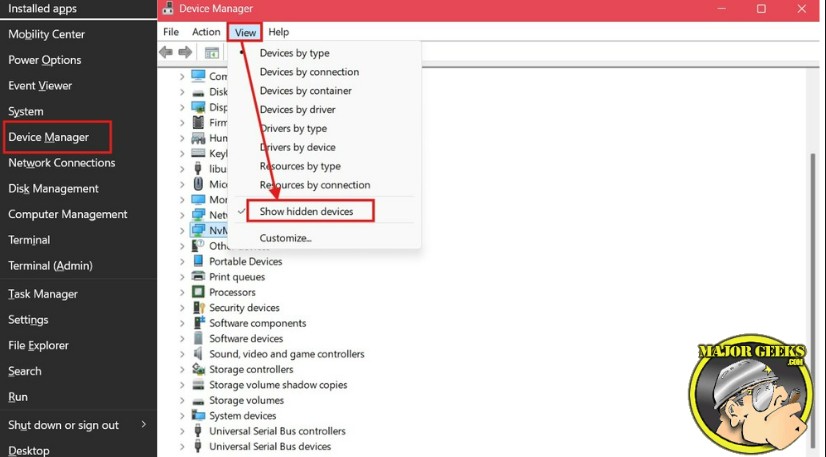
Start with Device Manager. Do this before reinstalling the Camera app or changing meeting app settings.
- Press Win + X.
- Select Device Manager.
- Select View.
- Click Show hidden devices.
- Look for a category named Neural processors.
- Expand it if it appears.
- Check for a device name that refers to an NPU, AI processor, or vendor AI engine.
- Double-click the device.
- Open the General tab.
- Confirm that Device status says the device is working properly.
If there is no Neural processors category:
- Expand System devices.
- Look for entries from Intel, AMD, Qualcomm, or the system manufacturer that mention AI, NPU, IPU, or neural processing.
- Check for yellow warning icons.
- Check whether any device is listed as Unknown device.
If the NPU has a warning icon:
- Right-click the device.
- Select Properties.
- Read the error under Device status.
- Write down the error code before changing anything.
If Device Manager does not show an NPU at all, the problem is likely one of these:
- The PC does not include an NPU.
- The required chipset or platform driver is missing.
- The device is disabled in firmware.
- The OEM has not released the needed driver package for your model.
- Windows Update has replaced an OEM driver with a generic one.
Check Windows 11 camera settings
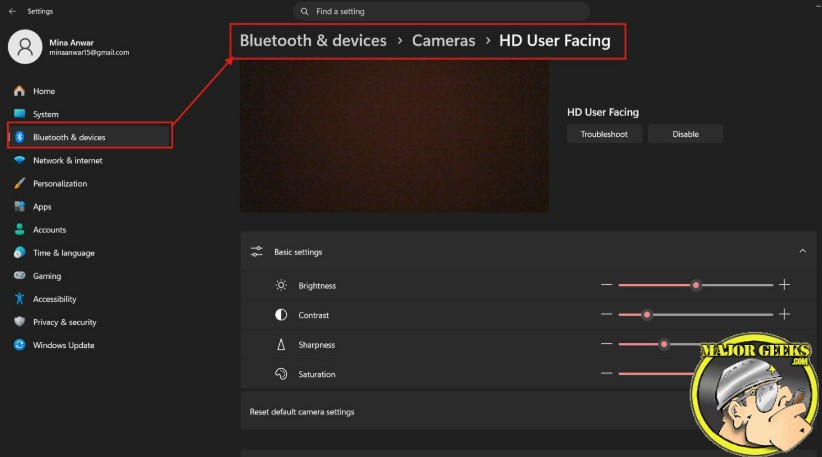
Windows 11 shows Studio Effects only when the camera and AI stack correctly report support.
- Open Settings.
- Select Bluetooth & devices.
- Select Cameras.
- Choose the camera you use for calls.
- Look for Windows Studio Effects or camera effect options.
- Confirm that the camera preview loads.
- Turn effects on one at a time.
- Close and reopen the app that uses the camera.
If the camera preview fails, fix the camera first. Reinstalling Studio Effects will not help if Windows cannot open the device. If you suspect the Camera app itself is broken, use this guide to uninstall the Camera app, then reinstall it from Microsoft Store.
Check for Potential OEM Camera Software Conflicts
OEM software suites often add their own camera controls. On some systems, these features can overlap or conflict with Windows Studio Effects.
Look for tools such as:
- Dell Optimizer
- Lenovo View
- HP Presence
- ASUS utility software
- Acer camera utilities
- Intel camera or AI utilities
- Vendor privacy shutter software
Check these settings first:
- Background blur
- Auto-framing
- Eye contact
- Camera privacy mode
- Virtual camera
- Beauty or appearance filters
- Low-light correction
- AI camera enhancement
Use this order:
- Open the OEM camera or system utility.
- Turn off camera effects inside the OEM tool.
- Disable any virtual camera option.
- Close the OEM utility completely.
- Open Task Manager.
- End the OEM camera utility process if it remains running.
- Restart the PC.
- Recheck Settings > Bluetooth & devices > Cameras.
If camera-related services are using too many resources while troubleshooting, check Windows Image Acquisition causing high CPU and disk usage. A stuck imaging service can make camera testing unreliable.
Reinstall Windows Studio Effects Drivers
Use this method if the NPU appears in Device Manager but Studio Effects are still missing, greyed out, or non-responsive. Depending on your PC manufacturer, the required component may be listed as a Windows Studio Effects driver, an OEM opt-in driver, or a Microsoft Effects Pack driver.
Before continuing:
- Save open work.
- Connect the laptop to power.
- Create a restore point if you are removing drivers.
- Download the latest camera, chipset, and AI/NPU drivers from the PC maker if available.
Remove the broken driver entry
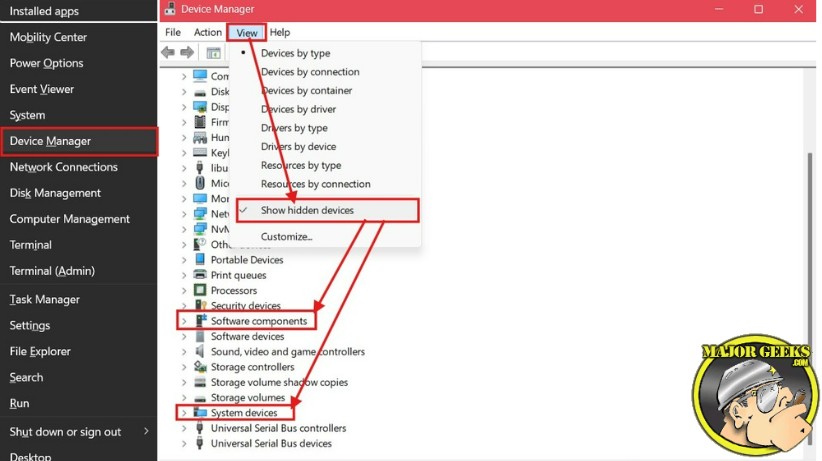
- Press Win + X.
- Select Device Manager.
- Select View > Show hidden devices.
- Expand these categories one at a time:
- Cameras
- System devices
- Software components
- Neural processors
- Identify the exact camera, NPU, or OEM effects driver designed for your specific laptop model before uninstalling anything. Avoid removing generic or broadly named system components unless your manufacturer's documentation explicitly identifies them as the Windows Studio Effects or OEM camera effects driver.
- Right-click the effects-related device.
- Select Uninstall device.
- If Windows offers Attempt to remove the driver for this device, use it only if you have the OEM replacement driver ready.
- Restart the PC.
Reinstall through Windows Update
- Open Settings.
- Select Windows Update.
- Click Check for updates.
- Open Advanced options.
- Select Optional updates.
- Expand Driver updates.
- Install camera, chipset, NPU, AI, or Microsoft Effects Pack updates if listed.
- Restart the PC again.
Reinstall through the OEM support
Use this method if Windows Update does not offer the driver.
- Open the manufacturer support tool.
- Check for system updates.
- Install these updates if offered:
- BIOS or firmware
- Chipset driver
- Camera driver
- NPU or AI processor driver
- Microsoft Effects Pack or camera effects driver
- OEM camera utility update
- Restart after firmware or chipset updates.
- Recheck Device Manager.
If the OEM support app does not list an effects driver, search by the exact laptop model on the manufacturer's support page.
If Windows Update and your computer manufacturer's support page do not provide the driver you need, you can also try one of the driver update programs available on MajorGeeks. These utilities can scan your system for missing or outdated drivers and may locate a compatible camera, chipset, NPU, or related driver. As always, create a restore point before installing or updating drivers so you can easily roll back if something doesn't work correctly. Good options include Snappy Driver Installer Origin and Driver Easy
Test Studio Effects after reinstalling drivers
After the restart, test the stack in this order.
- Open Device Manager.
- Confirm that the NPU appears without a warning icon.
- Open Settings > Bluetooth & devices > Cameras.
- Select the camera.
- Turn on one Studio Effect.
- Open the Camera app or a video meeting app.
- Check whether the effect applies.
- Turn the effect off again.
- Test another effect.
Do not enable every effect at once during testing. If one effect fails, you will know which feature is still broken.
Common mistakes
Reinstalling the Camera app first
The Camera app is not the same as Windows Studio Effects. If the NPU or MEP driver is missing, reinstalling the app usually does not restore AI camera effects.
Ignoring Device Manager warnings
A yellow warning icon on the NPU, camera, or effects component matters. Open the device properties and check the error code before removing drivers.
Leaving OEM effects enabled
OEM camera software can apply its own blur, framing, or appearance correction. Turn those off before testing Windows Studio Effects.
Using a virtual camera during testing
A virtual camera can hide the real camera from Windows Studio Effects. Select the built-in camera directly while diagnosing the issue.
Assuming every Windows 11 PC supports Studio Effects
Windows 11 alone is not enough. The PC also needs supported hardware, firmware, and drivers.
If the error continues
Use the MajorGeeks forums if you need another set of eyes on the driver list, but include the details above so helpers do not have to guess at the hardware.
Collect these details before asking for help on a support forum:
- PC manufacturer and exact model
- Windows 11 version
- Camera model shown in Device Manager
- NPU name shown in Device Manager
- Any Device Manager error code
- Whether Neural processors appears
- Whether Microsoft Effects Pack appears
- OEM camera software installed
- Effects that are missing or greyed out
If the NPU is completely missing and the manufacturer does not provide an AI/NPU or Effects Pack driver for your exact model, the limitation is likely hardware or OEM support. If the NPU appears correctly and only Studio Effects fail, focus on Windows Studio Effects drivers, OEM software conflicts, and Windows camera settings.
comments powered by Disqus
