


Computer Broken After Windows Update?
Posted by: Timothy Tibbetts on 03/20/16 01:44 am
[
 Comments
]
Comments
]
Recently we had someone ask us what to do after running Windows Update, and their computer stopped working. In this particular case, this person could no longer use their keyboard once Windows started. Now they can't get into Windows since they had a password.
You might consider backing up and important files you have now. Drag and drop them to a DVD or thumb drive or maybe send some to the cloud to get them later.
Next we want to decide what the problem is. What’s not working? If it’s the keyboard, video card, sound card or something else that has a driver, you might want to update your drivers. There are also other drivers for the motherboard you might be years behind on. Drivers could easily be the number 1 conflict in this case. Download Driver Booster and update your drivers. If you find that your drivers are indeed out of date, you might reboot now and see if it starts back up.
If not, the go to your Control Panel, Programs and then the Windows Update tab. By default, it should show you the most recently installed updates. If you have programs like Microsoft Office installed you’ll want to scroll down to the Microsoft Windows tab, as seen in the picture below:
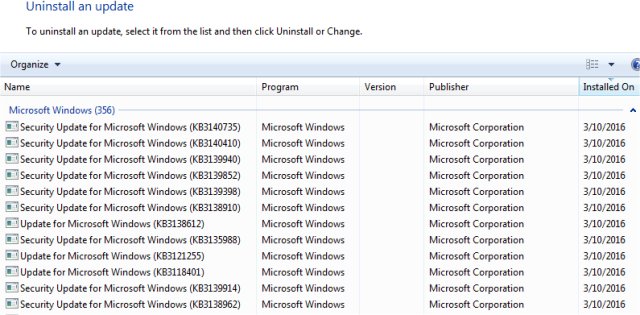
You can manually remove the ones you just installed one at a time or try Windows Update MiniTool to uninstall the most recent. This can be handy because it finds hidden updates and allows batch uninstalling. If you just recently installed a lot of updates, then doing them one at a time could cost you hours.
We even have a video tutorial on using Windows Update MiniTool here:
Once that’s done, you can reboot, and your computer should start. Most of the time Microsoft is made aware of these bugs and fixes them in future updates. You want to be up to date with Windows Updates so try it again in a couple of weeks if the recent service packs were the problem.
You might consider backing up and important files you have now. Drag and drop them to a DVD or thumb drive or maybe send some to the cloud to get them later.
Next we want to decide what the problem is. What’s not working? If it’s the keyboard, video card, sound card or something else that has a driver, you might want to update your drivers. There are also other drivers for the motherboard you might be years behind on. Drivers could easily be the number 1 conflict in this case. Download Driver Booster and update your drivers. If you find that your drivers are indeed out of date, you might reboot now and see if it starts back up.
If not, the go to your Control Panel, Programs and then the Windows Update tab. By default, it should show you the most recently installed updates. If you have programs like Microsoft Office installed you’ll want to scroll down to the Microsoft Windows tab, as seen in the picture below:
You can manually remove the ones you just installed one at a time or try Windows Update MiniTool to uninstall the most recent. This can be handy because it finds hidden updates and allows batch uninstalling. If you just recently installed a lot of updates, then doing them one at a time could cost you hours.
We even have a video tutorial on using Windows Update MiniTool here:
Once that’s done, you can reboot, and your computer should start. Most of the time Microsoft is made aware of these bugs and fixes them in future updates. You want to be up to date with Windows Updates so try it again in a couple of weeks if the recent service packs were the problem.
Comments
