


Find Your Lost Files After Updating to Windows 10
Posted by: Timothy Tibbetts on 11/10/16 01:53 am
[
 Comments
]
Comments
]
Some people are having trouble locating some of their files after updating to Windows 10. Here's how you can find them.
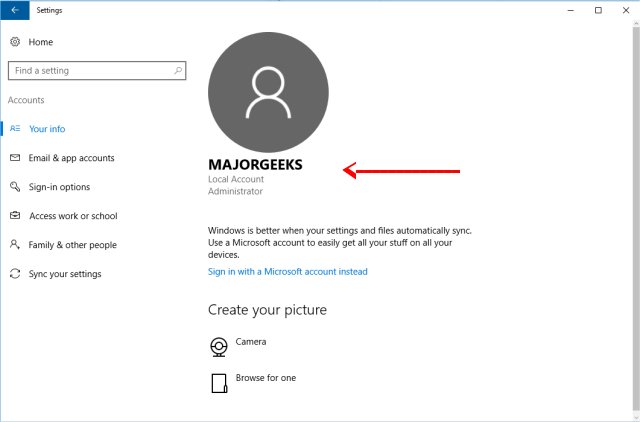
Select Settings, Accounts, Sync your settings. If you see a message at the top that states You are logged on with a temporary profile. Roaming options are currently unavailable, restart your PC and sign in again. This should remove the temporary account, and your files should be there. If you're logged in normally, you will see your account name and level as noted with a red arrow.
Use search to locate your files
Hopefully, you know some of the file names and you can search for them. Select the search box on the taskbar and search for your files or open File Explorer (you remember it as Windows Explorer). File Explorer has the advantage of Search Tools at the top if you click on Search Quick Access, all your options will be available. This allows you to search by type, date, modified, size and more.
You can also type "show hidden files and folders" in the search box to find files that might be hidden. This usually applies to system files and not pictures, documents, etc.
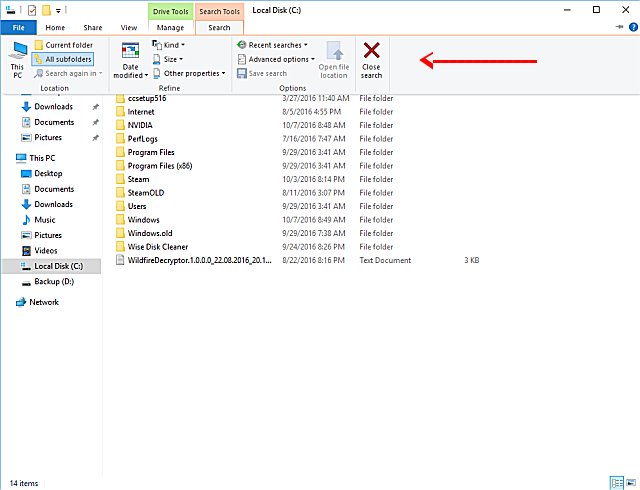
You can use wildcards as well to search. If you know you're looking for an MP3, just type in *.mp3 in the search box.
Restore your files from backup
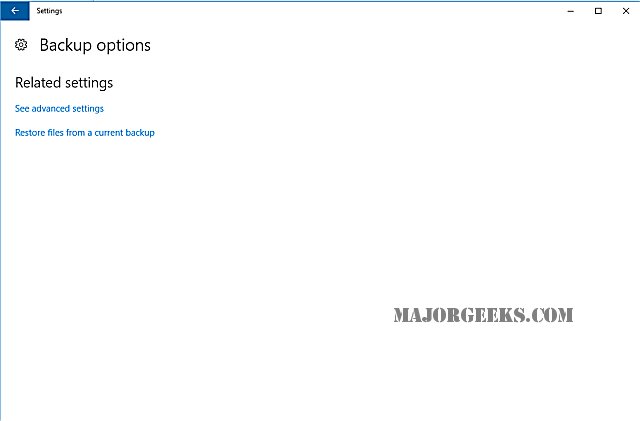
Go to Start, Settings, Update & security, Open Backup and Restore, backup, more options, Restore files from a current backup. If you have been using Windows backup, you just select Restore my files. Follow the instructions to restore your files.
Enable a Windows 7 Administrator Account
If you upgraded from Windows 7, your files might now be located in a disabled administrator account. You'll need to enable this account and sign in again to see your files.
In the search box*, type computer management and then select the Computer Management app. Or use the Windows key + R and type in compmgmt.msc.
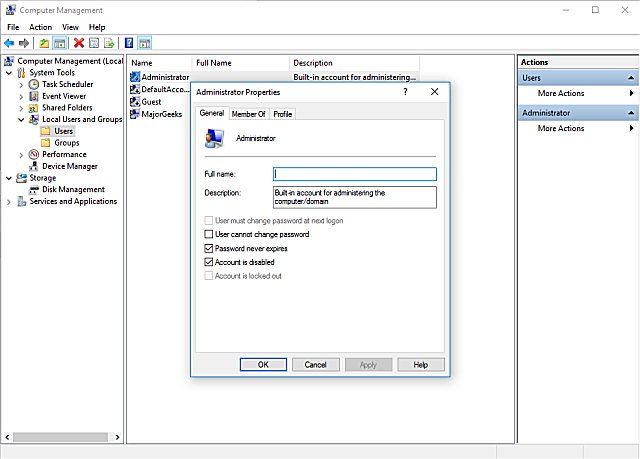
Select Local Users and Groups, and then select Users. If the user named Administrator has a down arrow on its icon Disabled account icon, it’s been disabled.
To enable this account, double-click the Administrator icon Disabled account icon to open the Properties dialog box. Uncheck the Account is disabled box, and then select Apply to enable the account.
Now, sign out and then sign in again using the Administrator account.
* Often when someone tells you to "type in" something, and it does not work, always remember that you can click the Windows key + R to open a command prompt. Often this is faster and easier than any other way.
Select Settings, Accounts, Sync your settings. If you see a message at the top that states You are logged on with a temporary profile. Roaming options are currently unavailable, restart your PC and sign in again. This should remove the temporary account, and your files should be there. If you're logged in normally, you will see your account name and level as noted with a red arrow.
Use search to locate your files
Hopefully, you know some of the file names and you can search for them. Select the search box on the taskbar and search for your files or open File Explorer (you remember it as Windows Explorer). File Explorer has the advantage of Search Tools at the top if you click on Search Quick Access, all your options will be available. This allows you to search by type, date, modified, size and more.
You can also type "show hidden files and folders" in the search box to find files that might be hidden. This usually applies to system files and not pictures, documents, etc.
You can use wildcards as well to search. If you know you're looking for an MP3, just type in *.mp3 in the search box.
Restore your files from backup
Go to Start, Settings, Update & security, Open Backup and Restore, backup, more options, Restore files from a current backup. If you have been using Windows backup, you just select Restore my files. Follow the instructions to restore your files.
Enable a Windows 7 Administrator Account
If you upgraded from Windows 7, your files might now be located in a disabled administrator account. You'll need to enable this account and sign in again to see your files.
In the search box*, type computer management and then select the Computer Management app. Or use the Windows key + R and type in compmgmt.msc.
Select Local Users and Groups, and then select Users. If the user named Administrator has a down arrow on its icon Disabled account icon, it’s been disabled.
To enable this account, double-click the Administrator icon Disabled account icon to open the Properties dialog box. Uncheck the Account is disabled box, and then select Apply to enable the account.
Now, sign out and then sign in again using the Administrator account.
* Often when someone tells you to "type in" something, and it does not work, always remember that you can click the Windows key + R to open a command prompt. Often this is faster and easier than any other way.
Comments
