


How to disable Gmail's Google Plus integration
Posted by: Jon Ben-Mayor on 01/15/2014 11:29 AM
[
 Comments
]
Comments
]
We posted a story about an unfortunate man in Massachusetts that inadvertently sent his ex-girlfriend an invitation on Google Plus - that action landed him in jail because the non-tech savvy judge just didn't understand how the process worked. Not a real good excuse on the judges part in my opinion. But why not protect yourself at least from receiving unwanted messages?
The Electronic Frontier Foundation elaborates further; some people—perhaps most people—will not want it to be easier for strangers to send messages to their email inbox, even if the stranger won't find out their actual email address. Yet Google has chosen to make this setting opt-out rather than opt-in; in other words, "Anyone on Google+" can by default send you an email (though this setting does have a feature where you have to agree to receive more than one message from a person you don't know). To top it off, the only people who will automatically get an enhanced privacy setting are users with large follower bases, such as celebrities.
For the rest of us non-celebrities there is a simple process to opt out of the integration:
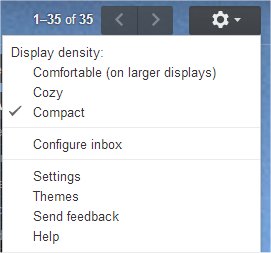
First thing you need to do is go to your Gmail settings, which is located in the top right hand side of the home screen.
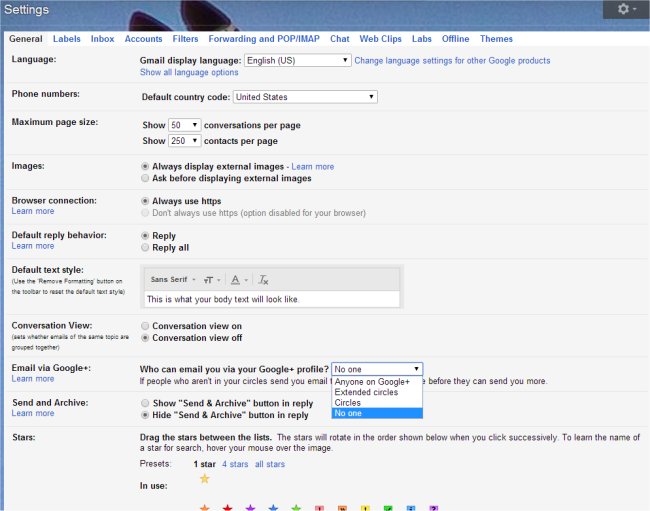
Once there, you will need to scroll down to the "Email via Google+" setting. By clicking this it will allow you to select one of four options; the default option is set to "Anyone on Google+." The default selection will allow anyone on Google+ to send you messages. It is suggested to either limit it to your "Circles" specifically or totally lock it down and select "No One." Don't forget to scroll down and save your changes.
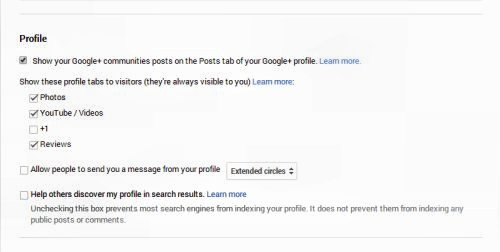
The EFF also points out that there is one more thing that you need to check in order to be totally sure that no unwanted mail slips through. It is located in Google Plus Settings under "Profile" and it says: "Allow people to send you a message from your profile" followed by a drop-down menu. This is unchecked by default; people could not normally send you private messages from your Google Plus page or by simply knowing your Google Plus account, which is usually tied to your name. However, Google is trying to slip back in on you contrary to what you just did above - so opt out of "Allow people to send you a message from your profile."
The Electronic Frontier Foundation elaborates further; some people—perhaps most people—will not want it to be easier for strangers to send messages to their email inbox, even if the stranger won't find out their actual email address. Yet Google has chosen to make this setting opt-out rather than opt-in; in other words, "Anyone on Google+" can by default send you an email (though this setting does have a feature where you have to agree to receive more than one message from a person you don't know). To top it off, the only people who will automatically get an enhanced privacy setting are users with large follower bases, such as celebrities.
For the rest of us non-celebrities there is a simple process to opt out of the integration:
First thing you need to do is go to your Gmail settings, which is located in the top right hand side of the home screen.
Once there, you will need to scroll down to the "Email via Google+" setting. By clicking this it will allow you to select one of four options; the default option is set to "Anyone on Google+." The default selection will allow anyone on Google+ to send you messages. It is suggested to either limit it to your "Circles" specifically or totally lock it down and select "No One." Don't forget to scroll down and save your changes.
The EFF also points out that there is one more thing that you need to check in order to be totally sure that no unwanted mail slips through. It is located in Google Plus Settings under "Profile" and it says: "Allow people to send you a message from your profile" followed by a drop-down menu. This is unchecked by default; people could not normally send you private messages from your Google Plus page or by simply knowing your Google Plus account, which is usually tied to your name. However, Google is trying to slip back in on you contrary to what you just did above - so opt out of "Allow people to send you a message from your profile."
Comments
