


How to Reboot Your Android in Safe Mode
Posted by: Jon Ben-Mayor on 08/17/17 02:02 am
[
 Comments
]
Comments
]
Safe mode is a staple for PC users and is essential for various operations one of which is running down malware and removing it when other methods have failed.
What you do is go and power off your device like normal and once the options screen comes up you hold down the Power Off button.
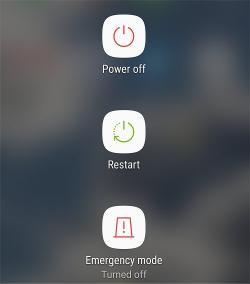
You will then see an action box pop up that will permit you to boot in safe mode. Like running in safe mode on your PC, some apps will be missing, and various shortcuts will be grayed out.
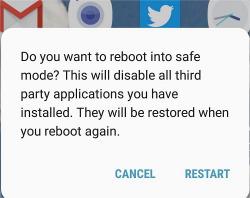
Once in safe mode, you can start removing any suspect apps from your device as well as circumventing any malware that may be causing sluggish operation or connectivity issues. You will also see a Safe Mode notification at the bottom left of your device's screen indicating entry into Safe Mode was successful. When you are satisfied with removing any offending apps, etc., you can then just reboot like normal, and everything will be as it was.
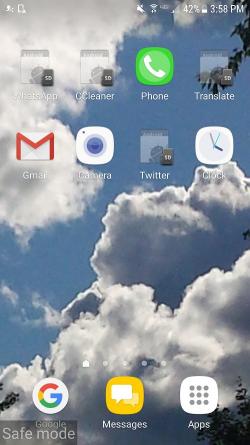
One thing that was set back to default was Swiftkey Keyboard; it reverted to the simple but functional Samsung keyboard but it was a quick fix to reset it to the aftermarket one we were previously using.
** Android used for this write up was version 7.0 Nougat and this process may not apply to other versions.
What you do is go and power off your device like normal and once the options screen comes up you hold down the Power Off button.
You will then see an action box pop up that will permit you to boot in safe mode. Like running in safe mode on your PC, some apps will be missing, and various shortcuts will be grayed out.
Once in safe mode, you can start removing any suspect apps from your device as well as circumventing any malware that may be causing sluggish operation or connectivity issues. You will also see a Safe Mode notification at the bottom left of your device's screen indicating entry into Safe Mode was successful. When you are satisfied with removing any offending apps, etc., you can then just reboot like normal, and everything will be as it was.
One thing that was set back to default was Swiftkey Keyboard; it reverted to the simple but functional Samsung keyboard but it was a quick fix to reset it to the aftermarket one we were previously using.
** Android used for this write up was version 7.0 Nougat and this process may not apply to other versions.
Comments
