Providing Free and Editor Tested Software Downloads
< HOME | TUTORIALS | GEEK-CADE| WEB TOOLS | YOUTUBE | NEWSLETTER | DEALS! | FORUMS | >

MajorGeeks.com - When a MinorGeek just won't do.

Software Categories

All In One Tweaks
Android
Antivirus & Malware
Appearance
Back Up
Browsers
CD\DVD\Blu-Ray
Covert Ops
Drivers
Drives (SSD, HDD, USB)
Games
Graphics & Photos
Internet Tools
Linux Distros
MajorGeeks Windows Tweaks
Multimedia
Networking
Office & Productivity
System Tools

Other news

· How To and Tutorials
· Life Hacks and Reviews
· Way Off Base
· MajorGeeks Deals
· News
· Off Base
· Reviews


Opera One
Everything
you need.
Already
there.
AI assistant
Aria, built right in
Free VPN
No account needed
Ad blocker
Faster, cleaner web
Tab Islands
Grouped browsing
Useful sidebars
Make it yours
No Clunky Extensions Needed.


MajorGeeks Approved.


Download free

spread the word

· YouTube
· Facebook
· Instagram
· Twitter
· Pintrest
· RSS/XML Feeds
· News Blur
· Yahoo
· Symbaloo

about

· Top Freeware Picks
· Malware Removal
· Geektionary
· Useful Links
· About Us
· Copyright
· Privacy
· Terms of Service
· How to Uninstall

top downloads

1. GS Auto Clicker
2. Smart Defrag
3. Macrium Reflect FREE Edition
4. K-Lite Mega Codec Pack
5. MusicBee
6. Microsoft Visual C++ 2015-2022 Redistributable Package
7. Sergei Strelec's WinPE
8. K-Lite Codec Pack Full
9. Visual C++ Redistributable Runtimes AIO Repack
10. McAfee Removal Tool (MCPR)
More >>

top reads

Star How Much Storage Space Are Your Installed Apps Using in Windows 11?

Star How To Reset and Fix the Settings App in Windows 11

Star How To Remove the Windows 11 Updated Start Menu

Star How To Download a Windows 11 ISO

Star How To Disable Drag Tray

Star How To Boot Into WinRE (Windows Recovery Environment)

Star How To Find the Installation Date of Apps

Star Recently Opened Files - How To Hide or Show Them In Jump Lists, File Explorer, and Start Menu

Star How To Change the Name of a Local or Microsoft Account

Star How To Remove OneDrive From the Navigation Pane in File Explorer


MajorGeeks.Com » News » August 2015 » Replace the Menu in Windows 10 With Start Menu 10

Replace the Menu in Windows 10 With Start Menu 10


Posted by: Jon Ben-Mayor on 08/25/2015 02:50 AM [ comments Comments ]


Start Menu 10 allows you replace the start menu in Windows 10.
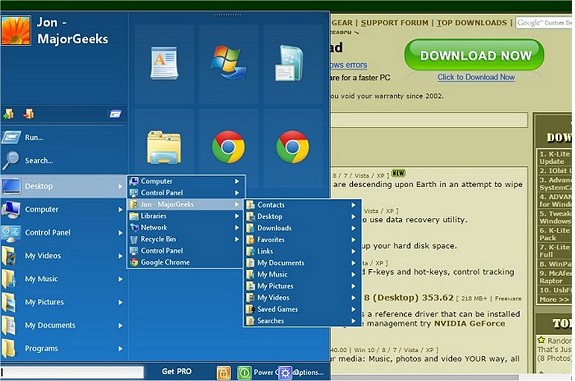


You can configure many things within Windows 10 proper, but what this program provides is an easy access point to those changes you may want to make to the new OS. With this program you can configure a customized list of folders. A broad selection of 25 system folders and the ability to add your own folders or applications are what you need to tailor the menu to your individual needs.

One-click launch
  • This is our own one-of-a-kind feature, available in Pro Version only. Start Menu 10 replaces the yellow folder icons with application icons. Clicking on the folder launches the application. To access a submenu, hover the cursor over a folder for a few seconds. For the first launch, the application launched is determined automatically.

    Virtual groups
  • Split the contents of any folder into virtual groups without changing the location of files on disk. Virtual groups can be folded and unfolded. Thus, you can spend less time looking for things and change how information is displayed according to your circumstances. This feature appeared first in Start Menu X and is our invention.

    Smart list of popular apps and programs
  • This list contains frequently used applications, e.g. the applications that you launched most recently. Thanks to a smart algorithm, we've been able to make it so the applications you use the most are always at your fingertips. This list combines both standard applications and Windows 8 apps.

    Access to anywhere on your computer
  • Unfortunately, in Windows 10, links to folders were removed from the system menu. You are only given a list of applications, so even getting to the control panel from the menu has become very difficult.

    Fullscreen list of application
  • The Windows 10 system menu and other applications that thoughtlessly copied the Windows 7 menu force you to use a small window to select applications. Consequently, you have to constantly scroll through this list and make lots of superfluous mouse movements.

    Timer-based power management
  • Without any additional applications or effort, directly from the menu you can set a timer to shut down or sleep your computer with a delay. This feature is helpful for folks who love to leave the computer on at night to work on resource-intensive tasks and those who just love to listen to music while they're out and about.

    Download @ http://www.majorgeeks.com/files/details/start_menu_10.html


  • « Random Photo: Expanded American WiFi · Replace the Menu in Windows 10 With Start Menu 10 · Wileyfox Swift review: Hands-on and more (25 Reviews) @ NT Compatible »


    Comments
    comments powered by Disqus

    MajorGeeks.Com » News » August 2015 » Replace the Menu in Windows 10 With Start Menu 10

    © 2000-2026 MajorGeeks.com
    Powered by Contentteller® Business Edition
