Providing Free and Editor Tested Software Downloads
< HOME | TUTORIALS | GEEK-CADE| WEB TOOLS | YOUTUBE | NEWSLETTER | DEALS! | FORUMS | >

MajorGeeks.com - It's Geekalicious.

Software Categories

All In One Tweaks
Android
Antivirus & Malware
Appearance
Back Up
Browsers
CD\DVD\Blu-Ray
Covert Ops
Drivers
Drives (SSD, HDD, USB)
Games
Graphics & Photos
Internet Tools
Linux Distros
MajorGeeks Windows Tweaks
Multimedia
Networking
Office & Productivity
System Tools

Other news

· How To and Tutorials
· Life Hacks and Reviews
· Way Off Base
· MajorGeeks Deals
· News
· Off Base
· Reviews


IObit Black Friday Sale

spread the word

· YouTube
· Facebook
· Instagram
· Twitter
· Pintrest
· RSS/XML Feeds
· News Blur
· Yahoo
· Symbaloo

about

· Top Freeware Picks
· Malware Removal
· Geektionary
· Useful Links
· About Us
· Copyright
· Privacy
· Terms of Service
· How to Uninstall

top downloads

1. GS Auto Clicker
2. Macrium Reflect FREE Edition
3. MusicBee
4. Microsoft Visual C++ 2015-2022 Redistributable Package
5. PrivaZer
6. Sergei Strelec's WinPE
7. Visual C++ Redistributable Runtimes AIO Repack
8. Paint.NET
9. ImgBurn
10. Format Factory
More >>

top reads

Star 10 File Explorer Tips To Work Smarter

Star How To Disable (or Uninstall) OneDrive

Star Quick Machine Recovery Explained: What It Is and How To Enable It

Star How to Auto-Switch Between Light and Dark Mode With PowerToys

Star How To Automatically Lock Your PC in Windows 11

Star What To Do When Microsoft Flags Unusual Sign-in Activity on Your Account

Star How To Remove the Windows 11 Updated Start Menu

Star How To Disable Drag Tray

Star How To Permanently Delete Files Without Sending Them to the Recycle Bin in Windows 11

Star How To Repair Install Windows 11, and Keep All Your Files and Apps


MajorGeeks.Com » News » November 2016 » Update Windows 10 Using Active Hours

Update Windows 10 Using Active Hours


Posted by: Timothy Tibbetts on 11/12/2016 06:29 AM [ comments Comments ]


Everyone knows Windows Updates are important but sometimes it updates when you're working on your computer. It's easy to pick a better time for Windows to update, so you're not bothered by a slowdown or a reboot.
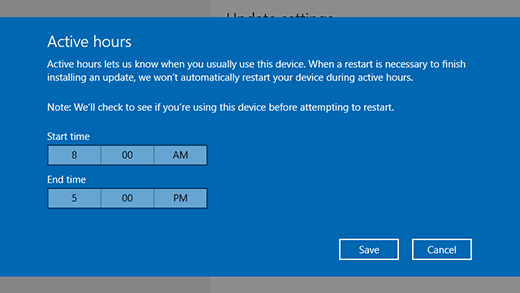
Click Start, Settings, Update & Security, Windows Update, and then select Change active hours.


Now, just choose the start time and end time for "active hours," and then select Save. Active hours are the times that you typically use your computer. This way your computer can now update when you're watching TV, having dinner or finished for the day.


« Random Photo: Another True Story · Update Windows 10 Using Active Hours · Random Photo: Cut The Red Wire! »


Comments
comments powered by Disqus

MajorGeeks.Com » News » November 2016 » Update Windows 10 Using Active Hours

© 2000-2026 MajorGeeks.com
Powered by Contentteller® Business Edition
