


5 Ways to Open Registry Editor in Windows
By Timothy Tibbettson 06/15/2023 |
Almost any Windows users will find themselves needing to use the Registry Editor (Regedit) to make changes to the operating system that aren't typically allowed in Windows settings. In this guide, we show you the different ways you can open Regedit.
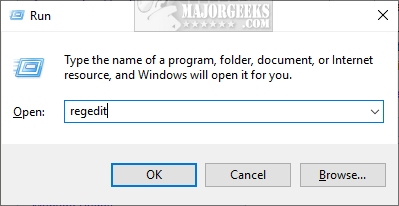
1: Using the Run Command
The most commonly used way is to press the Windows Key + R, type in regedit and press enter.
2: Using Windows Search
There are a few ways to use Search to open the Registry Editor depending on how you might have customized your search options. You can use Cortana, or press the Start menu and start typing registry in the search box. No matter how you've personalized Windows, anyone can press the Windows Key + S to open search.
Start typing registry editor and click on Registry Editor when that appears.
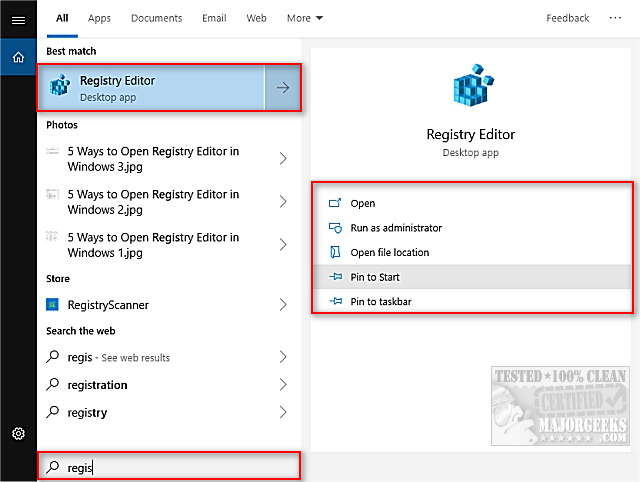
You might also see more options on the right pane including Open, Run as administrator, Open file location, Pin to Start, and Pin to Taskbar.
3: Using Command Prompt or PowerShell
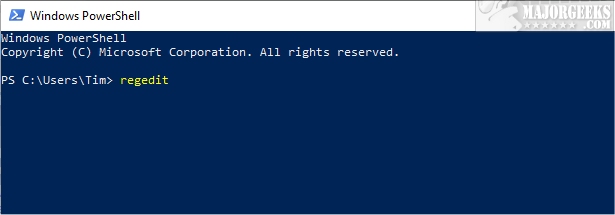
If you're already working in the Command Prompt or PowerShell, type in regedit and press Enter.
4: Create a Shortcut
If you use the registry editor frequently, creating a shortcut can be a timesaver.
Press the Windows Key + R and type in C:\ProgramData\Microsoft\Windows\Start Menu\Programs\Administrative Tools.
Right-click on Registry Editor and click on Create shortcut. You will be prompted to create the shortcut on your Desktop. You can always drag and drop the shortcut somewhere else after its created.
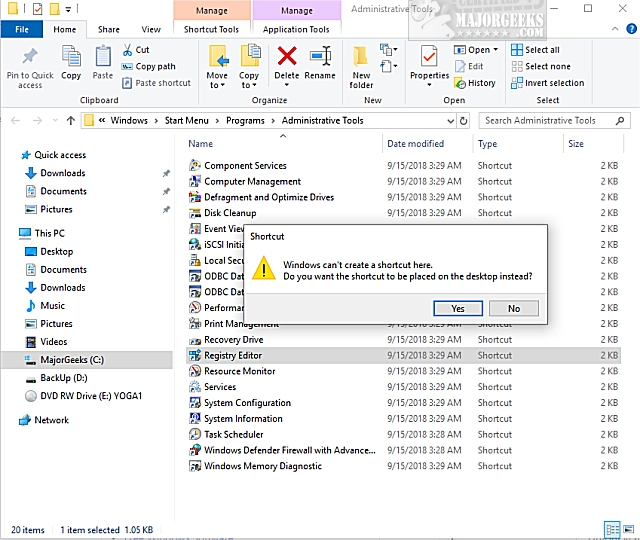
Also, see Step 2 for using Search to pin the Registry Editor to your Start or Taskbar.
5: Assign a Keyboard Shortcut
Another timesaver for those who frequently use regedit is to create a shortcut assuming you created a shortcut by following Step 4.
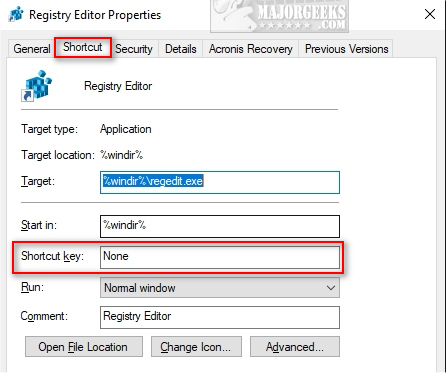
Right-click on your shortcut and click on Properties. Click on the Shortcut tab. Click where you see Shortcut key and press any key, or combination of keys, and whatever keys you pressed will automatically be assigned.
Similar:
How to Back up or Restore the Windows Registry
comments powered by Disqus
1: Using the Run Command
The most commonly used way is to press the Windows Key + R, type in regedit and press enter.
2: Using Windows Search
There are a few ways to use Search to open the Registry Editor depending on how you might have customized your search options. You can use Cortana, or press the Start menu and start typing registry in the search box. No matter how you've personalized Windows, anyone can press the Windows Key + S to open search.
Start typing registry editor and click on Registry Editor when that appears.
You might also see more options on the right pane including Open, Run as administrator, Open file location, Pin to Start, and Pin to Taskbar.
3: Using Command Prompt or PowerShell
If you're already working in the Command Prompt or PowerShell, type in regedit and press Enter.
4: Create a Shortcut
If you use the registry editor frequently, creating a shortcut can be a timesaver.
Press the Windows Key + R and type in C:\ProgramData\Microsoft\Windows\Start Menu\Programs\Administrative Tools.
Right-click on Registry Editor and click on Create shortcut. You will be prompted to create the shortcut on your Desktop. You can always drag and drop the shortcut somewhere else after its created.
Also, see Step 2 for using Search to pin the Registry Editor to your Start or Taskbar.
5: Assign a Keyboard Shortcut
Another timesaver for those who frequently use regedit is to create a shortcut assuming you created a shortcut by following Step 4.
Right-click on your shortcut and click on Properties. Click on the Shortcut tab. Click where you see Shortcut key and press any key, or combination of keys, and whatever keys you pressed will automatically be assigned.
Similar:
comments powered by Disqus
