


Timeline Feature Not Working in Windows 10
By Timothy Tibbettson 06/15/2023 |
Windows 10 Timeline is a new feature added to Windows 10 version 1803. The Timeline keeps track of what you're doing, including your browsers, folders, apps, activities, and more. You can stop and resume seamlessly at any time from any device. But, what happens if Timeline isn't working? Here are a few suggestions.
Most of the solutions here are very easy at any skill level.
1: Make Sure Timeline is Enabled
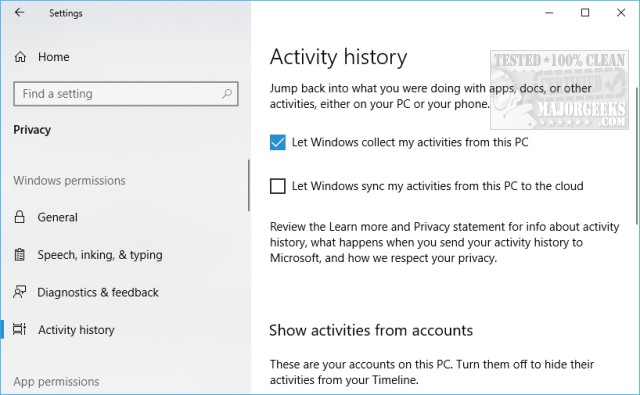
By default, Windows 10 Timeline is turned on, but let's make sure. Head to Start, Control Panel, Privacy, Activity History. Let Windows collect my activities from this PC should be checked on, or blue.
2: Sign in to Your Microsoft Account
Often overlooked as an obvious fix, you need to be signed in for Timeline to work. Timeline can't sync across your devices if you're not logged in. Press the Windows Key + S and type in sign and select Sign-in options to get logged in.
3: Shut Down and Restart
While we realize these suggestions sound obvious and generic, a shut down does work for some. Don't merely reboot because people are reporting that a shutdown, then powering your computer back on actually works. It's worth a try. If only everything were this easy.
4: Verify or Fix Registry Issues
What would a good fix be without tinkering with your registry? A treat, but I digress. If you do need to make changes, be sure to back up your registry.
Navigate to Navigate to HKEY_LOCAL_MACHINE\SOFTWARE\Policies\Microsoft\Windows\System
Open the following DWORD 32-Bit Value keys and verify that the values are set to 1:
EnableActivityFeed
PublishUserActivities
UploadUserActivities
If one or all three of these registry keys don't exist, you need to create them. Right-click and select New > DWORD (32-bit) Value and give them a value of 1.
We hope your Windows 10 Timeline feature is back up and running.
Similar:
What Is Windows 10 Timeline and How to Use It
How to Disable or Enable Timeline in Windows 10
How to Add Timeline or TaskView to the Windows 10 Context Menu
comments powered by Disqus
Most of the solutions here are very easy at any skill level.
1: Make Sure Timeline is Enabled
By default, Windows 10 Timeline is turned on, but let's make sure. Head to Start, Control Panel, Privacy, Activity History. Let Windows collect my activities from this PC should be checked on, or blue.
2: Sign in to Your Microsoft Account
Often overlooked as an obvious fix, you need to be signed in for Timeline to work. Timeline can't sync across your devices if you're not logged in. Press the Windows Key + S and type in sign and select Sign-in options to get logged in.
3: Shut Down and Restart
While we realize these suggestions sound obvious and generic, a shut down does work for some. Don't merely reboot because people are reporting that a shutdown, then powering your computer back on actually works. It's worth a try. If only everything were this easy.
4: Verify or Fix Registry Issues
What would a good fix be without tinkering with your registry? A treat, but I digress. If you do need to make changes, be sure to back up your registry.
Navigate to Navigate to HKEY_LOCAL_MACHINE\SOFTWARE\Policies\Microsoft\Windows\System
Open the following DWORD 32-Bit Value keys and verify that the values are set to 1:
EnableActivityFeed
PublishUserActivities
UploadUserActivities
If one or all three of these registry keys don't exist, you need to create them. Right-click and select New > DWORD (32-bit) Value and give them a value of 1.
We hope your Windows 10 Timeline feature is back up and running.
Similar:
comments powered by Disqus
