


3 Ways To Check Secure Boot State
By selma čitakovićon 06/10/2026 |
![{$insert['content_title']](/content/file/6133_image1.png
)
Secure boot is a security feature that's designed to stop malware from loading as your computer boots. Think of it as the first line of defense against bootkits, rootkits, and other threats that are otherwise hard to detect. There's a lot of talk about it these days, due to its security certificates expiring in June.
If secure boot is enabled, you should get the new certificates automatically via Windows Update. Still, it's not the smoothest update process. It may take several reboots and/or days for the changes to actually apply. I'm still waiting for it on my laptop; it's fun.
So, if this is your first time hearing about this feature, or you don't remember whether you've enabled/disabled it before, you may want to check its current state. If it's disabled or not supported, you won't be able to get the latest certificates. However, some users prefer to keep Secure Boot off for Linux, custom software, or just for the sake of flexibility.
Via System Information (msinfo32.exe)
You can rely on good ol' System Information to tell you your current status. To use it:
- Press Win + R, type msinfo32.exe, and hit Enter.
- Look on the right side of System Summary for Secure Boot State.
- It will say either On, Off, or Unsupported.
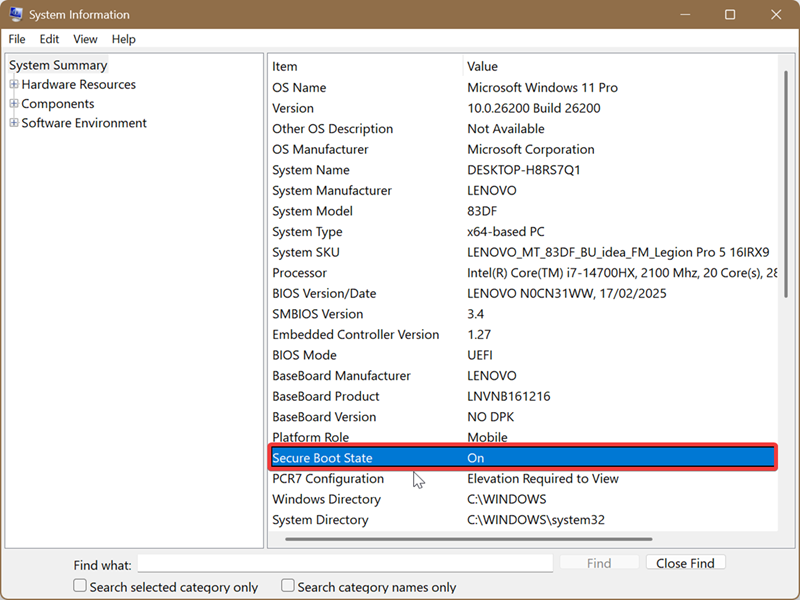
On and Off are self-explanatory, while Unsupported may mean two things. Either Windows is using legacy BIOS instead of UEFI, in which case Secure Boot won't work. Or, your PC just isn't capable of Secure Boot in general due to older hardware.
You can check your BIOS Mode immediately in the System Summary, just a few items above Secure Boot State.
Via command
Another thing you can try is this:
- Type PowerShell in Windows Search, and select Run as Administrator.
- Paste this command and press Enter: Confirm-SecureBootUEFI
- The output will either be: True, False, or Cmdlet not supported on this platform.
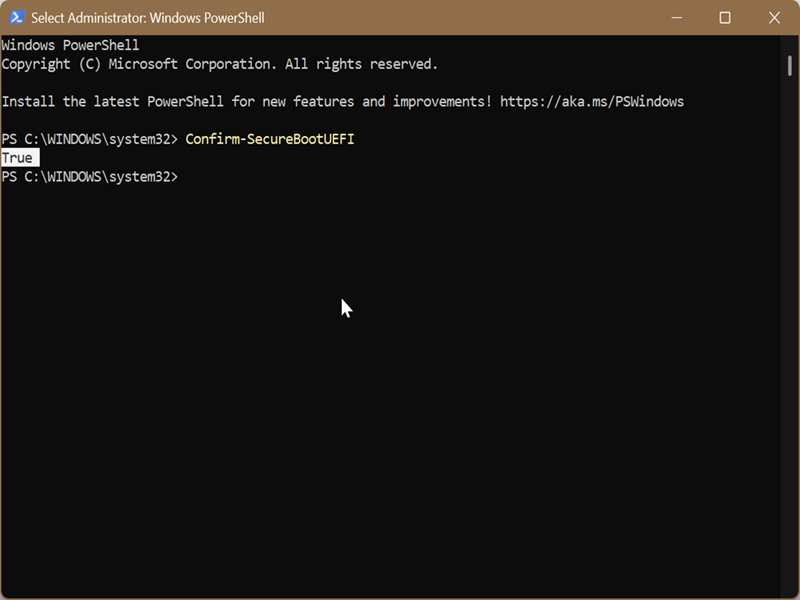
Make sure there are no spaces before or after the command. Otherwise, you'll get a red error message instead.
Via Windows Security
Finally, you can also use Windows Security to determine whether Secure Boot is on, off, or disabled. However, this method is a bit imprecise compared to the previous ones. You'll see why in a bit.
Here are the steps:
- Click the Windows Security icon in the right taskbar corner to open it.
- Select Device Security.
- Look for the Secure Boot section.
- If it's on, you'll see the option, together with a short description underneath: "Secure boot is on..."
- However, if you don't see it, that means it's either off or not supported. Which doesn't really help!
The previous methods should help you narrow it down. On the other hand, this section is useful if you're curious about the security certificate's current state.
For example, if it says: "Secure Boot is on and all required certificate updates have been applied. No further certificate changes are needed," you're all set and don't need to do anything. But if it's a message similar to the one in our featured image ("your device is using an older boot trust configuration"), you may have to give it more time to apply the updates.

|
selma citakovic
Selma is a gamer, geek and gremlin hunter with a passion for cyber security and smashing Windows bugs before they bite. She’s IBM-certified, loves real freeware, despises bloatware, and powers most of her troubleshooting with an unhealthy amount of coffee. |
comments powered by Disqus
