


4 Ways To ZIP Files and Folders With Built-In Compression Tools
By selma čitakovićon 10/21/2026 |
![{$insert['content_title']](/content/file/6522_image5.jpg
)
Windows 11 has a fairly decent built-in compression wizard. You can use it to compress or ZIP files and folders so they take up less space. It supports formats including ZIP, RAR (extraction only), 7z, and TAR, as well as different compression levels.
Of course, it's not as comprehensive as 7-Zip or WinRAR, but it's convenient.
Here are all the ways you can use it, step-by-step.
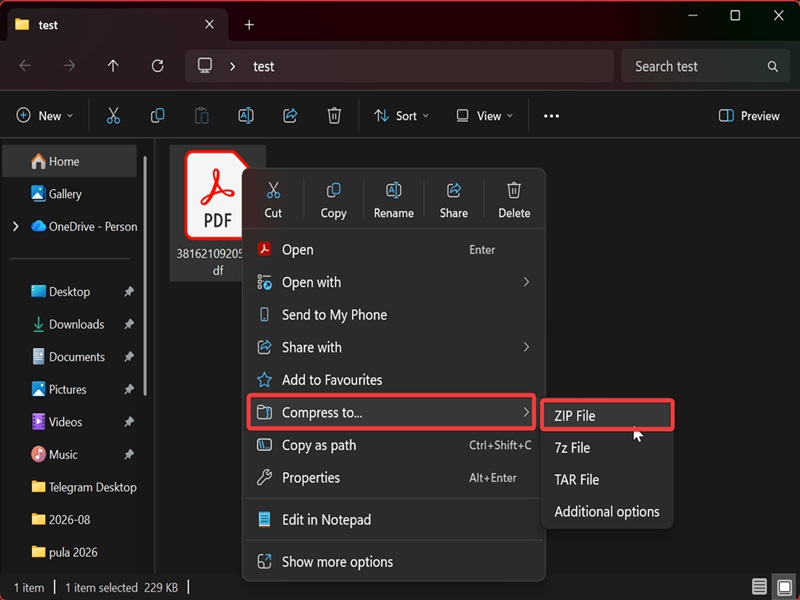
Via "Compress to..." in the context menu
This is one of the easiest methods:
- Select and right-click the files or folders you want to compress.
- Select Compress to... from the context menu, and then choose a format (ZIP, 7z, or TAR).
- You can also click on Additional options. There, you can choose a compression method and compression level if needed. When you make your selections, click the Create button.
- Name the file.
Via the command bar in File Explorer
Alternatively, you can try this:
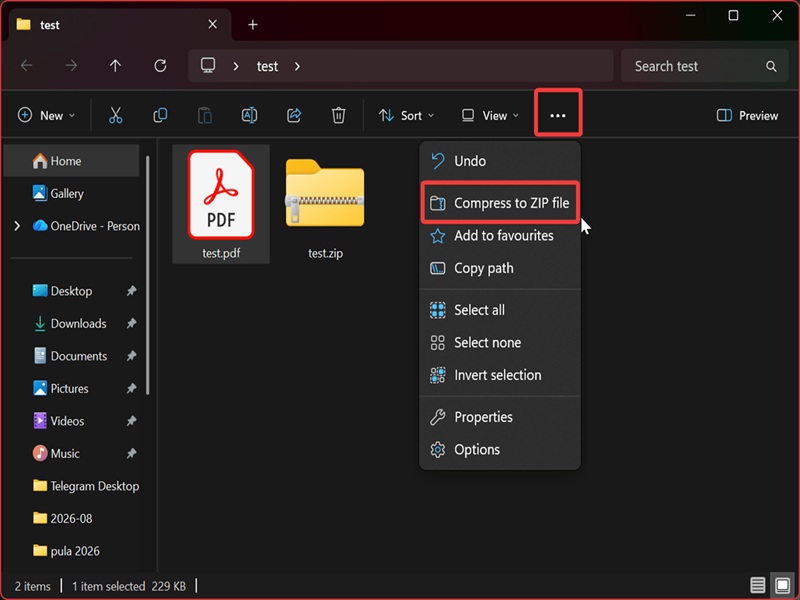
- Select the files and folders you want to ZIP in File Explorer.
- Click the three dots (See more) button in the command bar at the top.
- Select Compress to ZIP file.
- Name the file.
Via "Send to" in the context menu
You can also send a quick copy of a ZIP file by doing this:
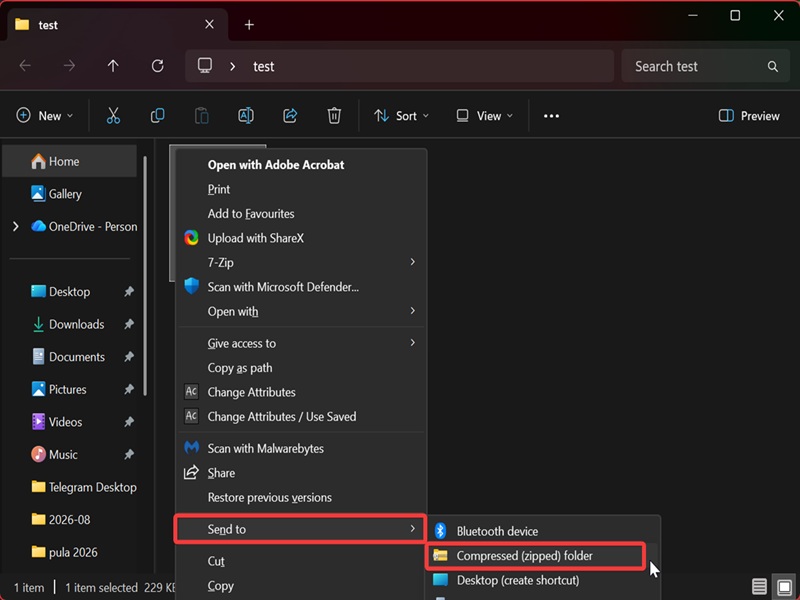
- Select and right-click the files and folders you want to ZIP.
- Choose Show more options > Send to > Compressed (zipped) folder.
- Name the file.
Via command
If you prefer a terminal-based approach, we've got you. You can use the Compress-Archive command:
- Press Win + X, select Terminal, and open either Command Prompt or PowerShell.
- Type the following commands and hit Enter, but make sure you replace the placeholders with the full paths to the relevant files. You can get the full path for the file/folder you want by right-clicking it and selecting Copy as path. However, be careful about the quotation marks in the commands.
- To ZIP a single file: PowerShell -Command "Compress-Archive -LiteralPath '
' -DestinationPath ' .zip'" - To ZIP a folder, including all its files and subdirectories: PowerShell -Command "Compress-Archive -LiteralPath '
' -DestinationPath ' .zip'" - To ZIP only the files and subdirectories within a specific folder: PowerShell -Command "Compress-Archive -Path '
\*' -DestinationPath ' .zip'" - To ZIP only the files in the root directory of a specific folder: PowerShell -Command "Compress-Archive -Path '
\*.*' -DestinationPath ' .zip'"
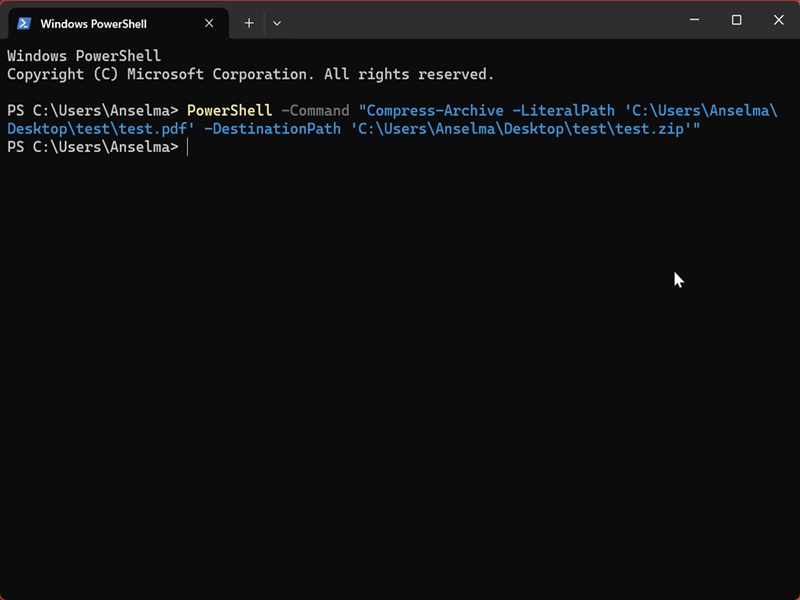
So, for example, if I wanted to ZIP a PDF file called "test" in a desktop folder also called "test", the full command would look like this: PowerShell -Command "Compress-Archive -LiteralPath 'C:\Users\Anselma\Desktop\test\test.pdf' -DestinationPath 'C:\Users\Anselma\Desktop\test\test.zip'"
Still, if you'd like more control over the process, a third-party tool is better. I personally prefer 7-Zip! Feel free to check out our list of compression tools - you're certain to find something there.

|
selma citakovic
Selma is a gamer, geek and gremlin hunter with a passion for cyber security and smashing Windows bugs before they bite. She’s IBM-certified, loves real freeware, despises bloatware, and powers most of her troubleshooting with an unhealthy amount of coffee. |
comments powered by Disqus
