


5 Ways To Open the Recycle Bin in Windows 11
By selma čitakovićon 10/15/2026 |
![{$insert['content_title']](/content/file/6373_image3.jpg
)
Depending on your deleting habits, you may need to visit the Recycle Bin pretty often. It safekeeps all your removed files and folders until you permanently delete them, or restore them. It's also pretty easy to find if you keep it on your desktop.
Still, that's only one of the many ways you can access it. If the desktop icon goes missing (which sometimes happens after updates - it's fun), you may be scratching your head and wondering how to find it.
Here are some alternatives!
Via desktop
Usually, you can find the Recycle Bin on the desktop (Win + D). All you need to do is double-click the icon to open it.
However, if the icon isn't there, you should try this:
- Right-click the desktop and select View.
- Check if Show desktop icons is enabled.
Then do the following:
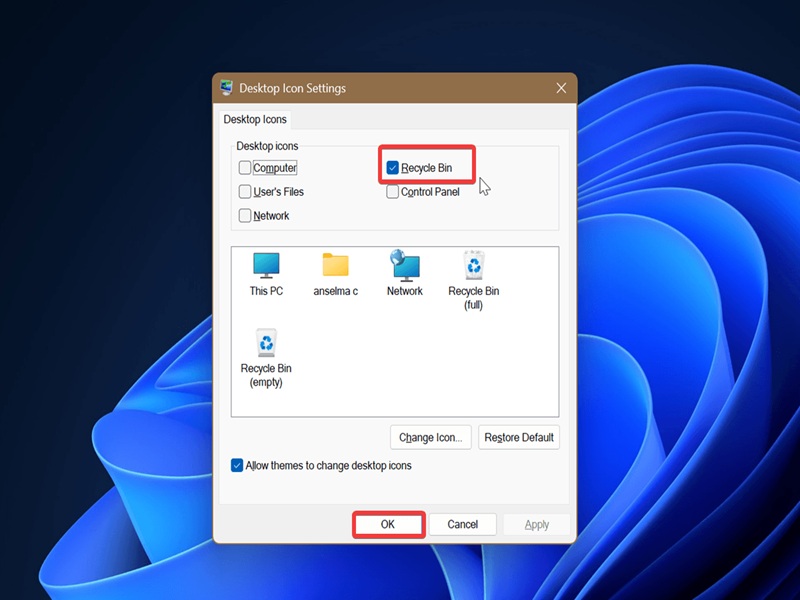
- Go to Settings > Personalization > Themes.
- Select Desktop icon settings.
- In the new window that opens, make sure Recycle Bin is checked, and click OK.
Via File Explorer
Another easy way to open Recycle Bin is this:
- Open File Explorer and click the address bar at the top.
- Type Recycle Bin into it, and hit Enter.
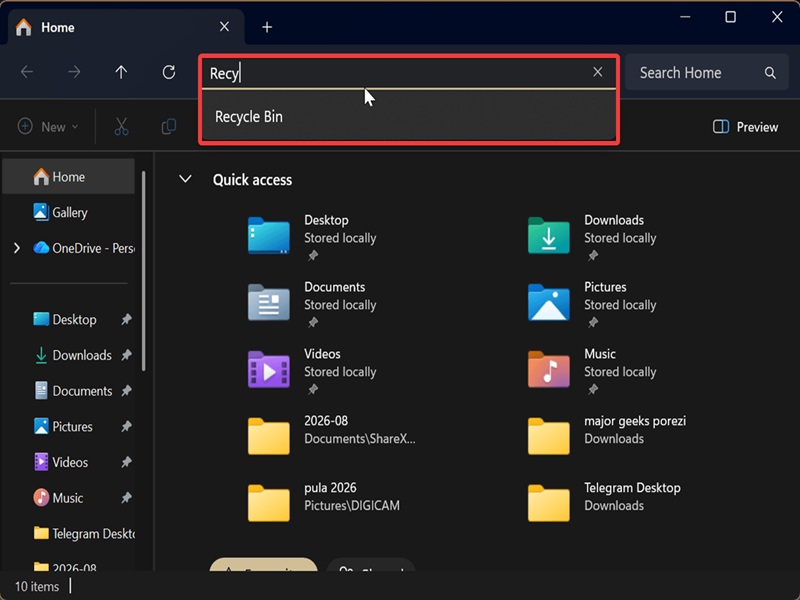
Or if you've enabled Show all folders in File Explorer, you can find the icon for Recycle Bin in the navigation pane on the left. If you haven't, right-click an empty spot on the navigation pane and select Show all folders.
Via Windows Search
Alternatively, you can attempt to open it with Windows Search. It's frustrating because this works only sometimes, when Search decides to cooperate and show you the Recycle Bin.
Try typing "Recycle Bin" in the search bar, and if you're lucky, you'll see it appear as a system app. Click Open under it.
Via PowerShell or Command Prompt
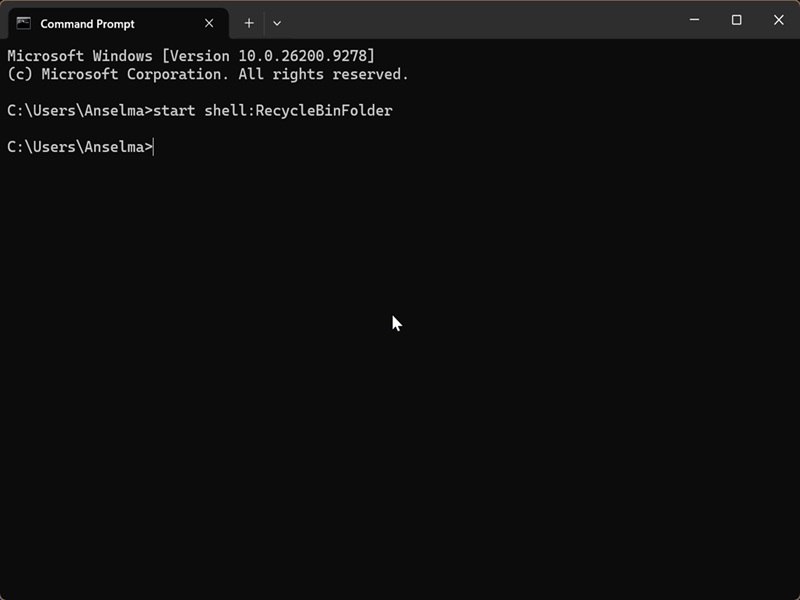
A more reliable method is to use a command:
- Press Win + X and select Terminal.
- Open either PowerShell or Command Prompt; it doesn't matter.
- Paste the following command and press Enter: start shell:RecycleBinFolder
- Alternatively, you can also try this: explorer "shell:::{645FF040-5081-101B-9F08-00AA002F954E}"
Via Run dialog
Lastly, you can open the Recycle Bin with the Run command:
- Press Win + R.
- Paste shell:RecycleBinFolder OR shell:::{645FF040-5081-101B-9F08-00AA002F954E} and hit Enter.
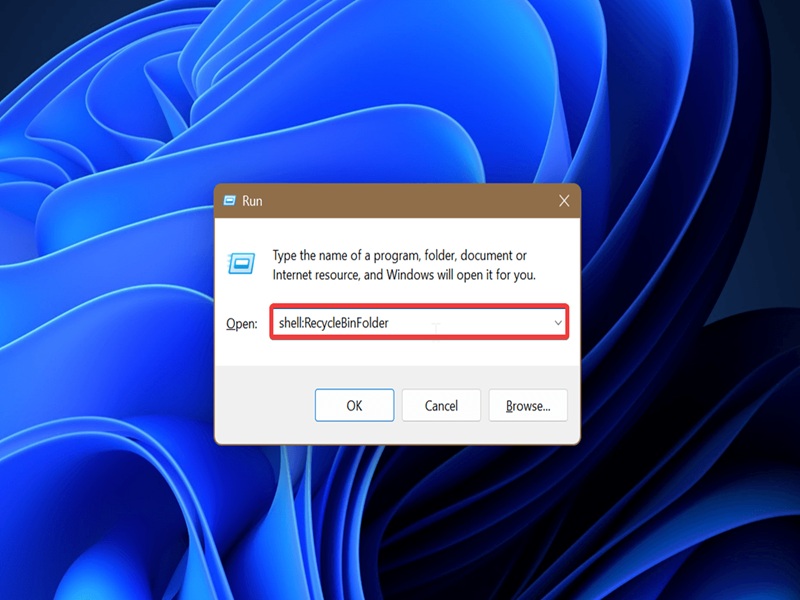
Either command works.
We hope this helps! Don't forget to empty your Recycle Bin from time to time. It's not meant to keep your deleted files and folders forever.

|
selma citakovic
Selma is a gamer, geek and gremlin hunter with a passion for cyber security and smashing Windows bugs before they bite. She’s IBM-certified, loves real freeware, despises bloatware, and powers most of her troubleshooting with an unhealthy amount of coffee. |
comments powered by Disqus
