


All You Need To Know About KIR (Known Issue Rollback)
By selma čitakovićon 08/22/2026 |
![{$insert['content_title']](/content/file/6350_image3.jpg
)
A Known Issue Rollback (KIR) acts like a band-aid fix for problematic Windows Updates. Once Microsoft acknowledges the issues (which doesn't always happen, as we all know), it will generate a KIR to undo it. In most cases, Windows Update will apply the fix itself, and you won't have to do anything. It's designed to apply automatically for everyone except Enterprise edition users.
But sometimes, hiccups happen, and you may have to do it manually. This quick guide will show you how to do it.
How To Apply KIR
First, you'll need to download the proper KIR policy definition .msi file. You can find it on the Windows release health dashboard. Make sure you visit the right page for your installed version. There's one for Windows 11 26H1, 25H2, 24H2, and Windows 10 22H2.
When you find the issue you're trying to fix, scroll down a bit, and there should be a section with download links for group policies.
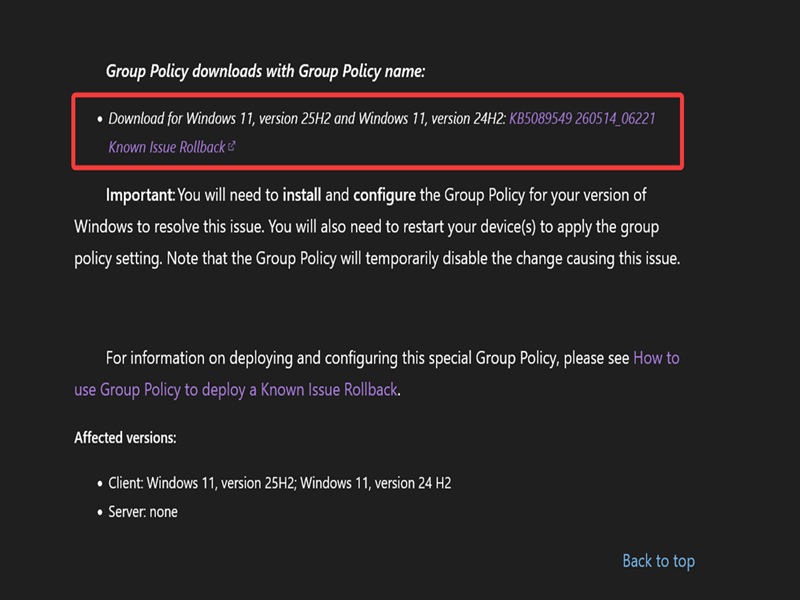
Once you download the .msi file, double-click it to install it. Go through the installation wizard by clicking on Next, then Finish.
After that, it's time to open the Local Group Policy Editor:
- Press Win + R, type gpedit.msc, and hit Enter.
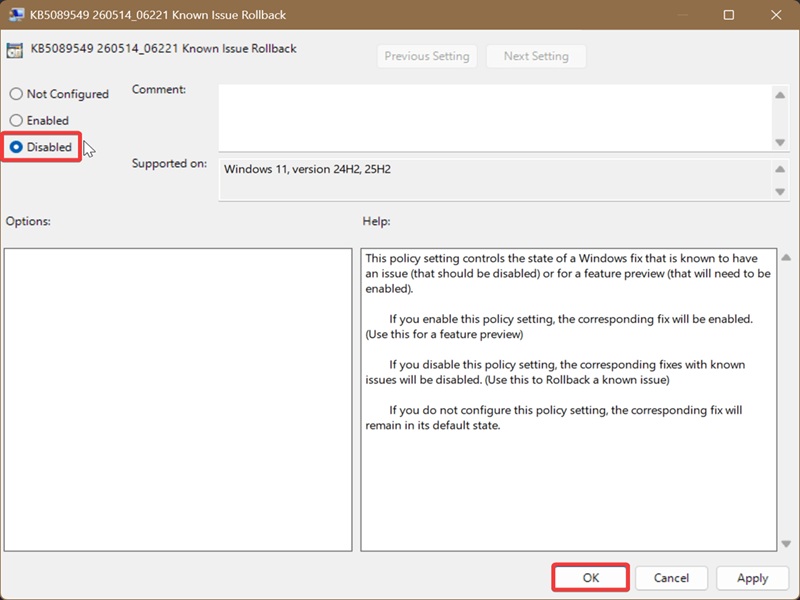
- Go to Computer Configuration > Administrative Templates > KB####### Known Issue Rollback > Windows 11, version 2452, 25H2 on the left. The specific name for the KIR will depend on what you've downloaded.
- Double-click the Known Issue Rollback policy on the right side to edit it.
- Select Disabled, and click on OK.
- Restart your PC to apply the changes.
Home users can't access the Local Group Policy Editor by default, but there's a workaround you can try.
The example I've used here is the KIR issued for the May 2026 update. This specific update refused to install normally for most users, and a lot have also reported other problems, such as slow internet and crashes. Microsoft addressed the issue relatively on time, but it's good to know how to apply the KIR by yourself just in case.

|
selma citakovic
Selma is a gamer, geek and gremlin hunter with a passion for cyber security and smashing Windows bugs before they bite. She’s IBM-certified, loves real freeware, despises bloatware, and powers most of her troubleshooting with an unhealthy amount of coffee. |
comments powered by Disqus
