


The May 2026 Windows Update is Breaking Things - Here's the Fix
By selma čitakovićon 06/03/2026 |
![{$insert['content_title']](/content/file/6121_image1.jpg
)
You never know what to expect on Patch Tuesday. Will it just be another normal update, or the kind that causes trouble? Well, this time, it's the latter.
Update KB5089549, released on May 12, is reported to cause installation failures on Windows 11 25H2 and 24H2. To be more precise, it partially installs, but then fails at the reboot phase. You may see a message saying "Something didn't go as planned. Undoing changes." The update will then roll back with an error code.
And even if it does install, there are more potential issues. Reddit users have reported several problems shortly after the update, ranging from slow internet (most commonly) to crashes and performance drops. I lucked out and didn't notice anything strange on my laptop after installing the update.
But if you're not so fortunate, here's what you can do to fix this mess.
Apply Known Issue Rollback (KIR)
The Windows release health page has finally acknowledged the issue, after a slight delay. However, it only mentions installation failures, not the other problems users have complained about. But we'll take what we can get, I guess.
The official explanation is that the problems affect devices with limited free space on the EFI System Partition. To counter this, Microsoft has released a KIR - Known Issue Rollback. Basically, this will undo the change that caused the problem.
If you're a non-enterprise user, you most likely don't have to do anything. Windows Update will automatically apply the KIR. You can hit the Check for updates button in Settings > Windows Update, or restart to apply it faster.
On the off chance it doesn't work automatically, you can still apply it manually. Enterprise users, on the other hand, have to do it manually by default.
Here are the steps:
- Go to the health status page for Windows 11 24H2 or 25H2, scroll down to Group Policy downloads with Group Policy name, and click the download link there.
- You'll download an MSI file. Double-click it and go through the installation wizard for it. Basically, click Next, wait for it to install, and then click Finish.
- Now, press Win + R, type gpedit.msc, and hit Enter to open the Local Group Policy Editor. (This tool is unavailable to Home edition owners, but there are workarounds for it.)
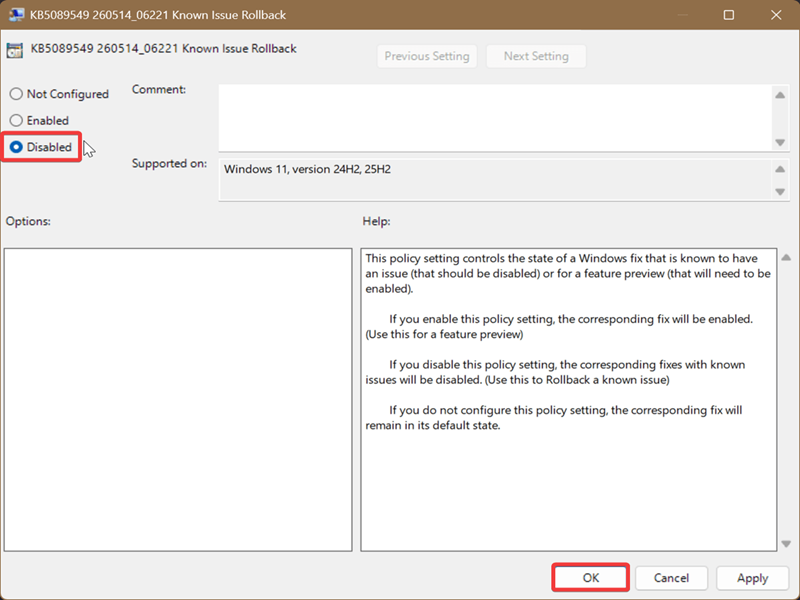
- Navigate to Computer Configuration > Administrative Templates > KB5089549 260514_06221 Known Issue Rollback > Windows 11, version 2452, 25H2 on the left side.
- Double-click the Known Issue Rollback policy on the right.
- Select Disabled, and click OK.
- Restart to fully apply the changes.
Uninstall update
Another way to tackle the issue is to simply uninstall the problematic update. Still, this will only work if the update actually manages to install. So, if you're still stuck in the installation loop, try the other methods in this guide.
Anyway, here's how to uninstall KB5089549:
- Go to Settings > Windows Update > Update history.
- Scroll down and select Uninstall updates, under Related settings.
- Find Security Update for Microsoft Windows (KB5089549), and click Uninstall next to it.
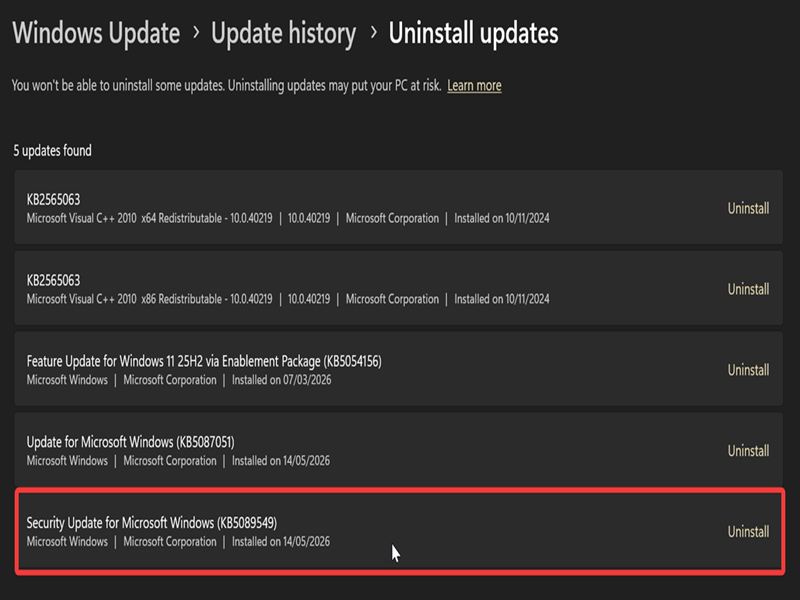
Unfortunately, some updates can't be uninstalled this way, but it should work for this one.
Modify the registry
Finally, you can also edit the relevant ESP registry setting if the update keeps failing.
As always, I recommend creating a system restore point before tinkering with the registry, just in case. However, these steps are literally recommended by the official release health status page, so they should be safe.
- Type cmd in Windows Search, and select Run as administrator.
- Paste the following command and press Enter: reg add "HKLM\SYSTEM\CurrentControlSet\Control\Bfsvc /v EspPaddingPercent /t REG_DWORD /d 0 /f"
- Restart to apply it, and then try installing the update again.
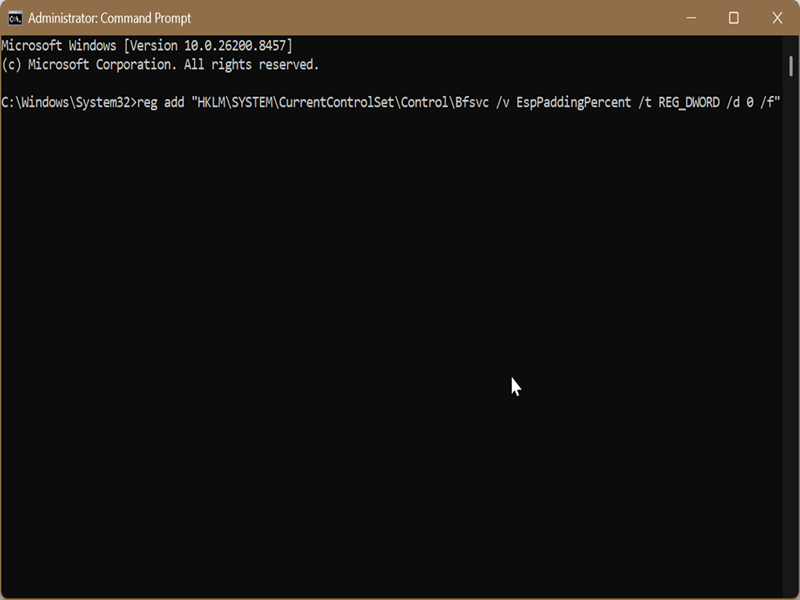
The above command should add a DWORD key "EspPaddingPercent" with 0 as the value.
One last recommendation for all future Patch Tuesdays: delay your updates. That way, if something goes wrong for other users, you'll have ample time to react. To do so:
- Go to Settings > Windows Update.
- Click the menu next to Pause updates, and choose how long you want to pause them.
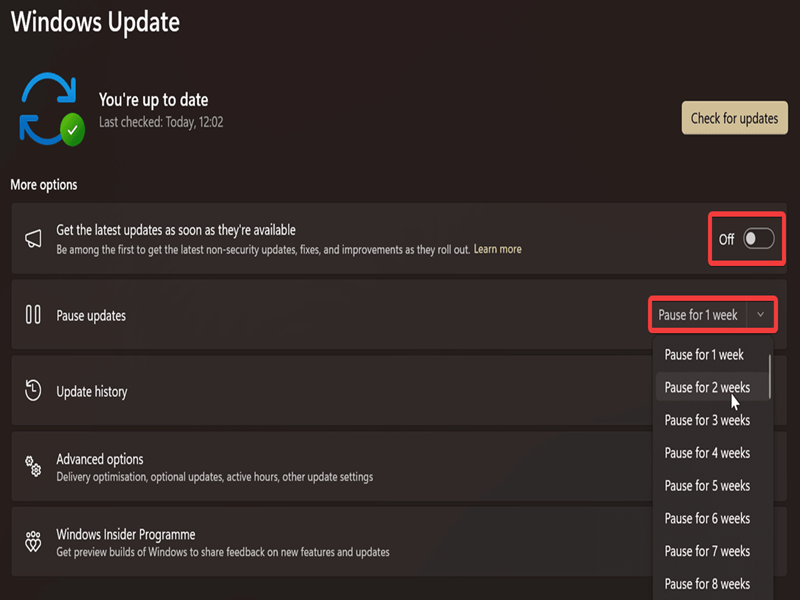
And while you're there, disable Get the latest updates as soon as they're available, if you haven't already.
We also have a guide on how to pause updates for longer than the default maximum of 5 weeks. But don't go too crazy with the delays - as troublesome as the updates sometimes are, they're there for a reason.

|
selma citakovic
Selma is a gamer, geek and gremlin hunter with a passion for cyber security and smashing Windows bugs before they bite. She’s IBM-certified, loves real freeware, despises bloatware, and powers most of her troubleshooting with an unhealthy amount of coffee. |
comments powered by Disqus
