


Can't See File Extensions in Windows 11? Here's How to Show Them
By selma čitakovićon 08/01/2026 |
![{$insert['content_title']](/content/file/6210_image3.jpg
)
Windows hides file name extensions by default, which I'm not really a fan of. Some users may benefit from the simplified file view, but I prefer seeing file extensions. Relying just on icons to tell you what the file type is seems pretty reductive.
On the brighter side, at least it's easy to enable them. We'll show you how below.
Via command bar
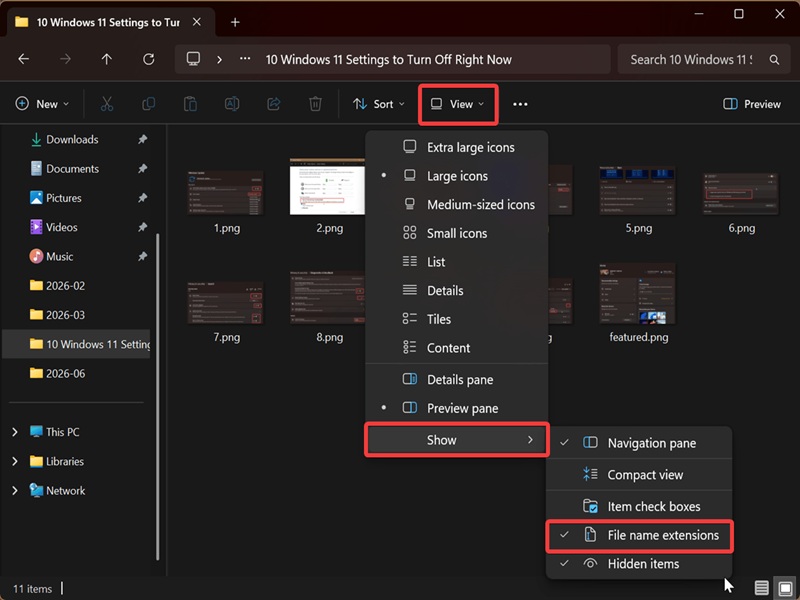
You can display or hide file extensions right from File Explorer, although it's not immediately obvious. Here's how:
- Open File Explorer and click on View on the command bar.
- Select Show > File name extensions.
- Check it to enable them, or uncheck it to hide them.
Via Folder Options
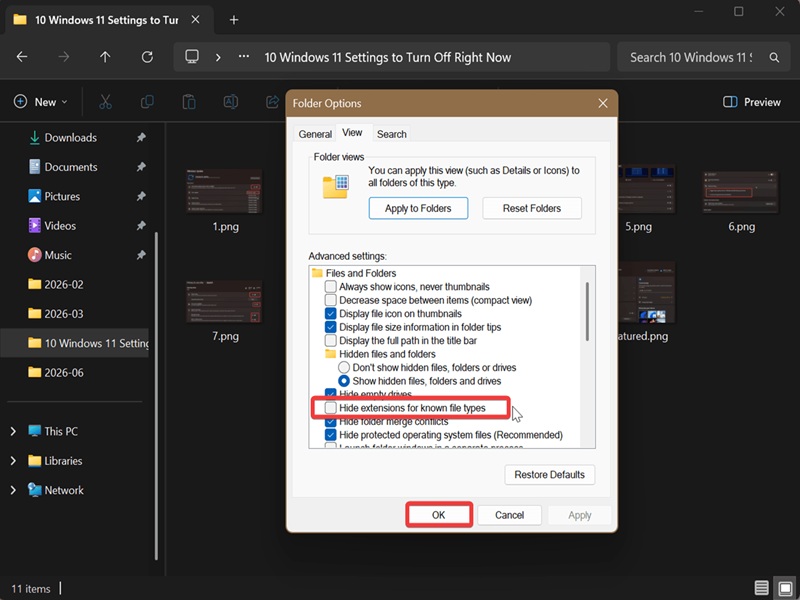
Or, you could do this instead:
- Open File Explorer and click the three dots in the command bar.
- Select Options.
- This will open Folder Options. Go to the View tab.
- Find Hide extensions for known file types under Files and Folders in the list of options.
- Uncheck it to show extensions, or check it to hide them.
- Click OK when done.
Via Settings
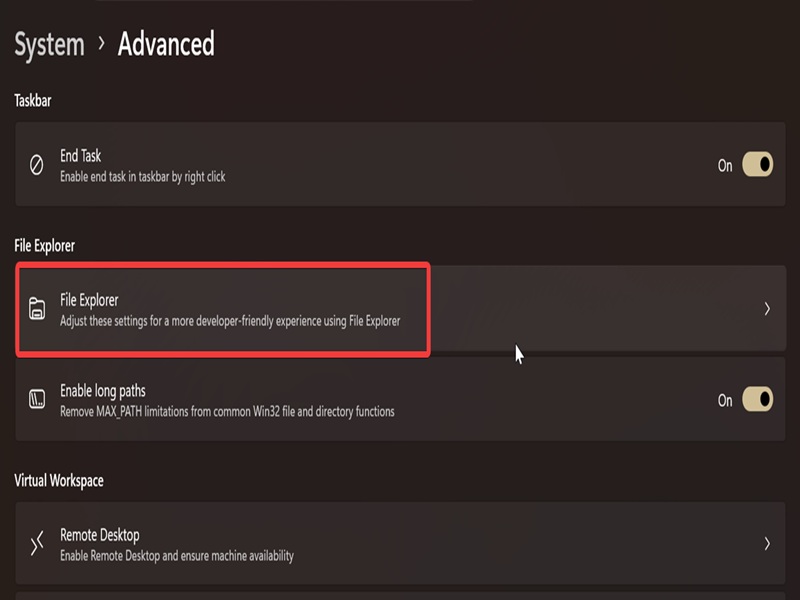
You can also find the option for file extensions here:
- Go to Settings > System > Advanced.
- Select File Explorer.
- Toggle on or off Show file extensions.
And that's it!
Usually, one of the first things I do after a fresh installation is show file extensions and hidden files. It just makes more sense that way. The only real advantage of keeping them out of sight is to prevent users from accidentally deleting or changing the extension. So, if that sounds like something that could happen to you, feel free to hide them. Otherwise, just enable them.

|
selma citakovic
Selma is a gamer, geek and gremlin hunter with a passion for cyber security and smashing Windows bugs before they bite. She’s IBM-certified, loves real freeware, despises bloatware, and powers most of her troubleshooting with an unhealthy amount of coffee. |
comments powered by Disqus
