


Disable These 5 Windows 11 Settings for Stronger Security Today
By selma čitakovićon 01/03/2026 |
Windows has a spotty track record when it comes to data privacy and security. Aside from routinely spying on its users with telemetry, it loves introducing features that can easily turn into exploitable vulnerabilities. Windows Recall is only one of the latest examples. The initial reactions to it were so overwhelmingly negative that Windows quickly backpedalled and rolled it back.
Below, I'll explain why it's potentially unsafe, and cover other settings that are hacker bait if misconfigured. Of course, I'll also show you how to disable them, step by step.
Windows Recall
Windows Recall is an optional, AI-powered feature that takes screenshots of your PC activity. Every few seconds, it will take a snapshot of your screen and add it to a searchable timeline. You can then revisit your past activities and look for that one email you opened the other day, for example. Right now, it's only available on Windows 11 Copilot+ PCs.
Yeah, I don't like the sound of that. But it gets worse: when Recall was introduced in June 2024, it saved all the screenshots unencrypted, including your passwords in plaintext format. After that blunder, Microsoft temporarily removed the feature and rolled out an improved version, with encryption, biometric authentication, and more. It's now part of the optional Windows 11 updates on select devices.
Now, thanks to encryption (which should have been there in the first place), your data is protected at the user account level. However, if somebody steals your user credentials or malware compromises your PC, attackers could gain access to all your data from a single point. It's a security and privacy nightmare. Moreover, Recall's filters for sensitive information aren't guaranteed to catch every bit of info.
In short, you should just disable this feature until Microsoft gets its act together. Again, it's only available on Copilot+ PCs, which hardly anyone owns anyway. But if you do, here's how to turn it off:
- Go to Settings > Privacy & security > Recall & snapshots
- Toggle off Save snapshots. You can also click on Delete snapshots to remove existing data.
Alternatively, you can do this:
- Type Windows features in Windows Search.
- Open Turn Windows features on or off.
- Find Recall on the list, and toggle it off.
Clipboard history
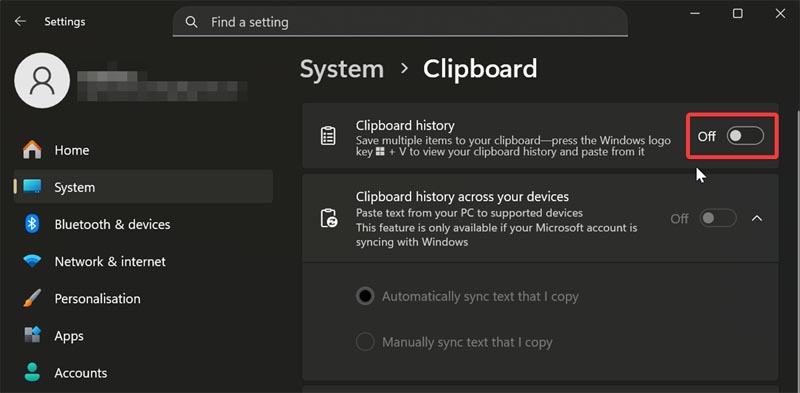
Your Clipboard history remembers up to 25 items you've previously copied. You can quickly paste them, pin the most important ones, and also sync them to the cloud over multiple devices. If you copy sensitive information like passwords, you can see why Clipboard history can be a bad idea. It's convenient, but not worth the combined risks of unauthorized access, malware, and unintended syncing across multiple devices.
To disable it:
- Go to Settings > System > Clipboard.
- Toggle off Clipboard history.
Network discovery
Network discovery allows your device to find other connected devices on the same network. Additionally, others can see and find your device as well. It's a two-way communication. This is especially useful for printers and shared folders.
Now, it's all fine and dandy if you're on your private home network, with trusted devices. But it's a whole other story for public networks. They lack security measures, and you can never know who else is also connected. Public networks are one of the favorite hunting grounds for attackers. You may be open to man-in-the-middle attacks, malware, session hijacking, and more.
Now, network discovery should be off by default for public networks, but you can still check:
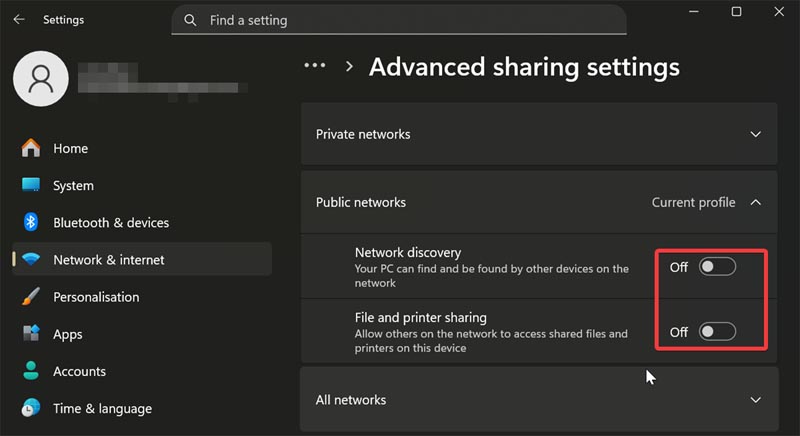
- Go to Settings > Network & internet > Advanced network settings > Advanced sharing settings.
- Under Public networks, toggle off Network discovery and File and printer sharing.
Automatic network connection
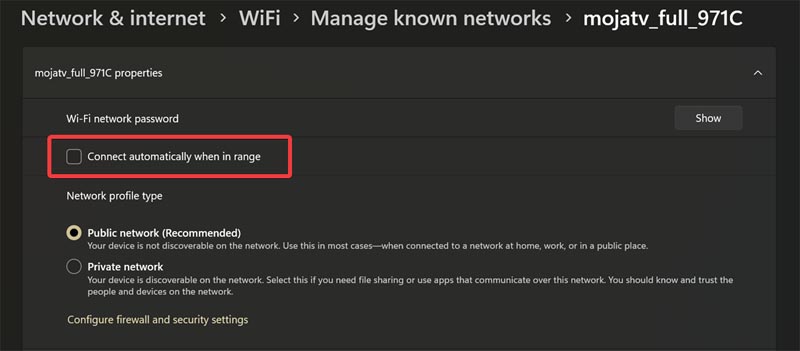
You can manage all your known networks from the Settings, as Windows remembers the ones you've previously connected to. You can set it up to automatically connect to them whenever you're in range. Again, it may be convenient in some cases, but it's a risk if you're reconnecting to old public networks.
You should disable it, just in case:
- Go to Settings > Network & internet > WiFi > Manage known networks.
- You'll see a list of all your previous connections. Click on the ones you want to manage, and toggle off Connect automatically when in range.
Remote desktop and assistance
Remote desktop, as the name suggests, lets you access a Windows PC remotely. You can set up your computer to be a client machine (the one you're connecting from) or a server (the one you're connecting to). Similarly, Remote assistance is an IT support feature that allows professionals and technicians to remotely take over your device and troubleshoot issues.
Remote desktop connections can be safe with proper security measures in place, like using a VPN to connect to your office PC. But if you're unprepared, you'll be exposed to malware attacks, session hijacking, and unauthorized access. So, if you're not using these features, it's best to turn them off:
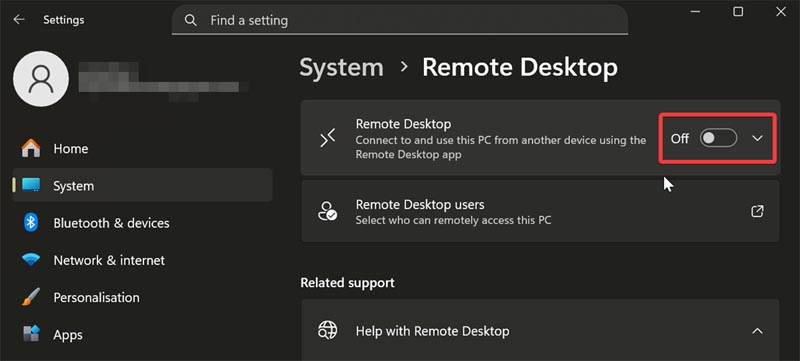
- Go to Settings > System > Remote Desktop, and toggle it off.
- From System, scroll down to the bottom and go to About.
- Under your Device specifications, click on the Advanced system settings tab.
- In the System Properties window, go to Remote and uncheck Allow Remote Assistance connections to this computer.
After following these steps, your Windows PC should be more secure. Windows Recall, clipboard history, and similar options may be convenient, but the security and privacy risks can't be ignored.
As always, I recommend a healthy dose of skepticism towards features that collect your data while promising to "simplify" tasks. Public networks and remote connections are also ripe for exploitation, but you can mitigate many risks with basic cybersecurity practices.

|
selma citakovic
Selma is a gamer, geek and gremlin hunter with a passion for cyber security and smashing Windows bugs before they bite. She’s IBM-certified, loves real freeware, despises bloatware, and powers most of her troubleshooting with an unhealthy amount of coffee. |
comments powered by Disqus
