


Energy Saver - How To Turn It On or Off
By selma čitakovićon 08/02/2026 |
![{$insert['content_title']](/content/file/6179_image3.jpg
)
Energy saver lets you conserve power and extend your battery life. You can turn it on manually when you need it, or set it up to run automatically when your battery runs low. It works on desktop PCs as well - minus the battery life part. It can help you lower your PC's energy consumption.
Together with power plans and power modes, it's another power management option in Windows 11. It works by lowering your screen brightness, limiting background processes, and reducing flashy visual effects.
Personally, I rarely use energy saver since I keep my laptop plugged in almost all the time and basically treat it like a desktop PC. However, the few times I've experienced a power outage and really needed my laptop to last through it, it came in handy. I managed to squeeze out an extra hour with it.
Here's how to use it!
Via Taskbar
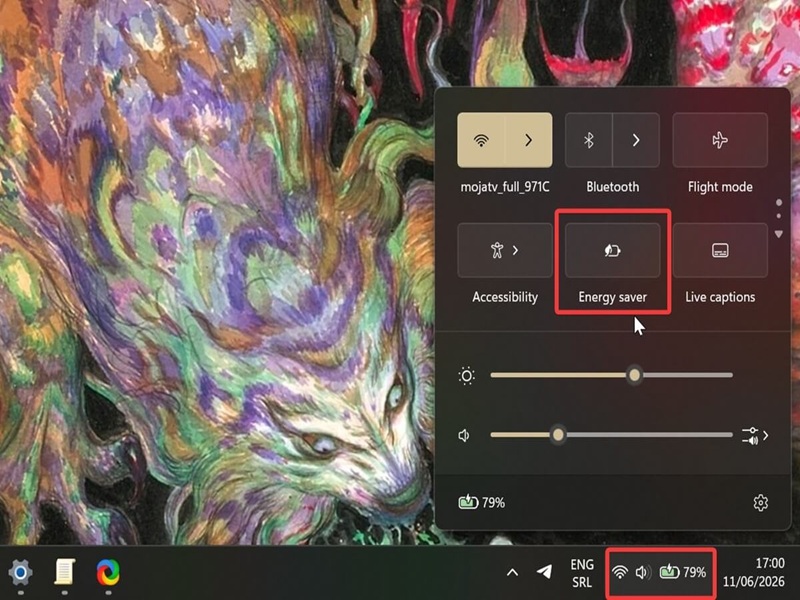
The easiest way to toggle it on and off is right on the taskbar:
- Click the battery icon in the right corner to open Quick Settings. Or, you can press Win + A.
- Click the Energy Saver button to turn it on/off.
Via Settings
Alternatively, you can try this:
- Go to Settings > System > Power & battery.
- Select Energy saver.
- Toggle on or off Always use energy saver.
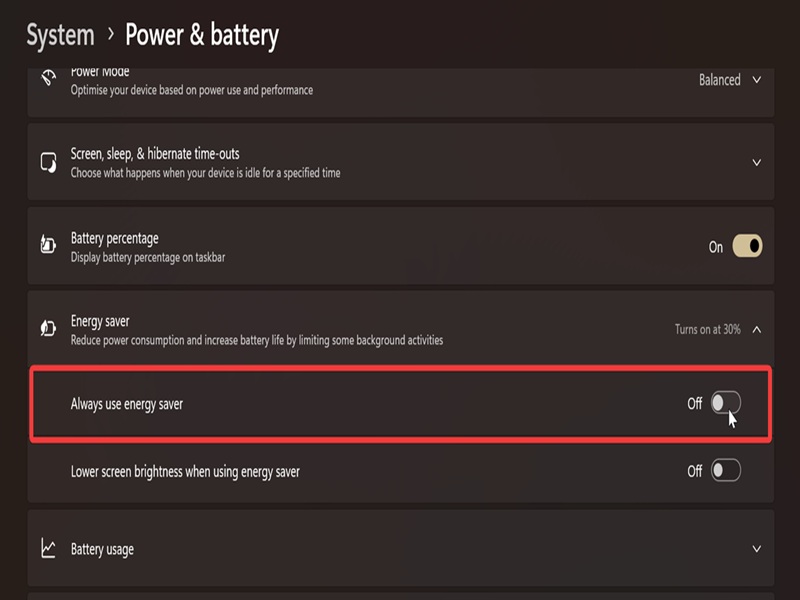
You may also see another option here: Turn energy saver on automatically when battery level is at... If available, you can select: Never, 10%, 20%, 30%, 40%, 50%, or Always.
If you don't see this option, try the next method.
Via command
You can configure the energy saver to turn on automatically at a certain battery percentage by doing this:
- Press Win + X and select Terminal.
- Open either Command Prompt or PowerShell; both work.
- Type the following command: powercfg /setdcvalueindex SCHEME_CURRENT SUB_ENERGYSAVER ESBATTTHRESHOLD *percentage*, but replace the placeholder at the end with the number you want. Hit Enter.
- For example, I typed: powercfg /setdcvalueindex SCHEME_CURRENT SUB_ENERGYSAVER ESBATTTHRESHOLD 40
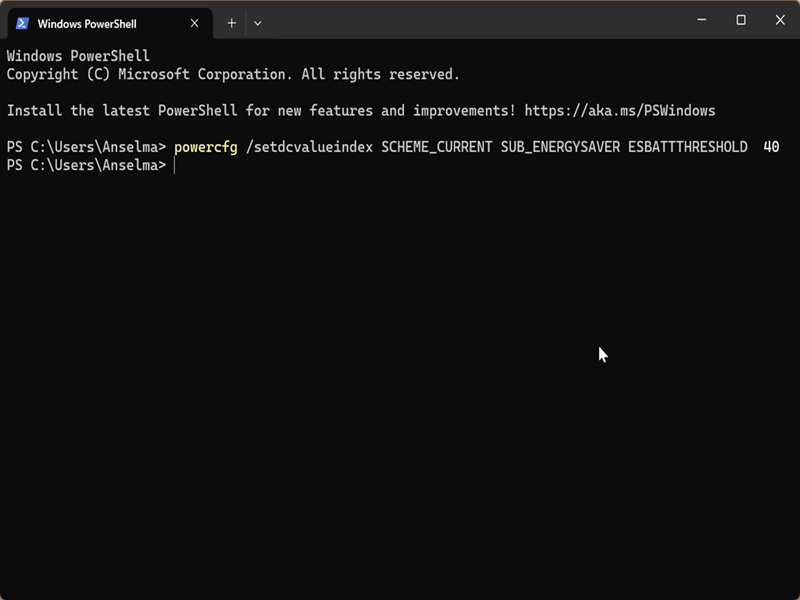
If you type 0, it will never turn on automatically. Likewise, if you type in 100, it will always be on.
Via Local Group Policy Editor
Finally, you can use the Group Policy Editor to adjust the same settings. However, only some Windows editions (namely, Pro, Education, and Enterprise) include this tool by default. If you're on the Home edition, you'll have to use workarounds.
Make sure you sign in as an administrator, and do the following:
- Press Win + R, type gpedit.msc, and hit Enter.
- Navigate to Computer Configuration > Administrative Templates > System > Power Management > Energy Saver Settings on the left.
- Double-click Enable Energy Saver to Always Be On
- To turn on Energy Saver: Select Enabled and click OK.
- To turn it off: Select Disabled and click on OK.
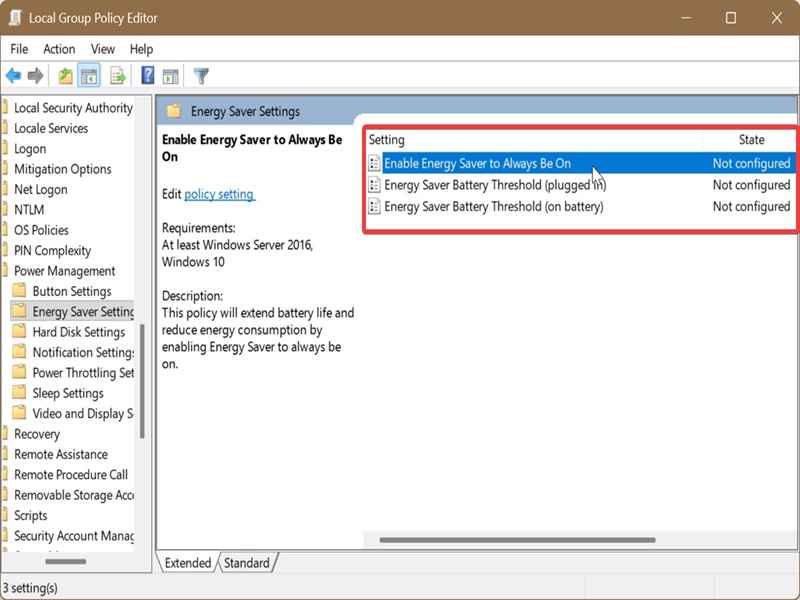
Additionally, while in the Energy Saver Settings folder, you'll see two more policies: Energy Saver Battery Threshold (plugged in) and Energy Saver Battery Threshold (on battery). They determine at which battery percentage the energy saver will turn itself on, depending on whether your device is plugged in or on battery.
To enable it, double-click the policy you want, select Enabled, and then type in a number for the percentage in the dropdown menu. Click OK when done.
If you enable/disable any of these policies, they will overrule the options you can find in Settings. Until you set them as Not configured, you won't be able to toggle energy saver on/off that way.

|
selma citakovic
Selma is a gamer, geek and gremlin hunter with a passion for cyber security and smashing Windows bugs before they bite. She’s IBM-certified, loves real freeware, despises bloatware, and powers most of her troubleshooting with an unhealthy amount of coffee. |
comments powered by Disqus
