


Power Plan vs Power Mode in Windows 11 - What's the Difference?
By selma čitakovićon 05/16/2026 |
![{$insert['content_title']](/content/file/6001_image2.png
)
If you've been digging around the power settings in Windows 11, you may have noticed that there are both Power Plan and Power Mode options. So, what's the point of having two sets of settings for pretty much the same thing? Other than the usual Windows shenanigans of making everything more confusing than it needs to be, that is.
Despite looking the same, they do differ.
Power plans are legacy settings available in the Control Panel. They contain in-depth options for energy management, including various hardware and system settings. For example, you can customize the display brightness, sleep timers, processor and hard disk power management, etc. The default power plans are Balanced, Power saver, High performance, Ultimate performance, and Custom. However, Windows 11 devices that support Modern Standby will most often only have the Balanced plan available by default, but you can add custom plans.
On the other hand, power modes are the more modern iteration you can find right in the Settings. They're also only available if you've enabled the Balanced power plan. So, the option depends on the power plan you're using. Additionally, they're more focused on quick performance tweaks, depending on whether your device is plugged in or relying on its battery. You can choose between three modes (Best Power Efficiency, Balanced, Best Performance) that you can't customize.
Basically, power modes are only relevant if you're using the Balanced power plan. They let you quickly switch between three performance presets for it. For more precise control over your power usage, check out custom power plans.
Yes, the fact that the two are separated like that is confusing and probably not the greatest idea, but at least now you know what they do. Here's how to adjust them to your liking!
Change power plan via Control Panel
First, let me show you how to change power plans the "intended" way:
- Type Control Panel in Windows Search, and click Open.
- Choose either Small icons or Large icons view on the top right, and select Power Options.
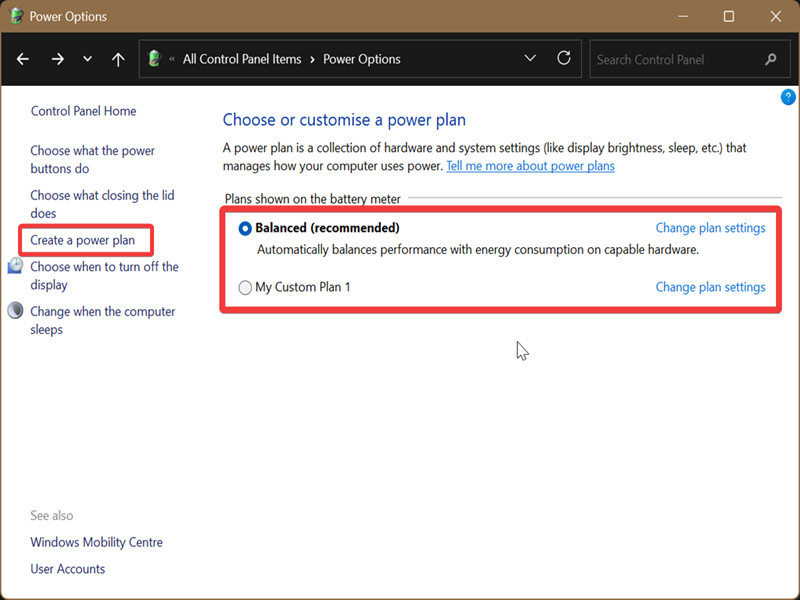
- Choose a plan from the default options.
- Or, you can add a custom plan by clicking on Create a power plan on the left side.
- Select an existing plan, name it, and click Next.
- Adjust the display and sleep settings, and click Create.
- You can then click on Change plan settings next to your custom plan, and then Change advanced power settings. You can customize every detail under Advanced settings.
- Click OK when you're done to apply the changes.
Change power plan via command
Alternatively, you can try this approach:
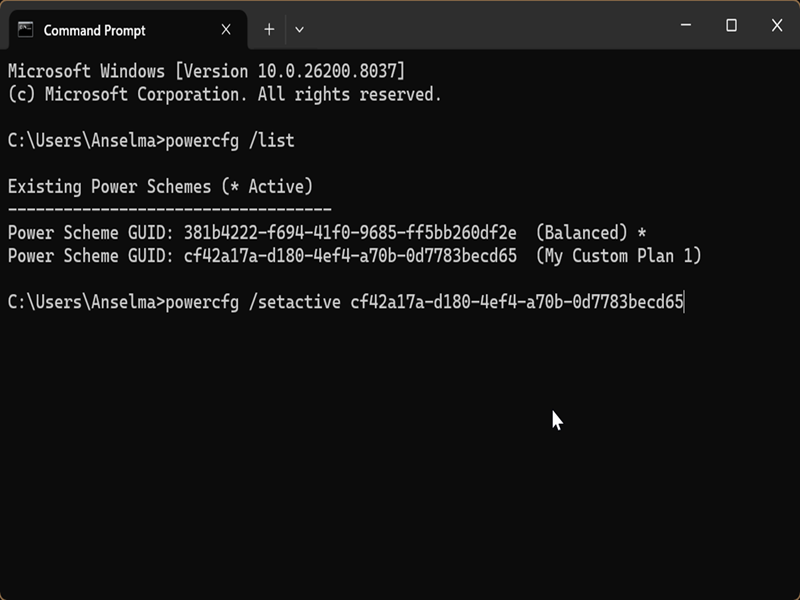
- Press Win + R, type either cmd or powershell, and press Enter.
- Type the following command and hit Enter: powercfg /list
- You'll see a list of all available power plans on your device. Copy the GUID for the plan you want to apply; you'll need it in a moment.
- Now, type this command and press Enter: powercfg /setactive GUID, where you'll replace GUID with the value you just copied.
Change power mode via Settings
To switch to a different power mode, do the following:
- Go to Settings > System > Power & battery.
- Click the Power Mode option to expand it.
- Select Best Power Efficiency, Balanced, or Best Performance in the Plugged in and On battery dropdown menus.
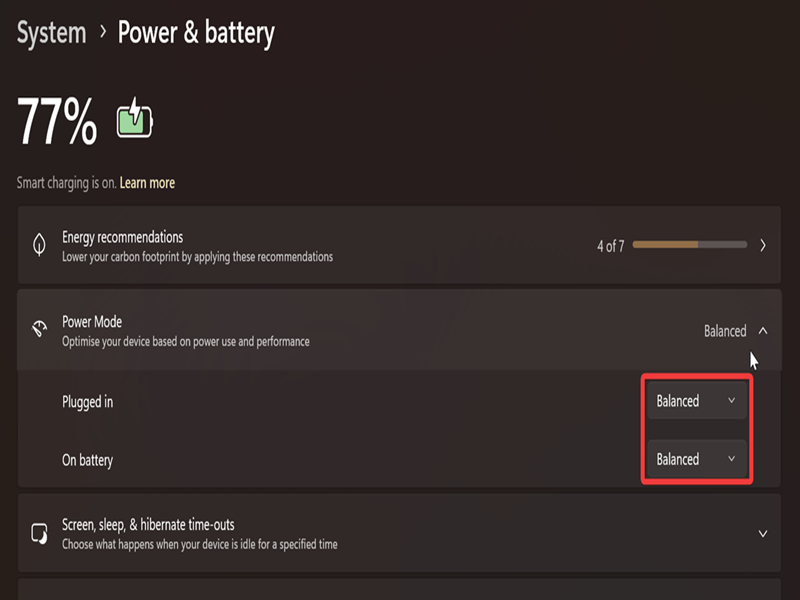
Again, if you're using any other power plan but Balanced, these options will be grayed out and unavailable.

|
selma citakovic
Selma is a gamer, geek and gremlin hunter with a passion for cyber security and smashing Windows bugs before they bite. She’s IBM-certified, loves real freeware, despises bloatware, and powers most of her troubleshooting with an unhealthy amount of coffee. |
comments powered by Disqus
