


Everything You Need to Know About SSD Trim
By Timothy Tibbettson 07/12/2023 |
SSD drives are becoming more and more popular and affordable as larger drives are released, smaller drives become affordable. But, we get a lot of questions about SSD drives, TRIM, and defragmentation. SSD drives are not only faster, but they're also virtually maintenance-free. Here's all you need to know.
What is SSD TRIM?
TRIM (also called Trim or Trim Command) allows your SSD drive to handle garbage more evidentially. TRIM allows the operating system to decide which blocks are already in use so they can be wiped internally. Anytime you delete something, TRIM automatically deletes that page or block. The next time the page or block is written to, the operating system does not have to wait for that block to be deleted. SSD TRIM can prolong the life and performance of your SSD drive.
Make Sure TRIM is Enabled
For your SSD drive to work correctly, TRIM must be enabled. Operating Systems from Windows 7 to Windows 10 should automatically enable TRIM. Once again, we repeat that an SSD drive is virtually maintenance-free.
If you're not sure, press the Windows Key + S and type in Optimize drives and click on Defragment and Optimize Drives. Your drive should be recognized as a Solid State Drive, and TRIM should be enabled.
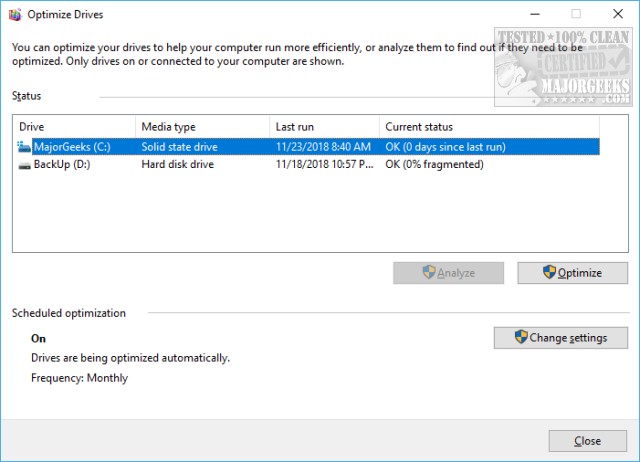
To verify TRIM is enabled, open PowerShell or the Command Prompt and type in fsutil behavior query DisableDeleteNotify. You will get one of two responses:
DisableDeleteNotify = 0 TRIM is enabled
DisableDeleteNotify = 1 TRIM is disabled
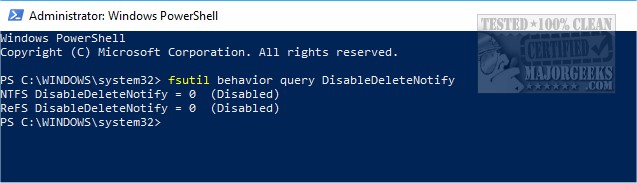
If TRIM is disabled, type in fsutil behavior set DisableDeleteNotify 0, and you're all set.
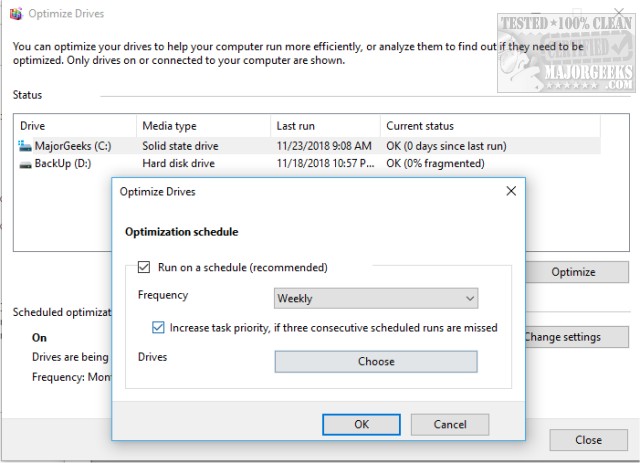
Once again, TRIM should be running on a weekly schedule, but let's make sure. Click on your SSD drive and then click on Optimize. Next, click on Change Settings. Verify that Run on a schedule is set to weekly. This is the setting you want regardless of how much you use your computer. The second box, Increase task priority, should be checked.
To Defrag or Not Defrag - That Is the Question
It seems that there are people who want to argue for or against defragmenting an SSD drive. The majority agree that defragmenting an SSD drive could shorten the drive life. Remember that TRIM is the SSD version of defragmenting.
That said, we've defragmented our SSD hard drive a few times in the past year with no loss in performance, but we're big fans of pushing the envelope and trying to break our computers for fun. We also have backup images and SSD drives, so we have nothing to lose. Don't try this at home.
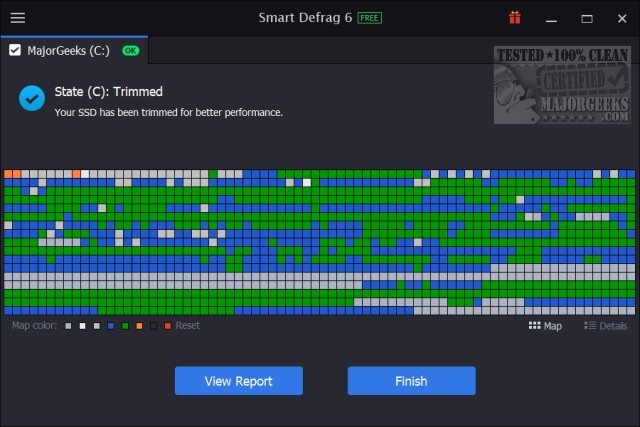
If you're wondering if TRIM can be done better, it probably can. Smart Defrag does a better job while validating TRIM settings for you.
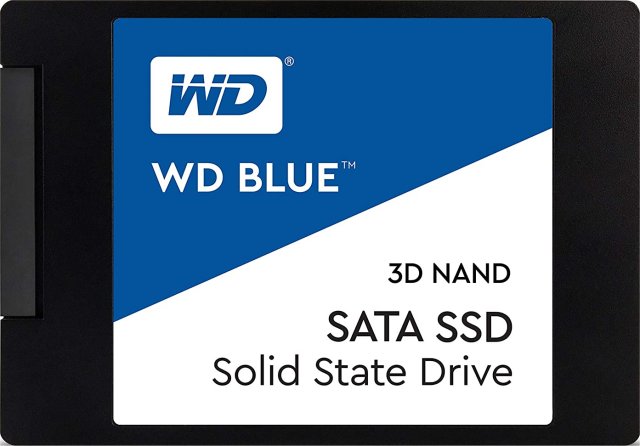
We use Western Digital SSD drives because they have excellent software to transfer Windows to the new drive from your old drive.
comments powered by Disqus
What is SSD TRIM?
TRIM (also called Trim or Trim Command) allows your SSD drive to handle garbage more evidentially. TRIM allows the operating system to decide which blocks are already in use so they can be wiped internally. Anytime you delete something, TRIM automatically deletes that page or block. The next time the page or block is written to, the operating system does not have to wait for that block to be deleted. SSD TRIM can prolong the life and performance of your SSD drive.
Make Sure TRIM is Enabled
For your SSD drive to work correctly, TRIM must be enabled. Operating Systems from Windows 7 to Windows 10 should automatically enable TRIM. Once again, we repeat that an SSD drive is virtually maintenance-free.
If you're not sure, press the Windows Key + S and type in Optimize drives and click on Defragment and Optimize Drives. Your drive should be recognized as a Solid State Drive, and TRIM should be enabled.
To verify TRIM is enabled, open PowerShell or the Command Prompt and type in fsutil behavior query DisableDeleteNotify. You will get one of two responses:
If TRIM is disabled, type in fsutil behavior set DisableDeleteNotify 0, and you're all set.
Once again, TRIM should be running on a weekly schedule, but let's make sure. Click on your SSD drive and then click on Optimize. Next, click on Change Settings. Verify that Run on a schedule is set to weekly. This is the setting you want regardless of how much you use your computer. The second box, Increase task priority, should be checked.
To Defrag or Not Defrag - That Is the Question
It seems that there are people who want to argue for or against defragmenting an SSD drive. The majority agree that defragmenting an SSD drive could shorten the drive life. Remember that TRIM is the SSD version of defragmenting.
That said, we've defragmented our SSD hard drive a few times in the past year with no loss in performance, but we're big fans of pushing the envelope and trying to break our computers for fun. We also have backup images and SSD drives, so we have nothing to lose. Don't try this at home.
If you're wondering if TRIM can be done better, it probably can. Smart Defrag does a better job while validating TRIM settings for you.
We use Western Digital SSD drives because they have excellent software to transfer Windows to the new drive from your old drive.
* As an Amazon Associate, we earn a commission if you purchase an item using our affiliate links
comments powered by Disqus
