


Find Out Exactly When Your Windows 11 PC Was Last Started
By selma čitakovićon 11/12/2026 |
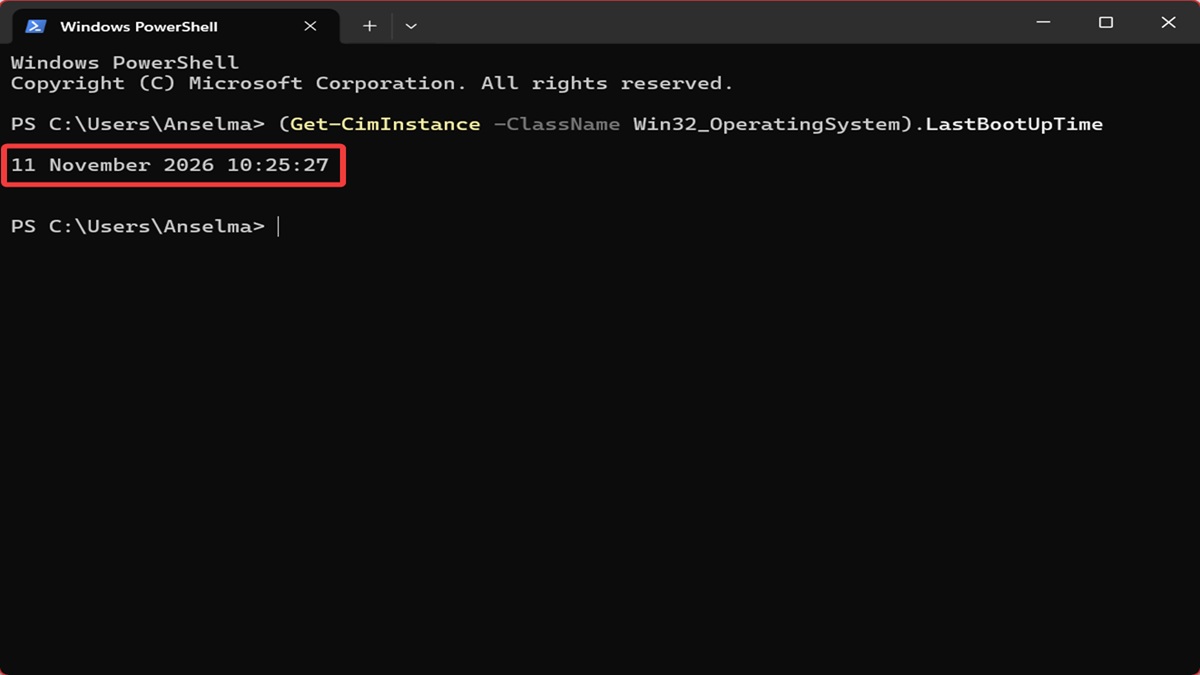
Need to quickly check the last time your system booted?
It's best to look it up with a command and get a straight answer right away.
You can also check the Event Viewer logs, but it's a bit of a hassle. You'll need to go through countless logs and know the right event identifiers for a system startup.
Alternatively, you can keep track of your system uptime and then calculate your last boot date and time. But that also requires more effort than it should.
So, here's the easiest way to track down your last system boot time!
Via Windows Terminal
Follow these steps:
- Press Win + X, select Terminal, and open it.
- Open PowerShell or Command Prompt; whichever you prefer.
- For PowerShell, copy and paste this command: (Get-CimInstance -ClassName Win32_OperatingSystem).LastBootUpTime
- For Command Prompt, copy and paste this one instead: powershell -command "(Get-CimInstance -ClassName Win32_OperatingSystem).LastBootUpTime"
- The output will show you the last time and date your system started.
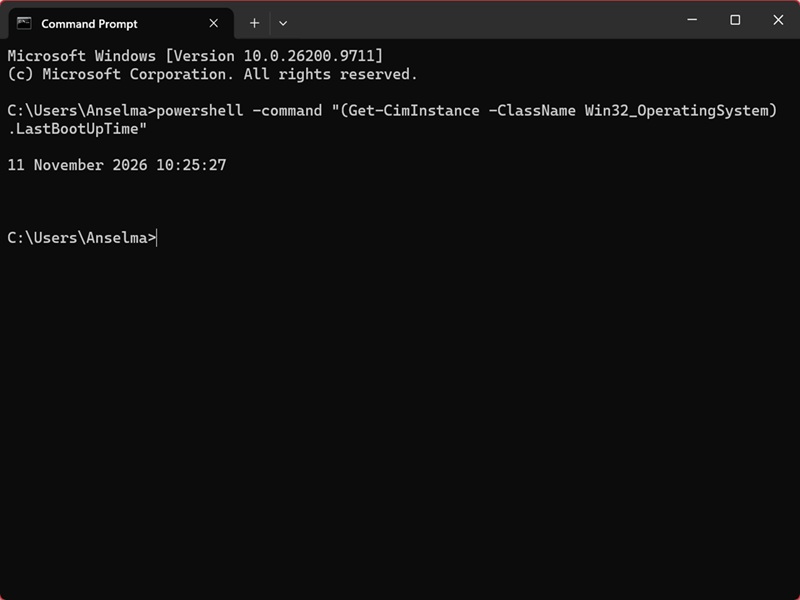
See? That's much quicker than digging through Event logs or comparing it with your system uptime.
You can also try (Get-CimInstance -ClassName Win32_OperatingSystem).LastBootUpTime.ToString('ddd MM/dd/yyyy hh:mm:ss tt') in PowerShell for a different time format.
I hope this helps!

|
selma citakovic
Selma is a gamer, geek and gremlin hunter with a passion for cyber security and smashing Windows bugs before they bite. She’s IBM-certified, loves real freeware, despises bloatware, and powers most of her troubleshooting with an unhealthy amount of coffee. |
comments powered by Disqus
